
View Invoices in Pigeonhole
Once invoices have been sent to you by your nursery, you can view them from the My Invoices page. Access this by clicking “My Invoices” in the main navigation.Dashboard Overview
Your dashboard includes an Outstanding Invoices card that gives you a quick summary of any invoices needing attention, including counts and totals for invoices awaiting payment and any that are overdue. Click “View Invoices” to go straight to the full invoice list.Invoice List
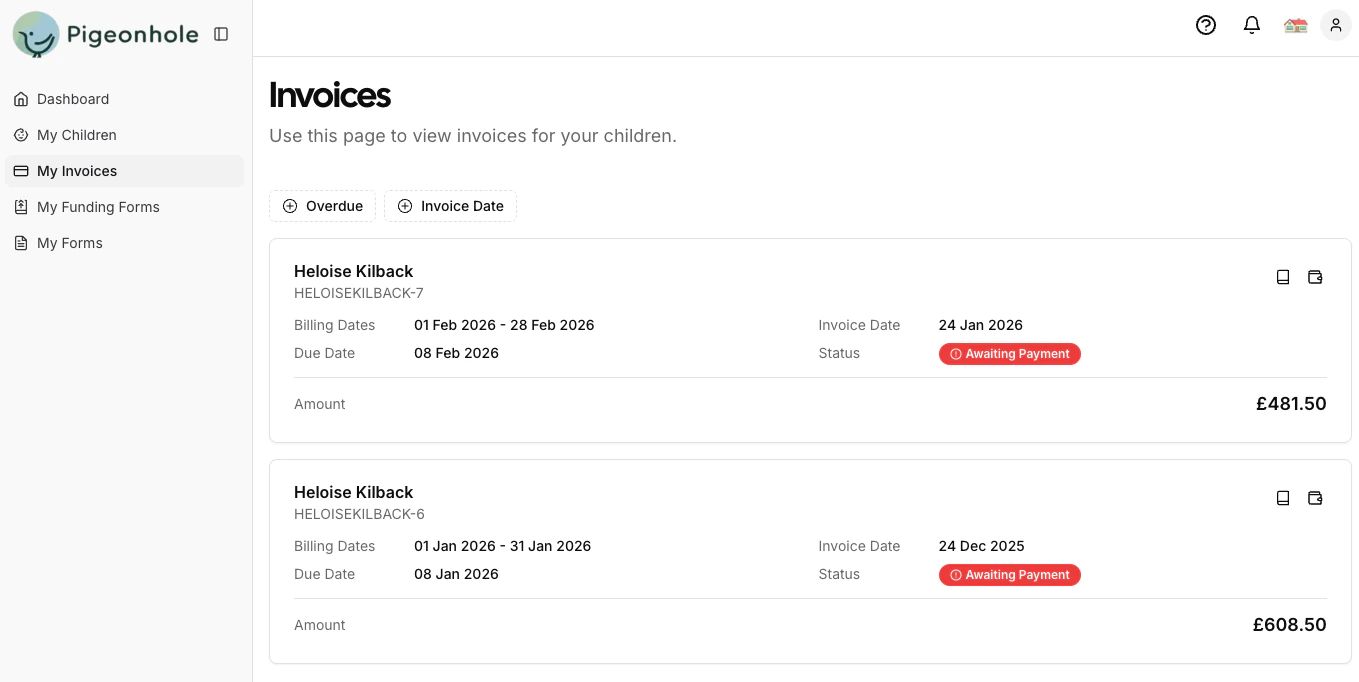
Invoices are displayed as cards, with each card showing:- Child Name — the child the invoice relates to
- Invoice Reference — the unique reference number
- Billing Dates — the period covered by the invoice
- Invoice Date — when the invoice was created
- Due Date — when payment is due
- Status — the current status (see below)
- Amount — the total invoice amount, with any outstanding balance shown in red
Actions
Each invoice card has action buttons:- View PDF — opens the invoice PDF (only shown if a PDF is available)
- View Payments — opens a dialog showing all payments recorded against this invoice
- More Options — additional actions via the menu
Filtering Invoices
You can filter the invoice list to find what you need:- Overdue — show only invoices that are past their due date and not fully paid
- Invoice Date — filter by the month the invoice was raised
Invoice Statuses
Each invoice shows one of the following statuses:- Awaiting Payment — the invoice has been sent and is awaiting payment
- Partially Paid — some payments have been made but there is still an outstanding balance
- Paid — the invoice has been fully paid
- Overdue — the invoice is past its due date and has not been fully paid (shown in red)
Overdue status is determined automatically — if an invoice is past its due date and isn’t fully paid, it will appear as overdue with a red indicator.
Payment Records
Pigeonhole tracks individual payments against each invoice, giving you full visibility of your payment history.Please wait a few days after payment for any updates to be reflected in Pigeonhole. Please contact your nursery if any payments are not shown as paid.
Viewing Payment History
To view payment records for an invoice:- Find the invoice on the My Invoices page
- Click the View Payments button (wallet icon) on the invoice card
- A dialog opens showing all payments made against this invoice
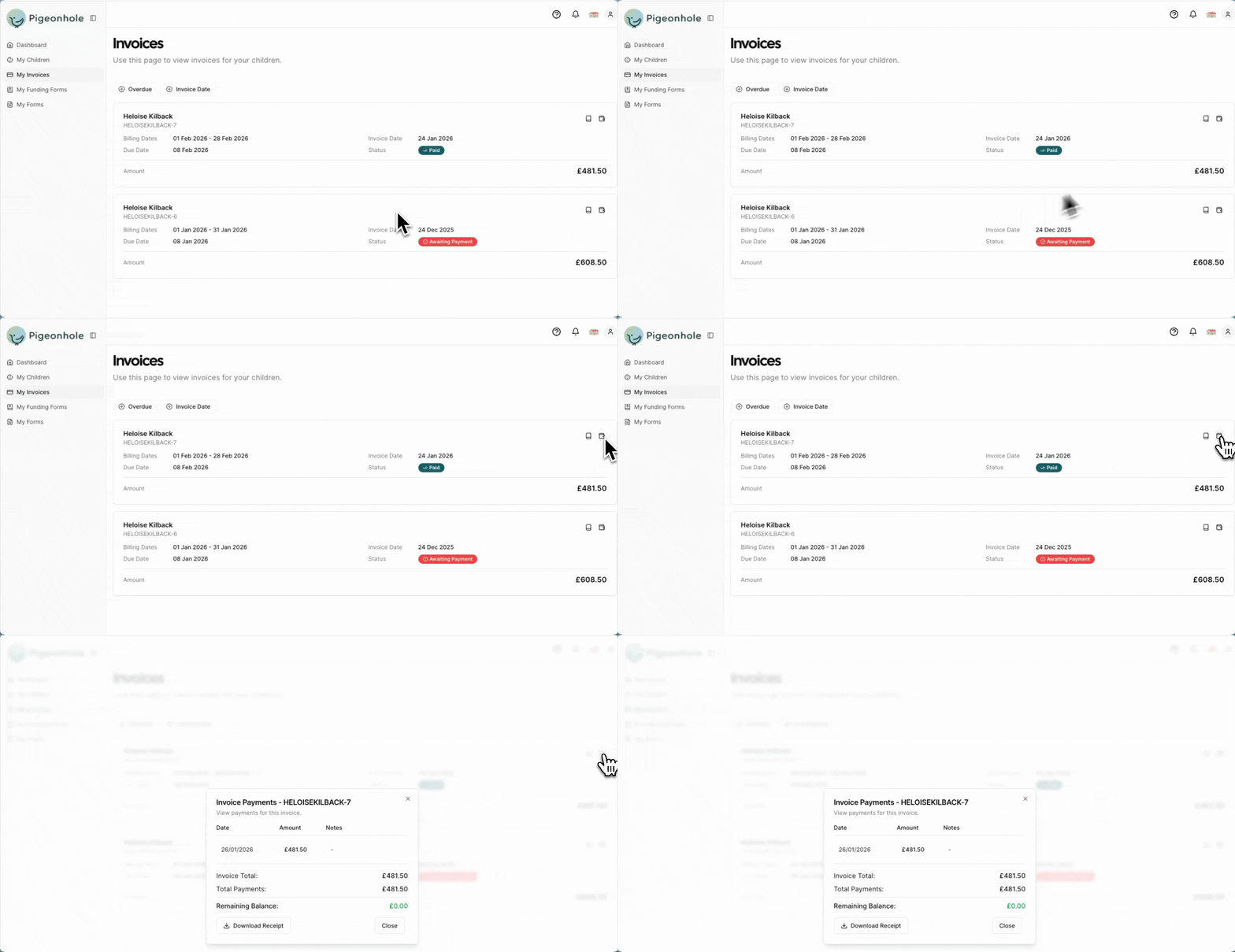
- Date — when the payment was made
- Amount — how much was paid
- Notes — any additional information about the payment
Payment Summary
At the bottom of the payment dialog, you’ll see:- Invoice Total — the original invoice amount
- Total Payments — the sum of all payments made
- Remaining Balance — the amount still outstanding (shown in red if there is a balance, or green if fully paid)
Downloading Payment Receipts
For invoices that have received payments, you can download a receipt:- Open the payment dialog for an invoice by clicking View Payments
- Click the “Download Receipt” button
- A PDF receipt will be downloaded to your device
Frequently Asked Questions
Why can't I see all my invoices?
Why can't I see all my invoices?
You can only view invoices that have been sent to you by the nursery. Invoices that haven’t been sent yet won’t appear in your portal. Contact your nursery if you’re expecting an invoice that isn’t showing.
Can I make payments directly through Pigeonhole?
Can I make payments directly through Pigeonhole?
Pigeonhole shows your payment records for transparency, but payments are typically processed through your nursery’s preferred payment methods (bank transfer, card payments, etc.). Contact your nursery for their payment procedures.
Why do I see payments I didn't make?
Why do I see payments I didn't make?
If your nursery uses accounting software integration (like Xero or QuickBooks), payments are automatically synced from their accounting system. This might include payments made by other family members or automatic payments you’ve set up.
What does it mean when an invoice shows as overdue?
What does it mean when an invoice shows as overdue?
An invoice is marked as overdue when it is past its due date and hasn’t been fully paid. Contact your nursery to arrange payment or discuss a payment plan.
Can I download a receipt for my payments?
Can I download a receipt for my payments?
Yes. Open the payment dialog for any invoice that has payments recorded, then click “Download Receipt” to get a PDF with the full payment history and summary.