
Organisations are optional. If you run a single nursery, you do not need to set one up.
Creating an Organisation
You create an organisation when you add your second nursery site. This can only be done by a site Owner (the person who originally registered the site).- Go to Settings → Site Profile in the Admin Portal.
- Find the Organisation section in the Setting Details card at the top of the page.
- Click Create Organisation.
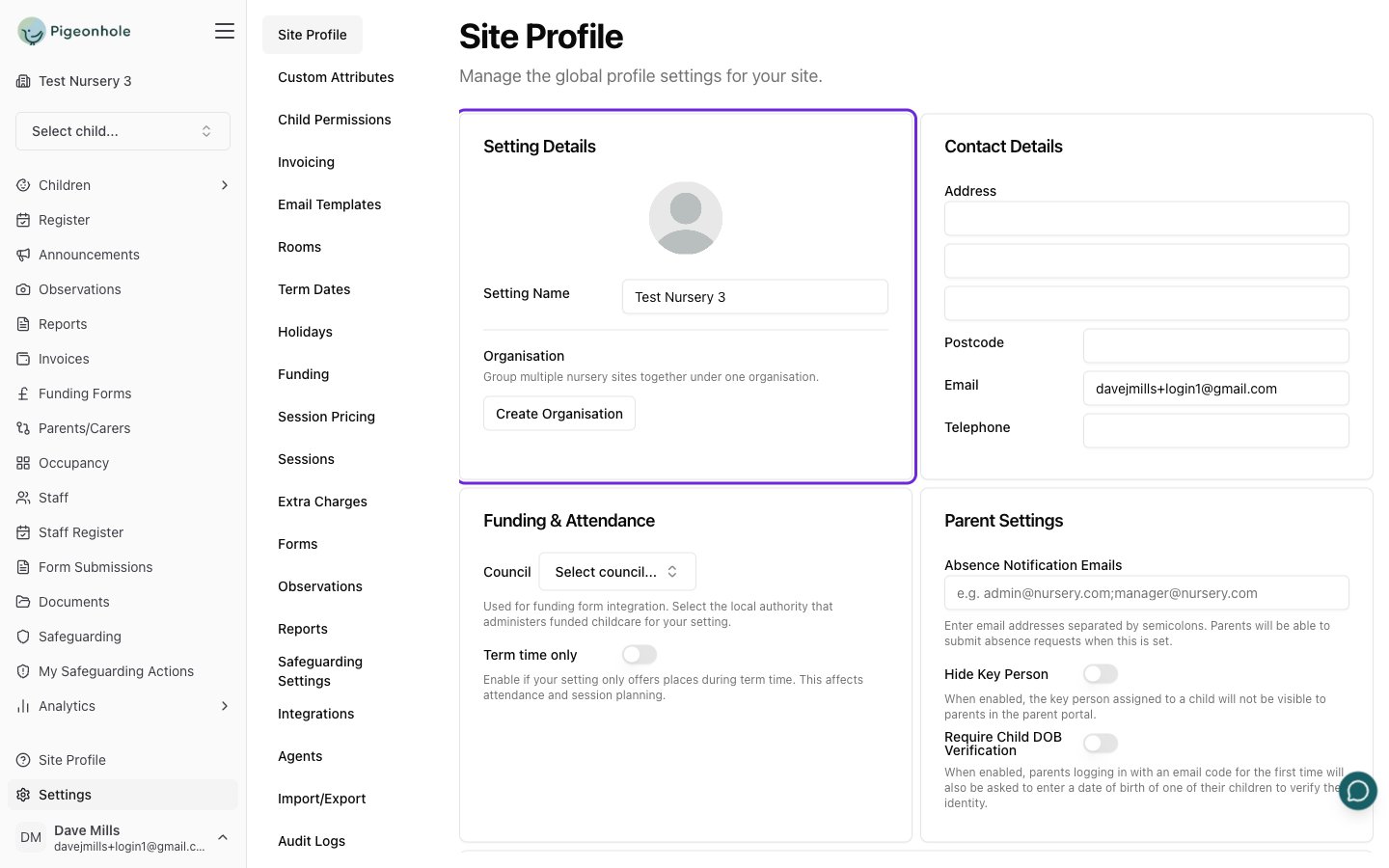
- You are taken to the organisation setup page. Enter:
- Organisation Name — the name of your group (e.g. “Sunshine Nurseries Group”)
- New Site Name — the name of the second nursery site you are adding
- Click Create.
Adding More Sites to an Existing Organisation
Once an organisation exists, Organisation Owners can add further sites at any time.- Go to Settings → Site Profile on any site within your organisation.
- Find the Organisation section in the Setting Details card at the top of the page.
- Click Add Another Site to [Organisation Name].
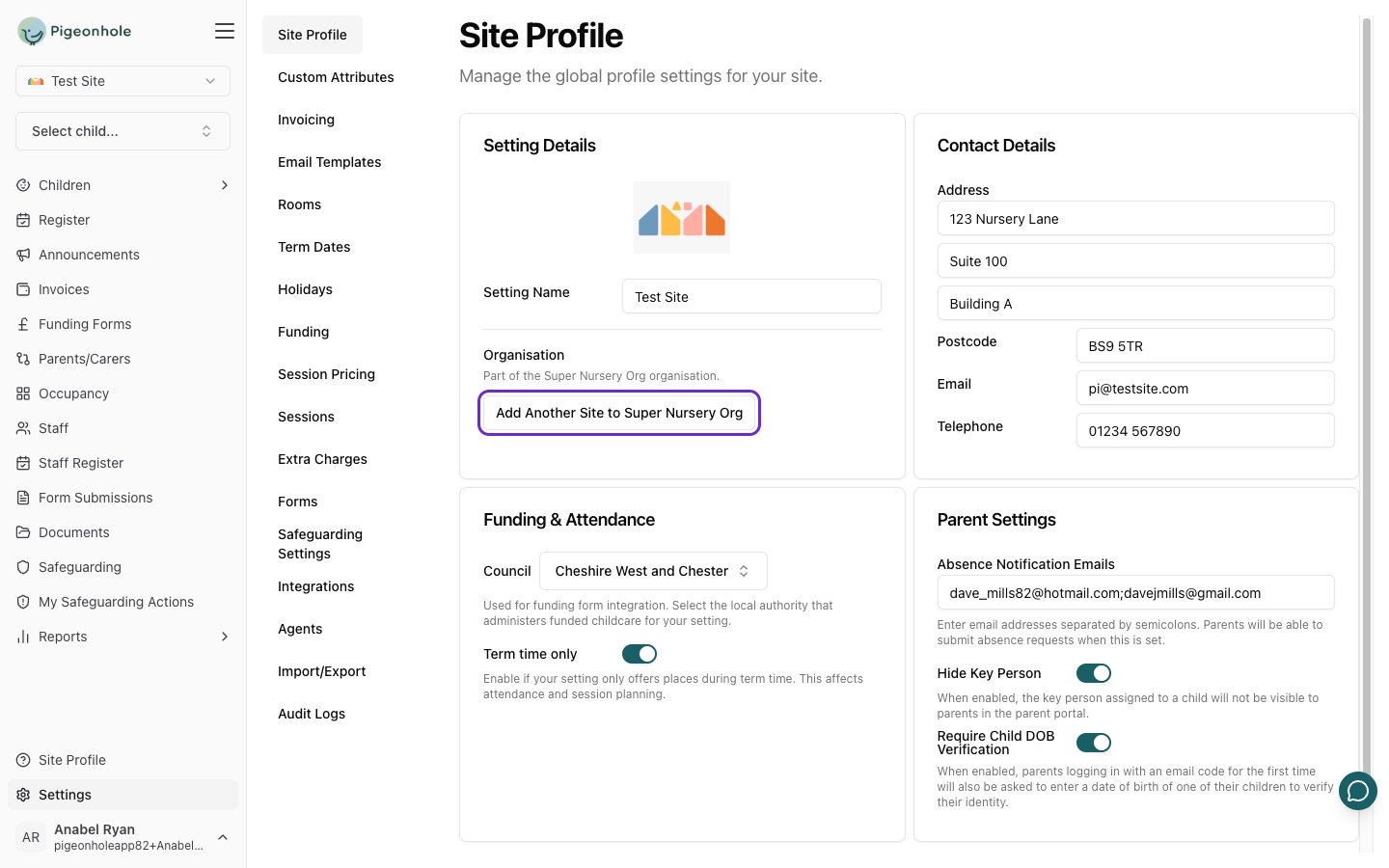
- Enter the New Site Name and click Create.
- You will be signed out and need to sign back in to access the new site.
Managing Organisation Owners
Organisation Owners can grant the Organisation Owner role to other staff members. This allows trusted colleagues to add new sites and manage the organisation on your behalf.Organisation Owner is separate from the standard Manager or Staff role. A staff member must have an active Pigeonhole account (they must have logged in at least once) before they can be made an Organisation Owner.
Granting the Organisation Owner Role
- Go to Staff in the Admin Portal and open the staff member’s profile.
- In the Permissions section, check the Organisation Owner box.
- Click Save.
Removing the Organisation Owner Role
- Open the staff member’s profile.
- In the Permissions section, uncheck the Organisation Owner box.
- Click Save.
Switching Between Sites
Once your organisation is set up, you can switch between sites from anywhere in the app using the site switcher in the top navigation bar.Frequently Asked Questions
Who can create an organisation?
Only a site Owner (the person who first registered the nursery in Pigeonhole) can create an organisation. Once the organisation exists, Organisation Owners can add further sites.Can a staff member be an Organisation Owner on one site but not another?
No. The Organisation Owner role applies across the entire organisation — it grants access to all sites in the group.What can an Organisation Owner do?
An Organisation Owner can:- Switch between all sites in the organisation
- Add new sites to the organisation
- Grant the Organisation Owner role to other staff members