
Open in app: Settings → Care Diary. The care diary is switched on from the Features card on Site Profile.
Step 1: Switch the care diary on
The care diary is off until you turn it on.- Go to Settings → Site Profile.
- In the Features card, turn on Care Diary.
- Click Save.
Until the feature is on, the care diary settings page and everything under it stays hidden, and nothing appears in the parent portal.
Step 2: Create a care diary profile
A profile decides what a room records and how often staff are reminded to check a sleeping child. Nothing can be logged until at least one profile exists.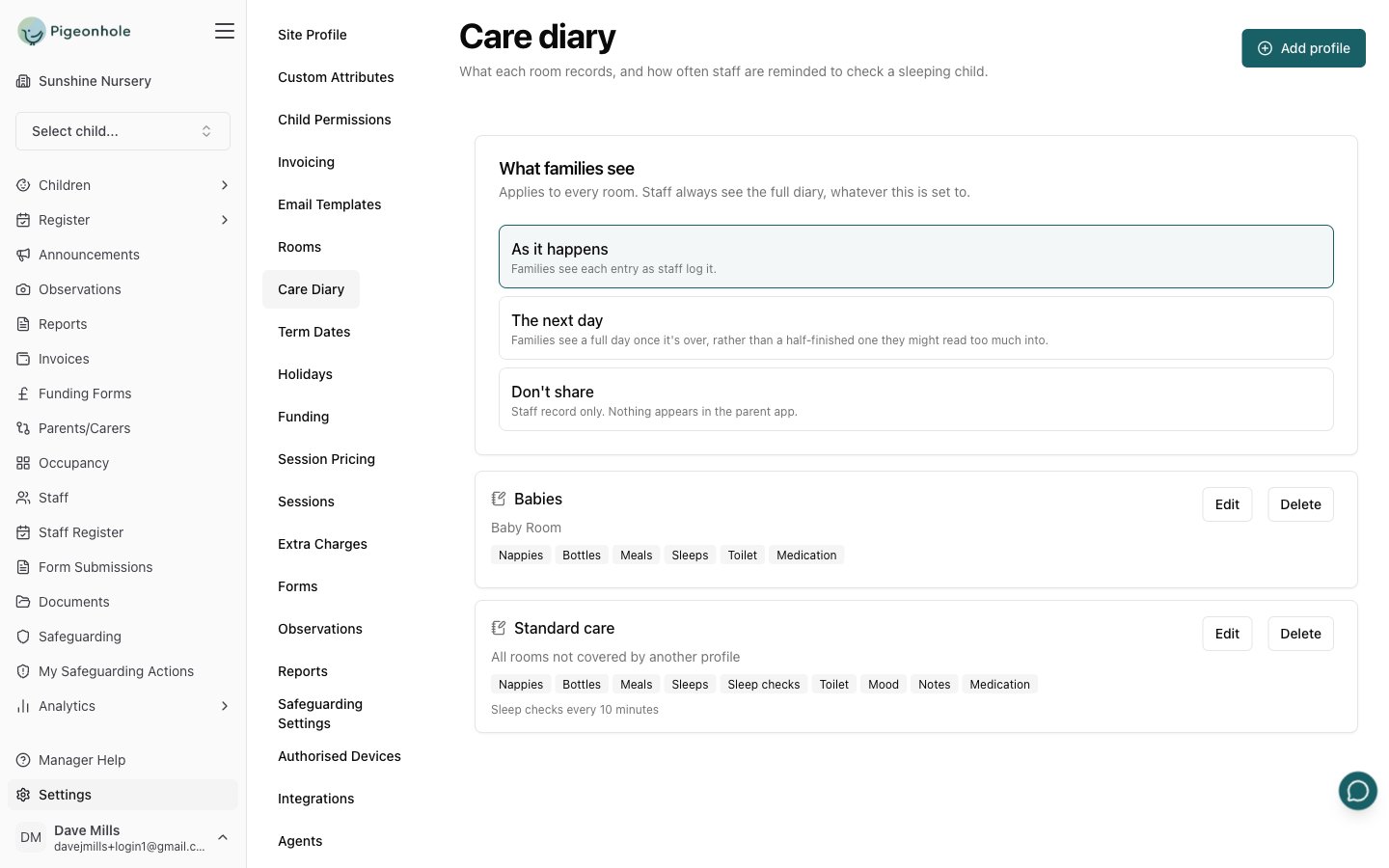
- Go to Settings → Care Diary.
- Click Add profile.
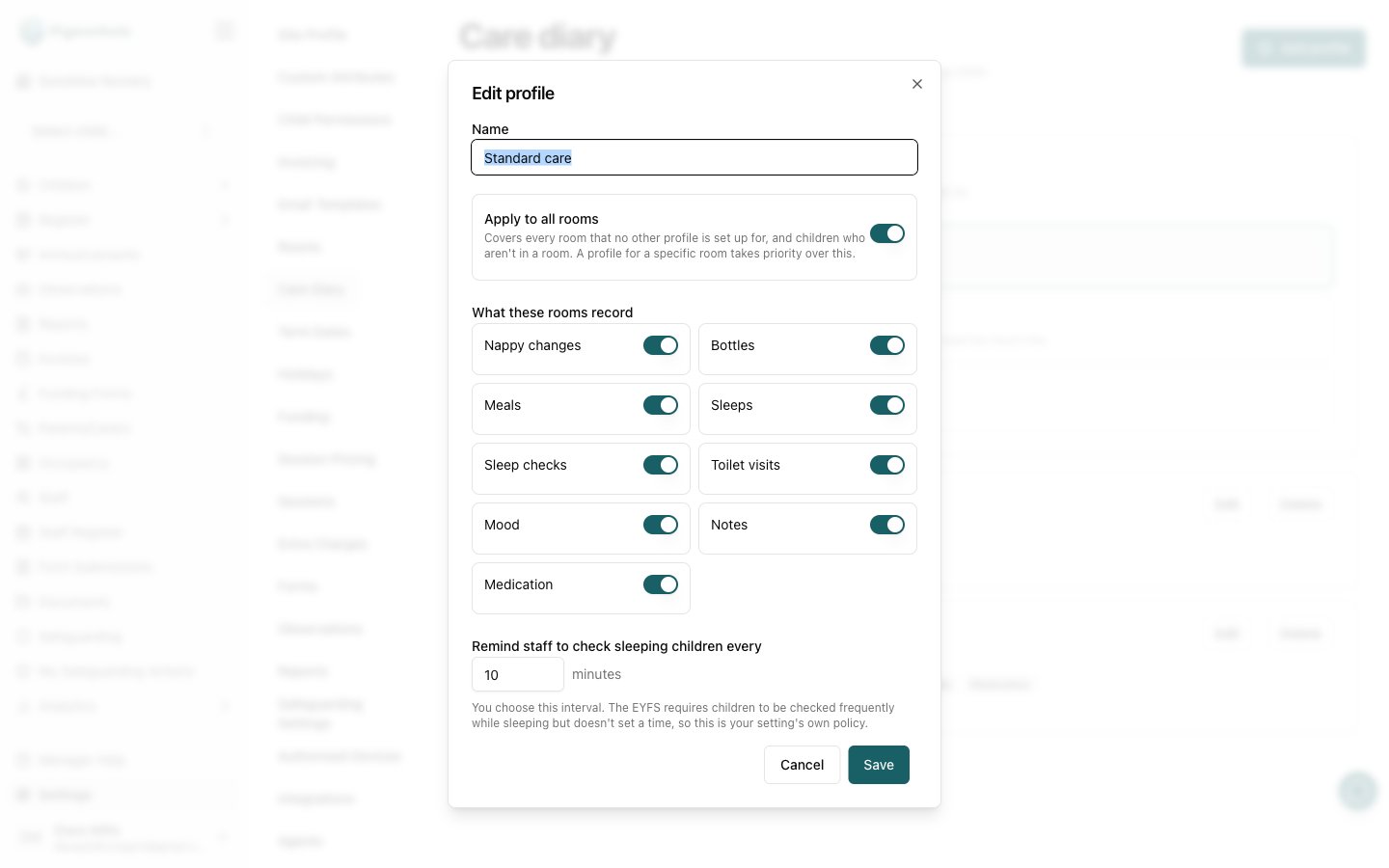
- Give it a Name — staff never see this, so name it for yourself: “Babies”, “Pre-school”, “Standard care”.
- Choose which rooms it covers (see below).
- Turn on the things this room records.
- Set the sleep-check reminder.
- Click Save.
Which rooms a profile covers
Each profile either applies to specific rooms, or acts as the fallback:- Apply to all rooms on — covers every room that no other profile is set up for, plus any children who aren’t in a room.
- Apply to all rooms off — pick the rooms it covers from the list.
This is also what makes the care diary usable at a setting with no rooms at all — the all-rooms profile covers those children.
What these rooms record
Turn on only what the room actually records. Anything switched off never appears as an option for staff, so a pre-school room isn’t offered bottles and a baby room isn’t cluttered with things it never logs.The sleep-check reminder
Remind staff to check sleeping children every sets how often the app prompts for a safer-sleep check, in minutes. The cadence belongs to the room, not to each child — staff check the sleep room, they don’t walk in once per sleeping child. It runs from the earliest sleep still in progress, and every completed check moves it on. A child who joins an ongoing sleep slots into the existing rhythm, so nobody waits more than one interval for their first check.The EYFS requires sleeping children to be checked frequently but doesn’t set a time, so this interval is your setting’s own policy. Ten minutes is a common choice.
Step 3: Decide what families see
The What families see card at the top of the page applies to every room. There is one setting for the whole nursery.
It starts on Don’t share — sharing is opt-in, so nothing reaches families until you choose it.
This is deliberately one site-wide setting rather than one per room. A child can be in two rooms in a day, so a per-room rule has no answer to which room’s setting wins.
What families never see
Some things are held back from the parent portal whatever you choose:- Notes — staff shorthand written for handover, not a message to the family. Anything a family should be told belongs in a conversation at the door or an announcement.
- Sleep checks — an internal safeguarding record.
- The position a child was put down in — part of the safer-sleep record.