
How to setup automated reconciliation of accounts
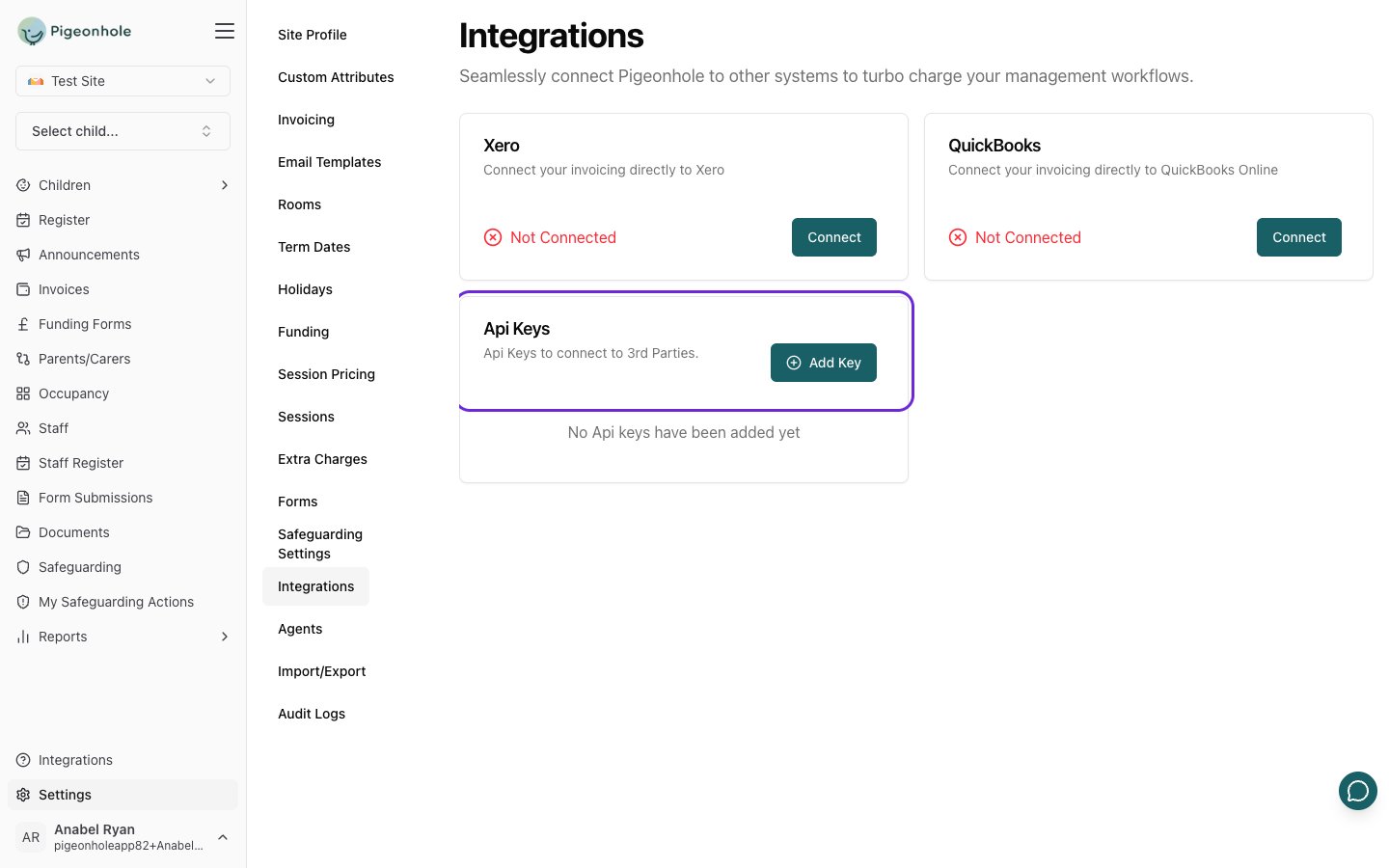
This section shows you how to connect accountancy software to pigeonhole. All 3rd party connections are configured using the integrations page.Open in app: Settings → Integrations.
You can only connect one accountancy system at a time. If you want to switch providers, you’ll need to disconnect your current integration first.
Xero
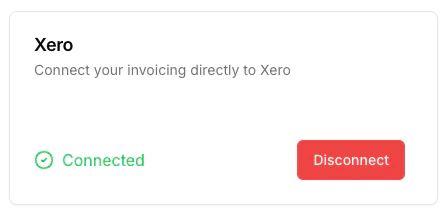
In the Xero integration click on ‘Connect’. This will open up the Xero login screen for you to authenticate with and allow access to pigeonhole.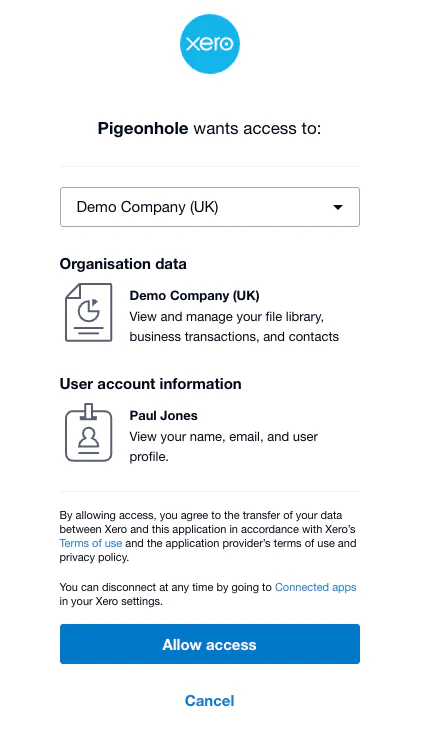
QuickBooks
In the QuickBooks integration click on ‘Connect’. This will redirect you to the QuickBooks login screen where you can authenticate and authorise pigeonhole to access your QuickBooks Online account. Once connected, the integration card will show ‘Connected’ status. All invoices created in pigeonhole will automatically sync to QuickBooks Online, and payment status updates will be reflected back.API Keys
The Integrations page also has an Api Keys card. API keys let approved third-party systems connect to Pigeonhole on your behalf.- In the Api Keys card, click Add Key.
- Enter a Api Key Name that describes what the key is for, then click Save.
- Pigeonhole generates the key and displays it once. Click the copy icon to copy it, then store it somewhere secure.
Frequently Asked Questions
Why did my integration disconnect?
Your accountancy integration may disconnect for several reasons:- Token expiry: Accountancy providers require periodic re-authentication for security. If you don’t use the system for an extended period, the connection may expire.
- Permission revoked: If access was revoked from within your accountancy software settings.
How do I resync invoices?
If you need to resync invoices to your accountancy software:- Go to the invoice listing page and find the invoice you want to resync
- Click on the “Resync Invoice’ button in the actions list against the invoice
- Save the invoice - this will trigger a sync to your connected accountancy software
What data is synced?
When connected, the following is automatically synced:- Invoices: Created, updated, and deleted invoices are reflected in your accountancy software
- Customers: New customers are created automatically when their first invoice is generated
- Payments: Payment status is synced back from your accountancy software (marks invoices as paid)
How do I reconcile payments between Pigeonhole and my accounting software?
The Invoice Reference (e.g., “INV-00123”) is the unique identifier that links invoices between Pigeonhole and your accounting software (Xero or QuickBooks). When you record a payment against an invoice in your accounting software:- The payment automatically syncs back to Pigeonhole using this invoice reference
- The invoice status in Pigeonhole updates to “Part Paid” or “Paid” accordingly
- No manual matching is required - the systems stay synchronized automatically
Can I connect multiple accountancy systems?
No, you can only have one accountancy integration active at a time. This prevents duplicate invoices and conflicting data. To switch providers:- Go to integrations
- Click ‘Disconnect’ on your current integration
- Click ‘Connect’ on your new preferred integration