
Capturing on your phone instead? See Observations in the staff app.
Capturing a moment
- Click New observation on the Observations page.
- Add photos or a video first — capture is photo-led, and the first image becomes the journal thumbnail.
- Tag the children involved. Group observations are fine; every tagged child’s family sees it.
- Add a title (optional), then describe what happened.
- Add next steps and learning links if your setting uses them — both optional.
- Save.
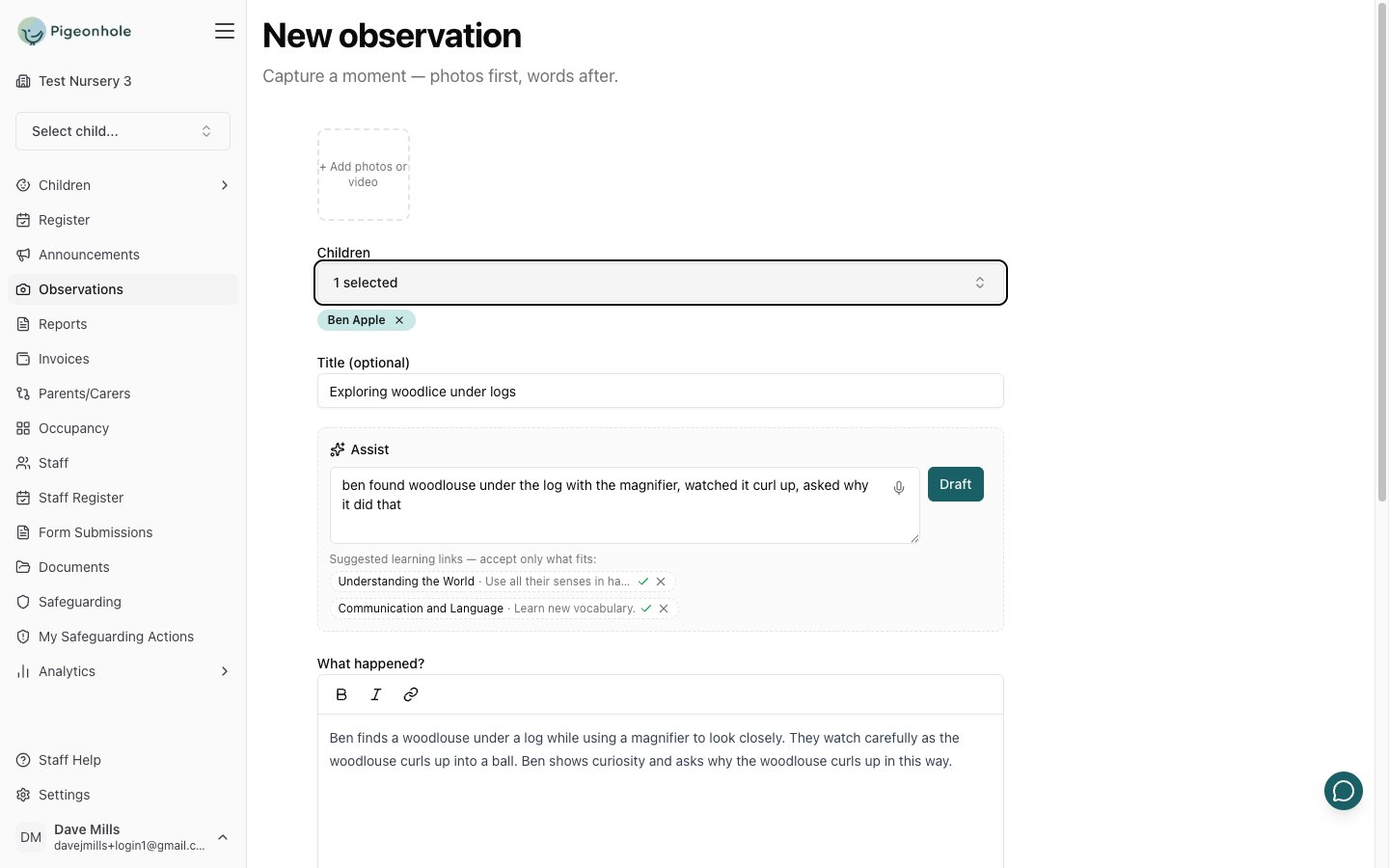
There’s no rush to finish a draft in a single sitting. Drafts are private to you until you submit them — unless your setting shares drafts with staff, in which case colleagues can see them too. See Working on a colleague’s draft.
The AI assistant
The ✨ Assist panel turns rough notes into a written-up observation. Type or dictate what happened in whatever shorthand you like:ben found woodlouse under the log with the magnifier, watched it curl up, asked why it did thatClick Draft and you get back a title and a written observation:
Exploring woodlice under logs Ben finds a woodlouse under a log while using a magnifier to look closely. They watch carefully as the woodlouse curls up into a ball. Ben shows curiosity and asks why the woodlouse curls up in this way.It may also suggest learning links below the notes box. Accept the ones that fit with ✓ and dismiss the rest with ✕ — nothing is added unless you say so. A few things worth knowing:
- The draft replaces the “What happened?” box, but a title or next steps you’ve already typed are never overwritten.
- It won’t invent detail that isn’t in your notes. Vague notes give a vague observation — the more you put in, the better it reads.
- Your photos are never sent to the AI. Only your typed notes.
- Use the microphone to dictate instead of typing. The transcription is added to your notes for you to check before drafting.
It’s your observation and your name on it. Always read the draft before you submit — it’s a starting point, not a finished piece of writing.
Writing reminders
When you submit or publish, your writing is checked against your setting’s rules — things like referring to other children as “a friend”. If something is flagged you’ll see the phrase, the rule it breaks, and a suggested rewrite, with a Fix all button. You can always click Proceed anyway. The reminder never blocks you, and it never changes your writing without you clicking.If your observation comes back
An approver can return an observation with a comment explaining what needs changing. You’ll get an email, and the comment appears at the top of the edit screen. Make the changes and click Resubmit for approval. While an observation is waiting for approval you can withdraw it back to a draft if you’ve thought better of it.Working on a colleague’s draft
Your manager can choose to share drafts with all staff, so the team can finish or tidy each other’s write-ups. When drafts are shared:- Colleagues’ drafts appear under All on the Observations page, with the author’s first name on the Draft badge.
- If your setting allows editing, open the draft and click Edit. A note at the top reminds you whose draft it is.
- You can only Save draft. Submitting or publishing, and deleting, stay with the author — it’s still their observation.
Writing reports
A progress report is the summative write-up for a child you key-work, covering a stretch of their journal rather than a single moment.- Go to Reports and click New progress report — or start from the Reports sub-tab on a child’s Journal.
- Pick the child and the reporting period. Only published observations in that window are used.
- Write the report, or click Draft from observations to get a first draft built from the child’s journal.
- Submit for approval, or publish if you can.