Open in app: Settings → Child Permissions. Answers are recorded per child on their profile.
Permissions are advisory
This is the most important thing to understand about how permissions work in Pigeonhole. That’s deliberate. The system can’t tell whether a child actually appears in a photo — a group shot tagged to six children might only show two of them. A hard block would either stop legitimate sharing or train staff to work around it. Instead, staff get a reminder at exactly the moment they’re attaching media, and decide for themselves. If your safeguarding policy needs a harder line than a reminder, that has to come from your policy and your approval workflow — approvers can always return an observation with a comment.Setting up your permissions
There are no built-in permissions. A new setting starts with an empty list, and everything on it is yours to name, reword and delete.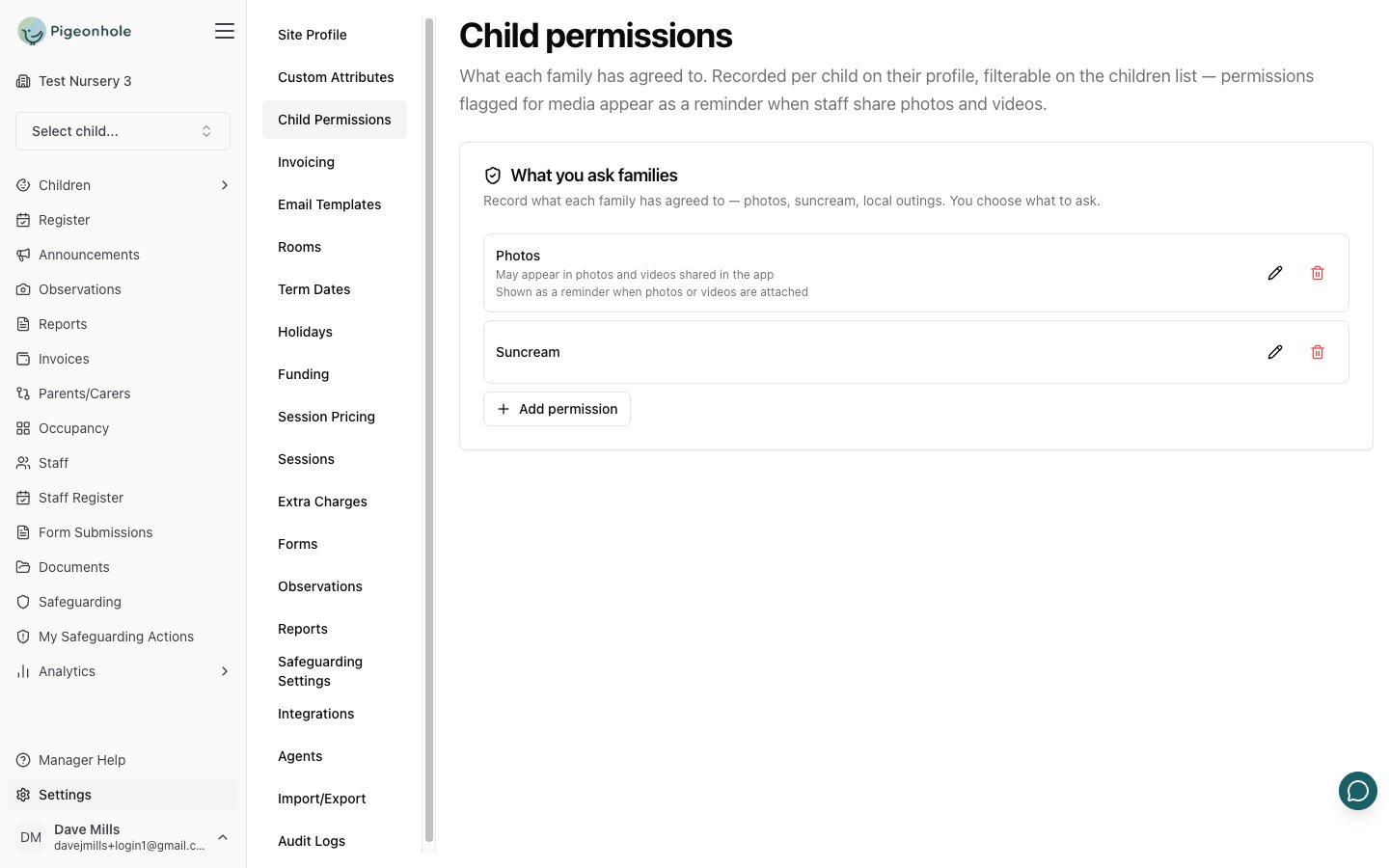
- Name — for example Photos, Suncream, Local outings. Required, and unique within your setting.
- Description (optional) — the detail that makes the answer unambiguous, e.g. “May appear in photos and videos shared in the app”.
- Photo & video reminder — off by default. Switch it on for permissions that are about media, and staff get a reminder about this permission whenever they attach photos or videos.
Only permissions with Photo & video reminder switched on ever appear in the reminder banner. A Suncream permission is worth recording and filtering on, but it has nothing to do with sharing a photo, so leave its reminder off.
Recording answers for each child
Open a child’s profile and use the Permissions card. Each row shows the permission, its description, a granted / not-granted switch, and who last changed it and when. Every change is recorded in the audit log. Only admins can change answers. Other staff see them read-only.What staff see when sharing media
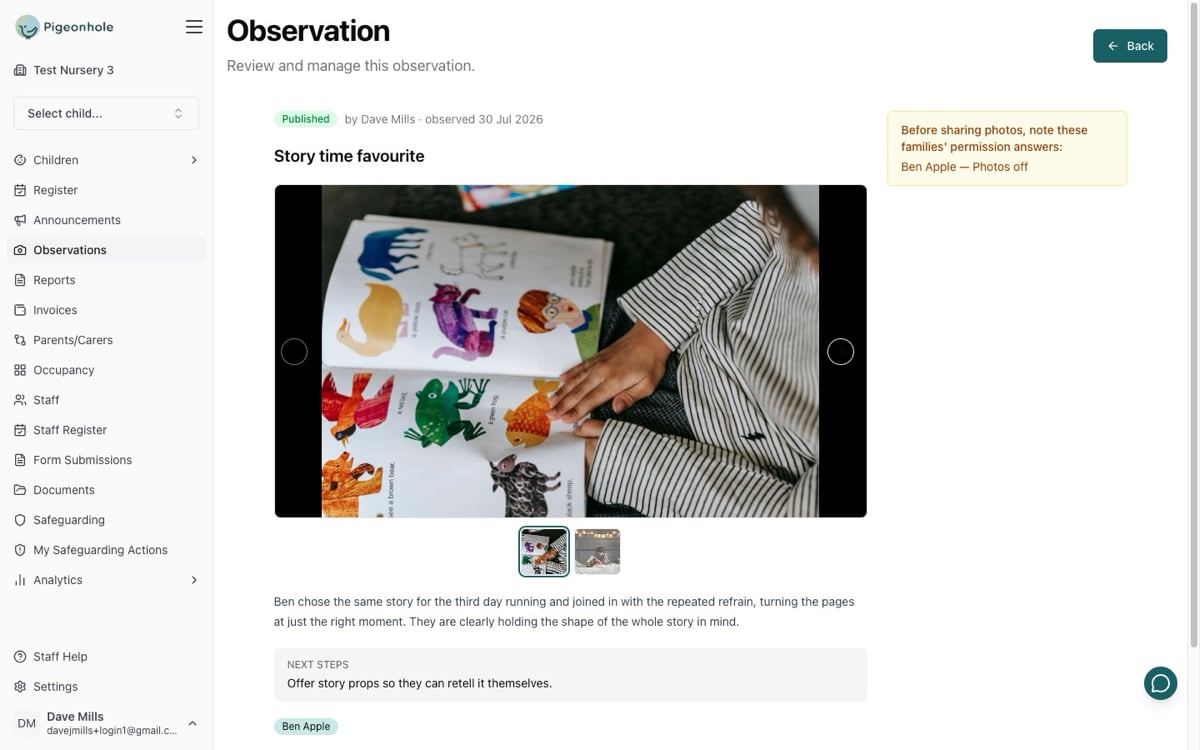
When a member of staff attaches photos or videos to an observation or announcement and tags children, an amber reminder appears listing any tagged child whose media-flagged permissions aren’t granted:Before sharing photos, note these families’ permission answers: Ben Apple — Photos off