
Turning It On
Home Moments and comments are set under Settings → Observations, in the Home Moments & comments card. Observations must be turned on for your setting.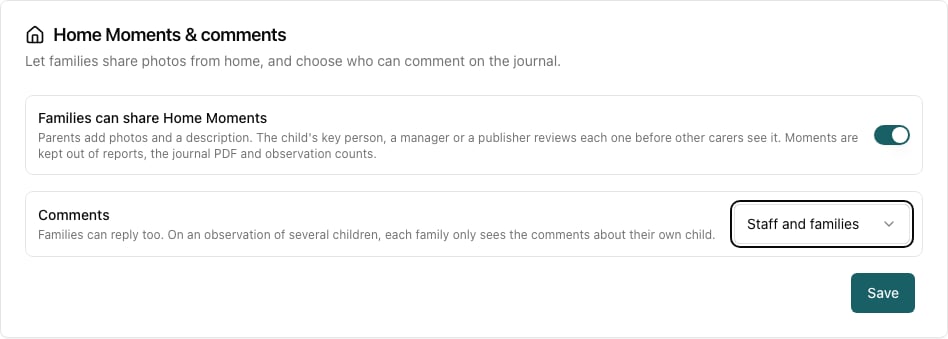
- Turn on Families can share Home Moments. It is off by default.
- Choose who can comment, under Comments:
- Off: no comments on observations or Home Moments.
- Staff only (the default): staff can reply; families read.
- Staff and families: families can reply too.
- Click Save.
Open in app: Settings → Observations.
Who Can Share
Only parents and carers with parental responsibility can share a moment, and only about their own children who are still attending. Parents share from the Journal page of the web app. See Home Moments in the parent guide.Reviewing Moments on the Web
Finding moments to review
- Click Development → Observations in the main menu.
- Click Home Moments at the top of the page. The badge shows how many moments are waiting for you.

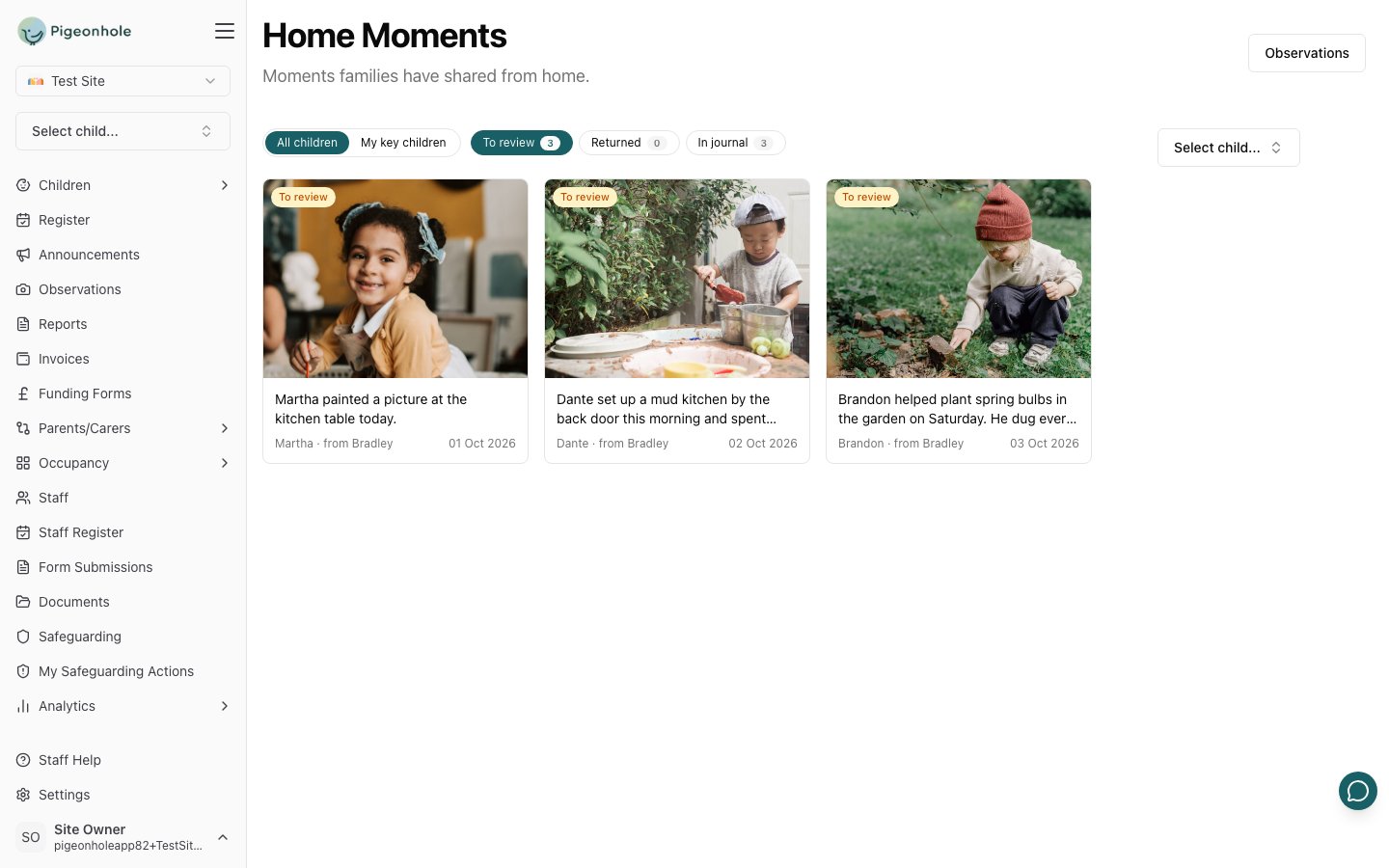
Who reviews a moment
The key person of any child in the moment, a manager or a Publisher can review it. Other staff can view and like moments but not review them. When a moment is shared, the key person of each child in it is notified in the app and by email (“New moment from home”). If a child has no key person, managers and Publishers are told instead.Adding a moment to the journal
Open the moment to review it. The panel on the right, Who will see this if added, lists every carer with parental responsibility for the children in it.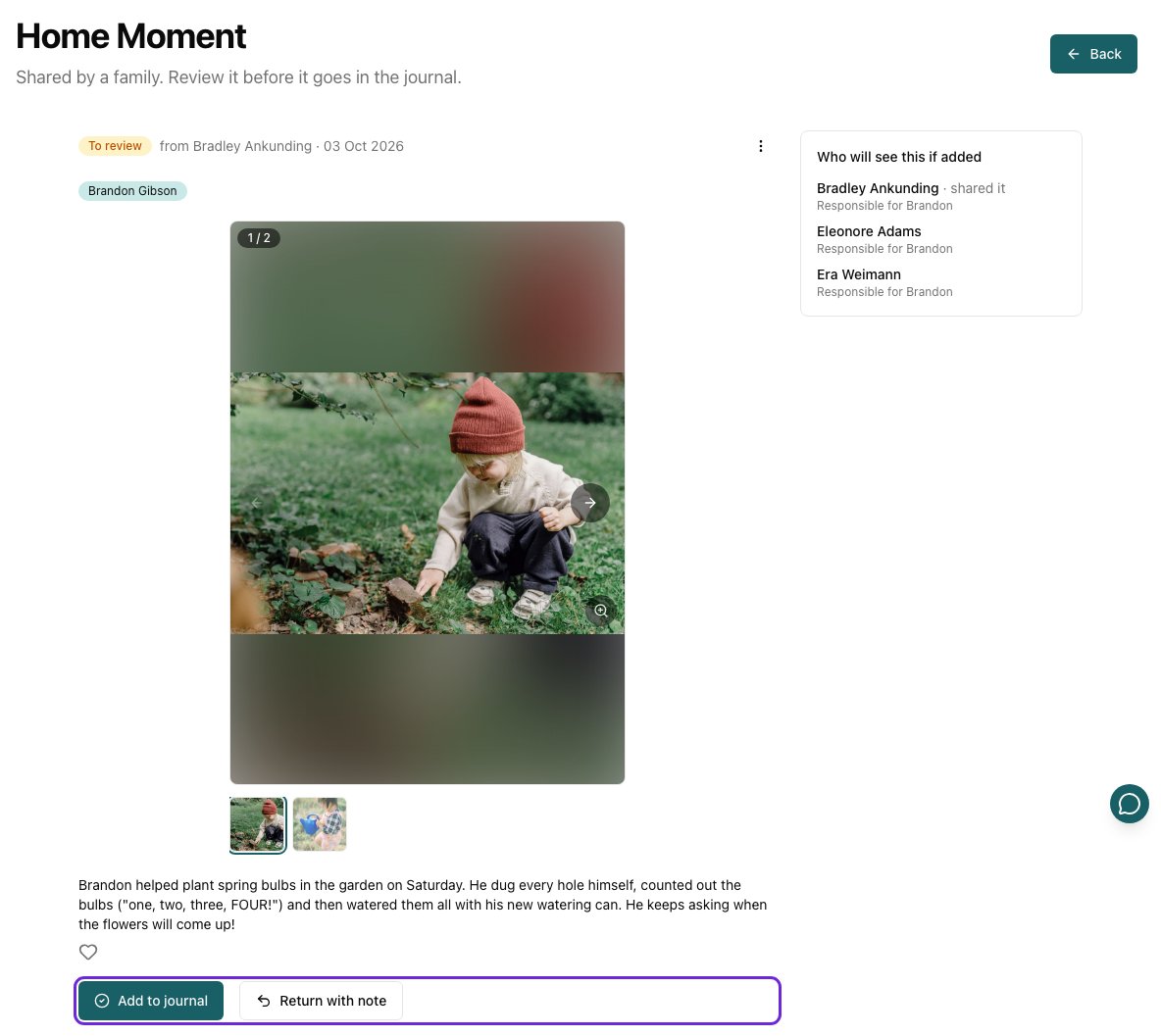
- Click Add to journal to accept it. It appears in the journal for everyone with parental responsibility for those children. The parent isn’t emailed; they see the status change to In the journal.
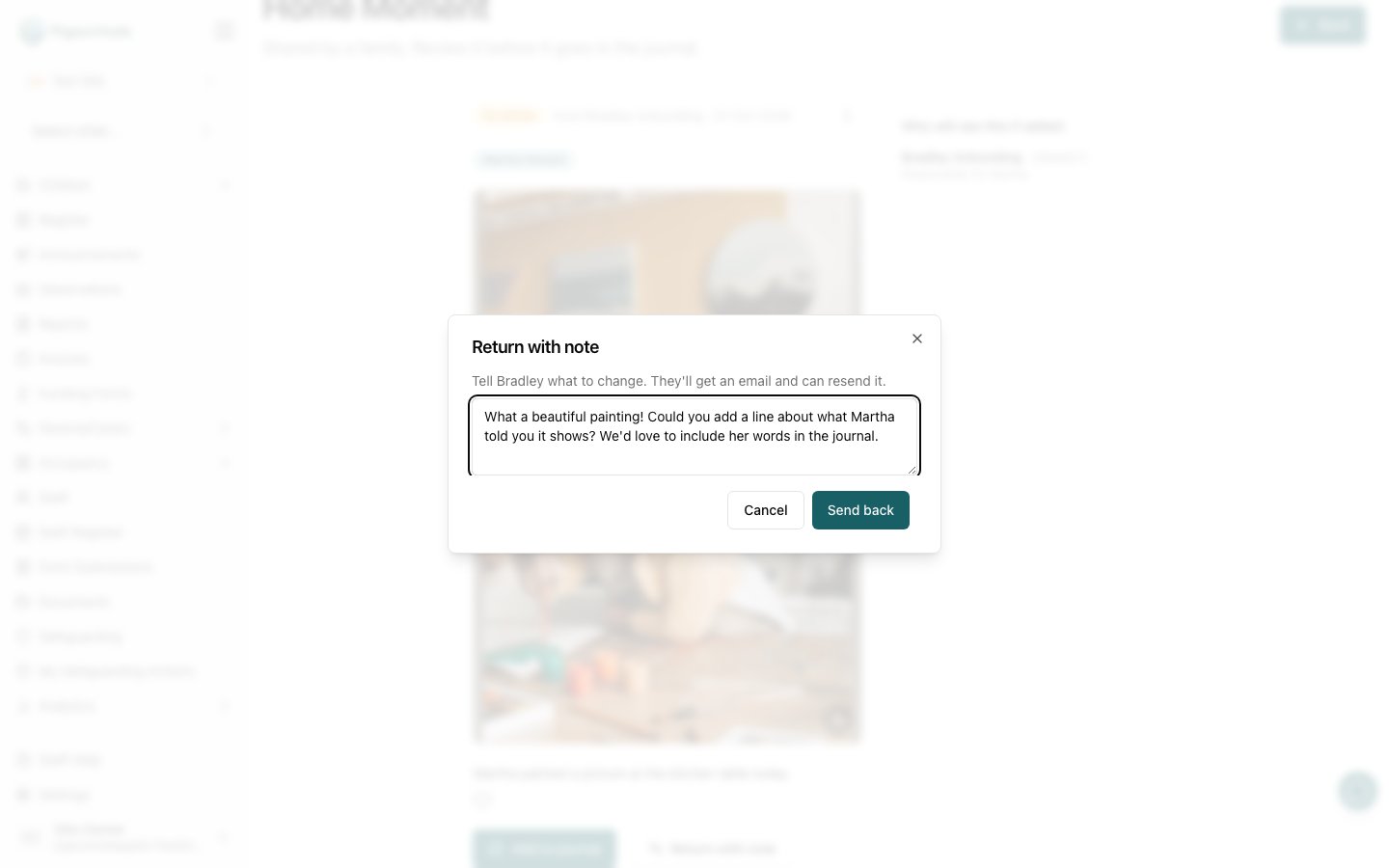
- Click Return with note to send it back to the parent with a note saying what to change. They get an email and can edit and resend it.
After a moment is reviewed
- A returned moment can still be added to the journal straight away if you change your mind. You don’t have to wait for the parent to resend it.
- Once a moment is in the journal it can’t be returned. Managers and Publishers can still delete it from the ⋮ menu.
- Deleting a moment permanently removes its photos and comments.
Reviewing Moments in the App
Staff can review moments in the Pigeonhole app too. On the Observations tab, tap the Home Moments button at the top. It shows a badge when moments are waiting.
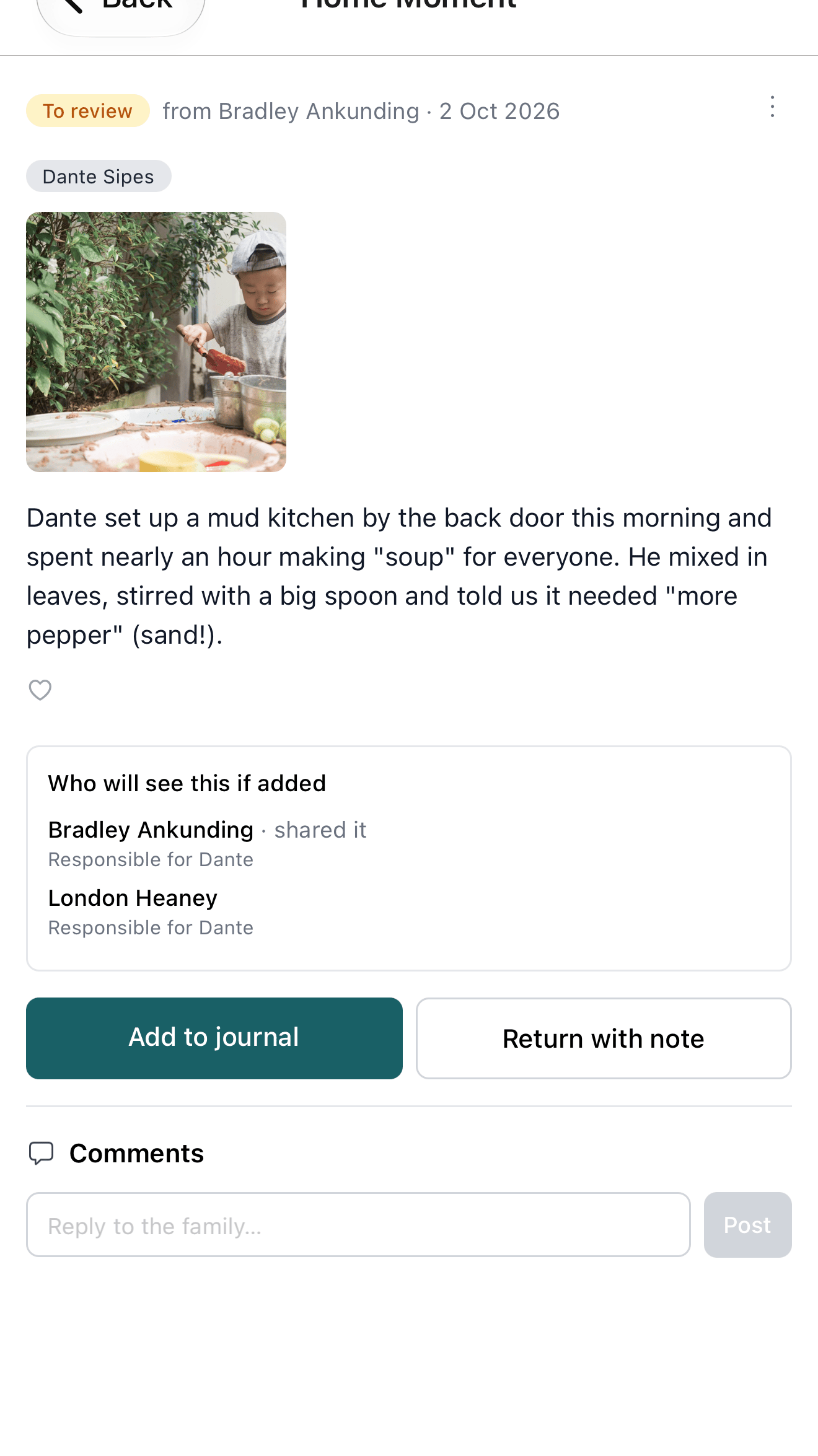
Comments
When comments are on, a Comments section appears on every published observation and on Home Moments, for staff on the web and in the app and for parents in their journal.- Observations have one conversation per child. On an observation of several children, each family only sees the comments about their own child. Staff see each child’s conversation separately.
- Home Moments have a single conversation between the nursery and the family.
- Staff comments show to parents with · nursery after the name.
- Comments can be up to 2,000 characters.
Who can delete comments
- Anyone can delete their own comments.
- Managers and Publishers can delete any comment.
Notifications
- When a parent comments, the child’s key person is told in the app (or the observation’s author or the moment’s reviewer if there is no key person).
- When staff comment, parents get an email at most once an hour (“The nursery replied”), so they aren’t flooded. A comment waits five minutes before it is sent, giving you time to correct or delete it. Parents can turn these emails off on their My Account page.