
Live Register Checks
Live register checks help you make sure all the funding headcount you submit to the council is up to date. They also allow you to send notifications to parents who have out-of-date funding codes, making it easy to keep your records accurate and ensure headcount is a breeze.With the Chrome extension, you can now automatically fetch the live register CSV directly from the establishment portal — no manual downloads required. The extension handles the entire process automatically and provides detailed error analysis.
Video Guide
Prerequisites
- Chrome Extension Installed: Make sure the Pigeonhole Portal Manager extension is installed and active
- Portal Access: You must be logged into the establishment portal in your browser
- Site Selection: Select your site and funding term in the extension
Getting Started
Auto-Fetching the Live Register
The extension can automatically download the current live register CSV from the government portal, eliminating the need for manual downloads. Make sure you are logged into the establishment portal, and then click Fetch Live Register.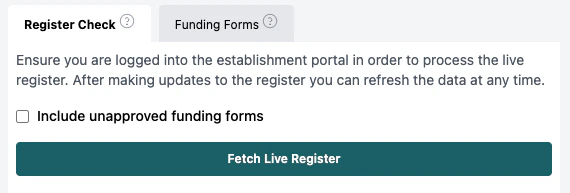
Refreshing Data After Changes
If you make updates to either the portal or Pigeonhole, you can refresh the comparison:- Make your changes in either system
- Click Refresh Live Register
- Review updated results in the error panels
Understanding Error Panels
Learn about the three error panel types: Missing Children, Data Mismatch, and Funding Code Errors. Includes settings and tips.
Frequently Asked Questions
Why isn't auto-fetch working?
Why isn't auto-fetch working?
Auto-fetch requires you to be logged into the establishment portal in the same browser. If it is not working, verify you are logged in, try refreshing the portal page, and retry. You can always use manual upload as a fallback option.
Why am I not seeing any data or error panels?
Why am I not seeing any data or error panels?
Make sure you have selected the correct site and term in the extension. The Live Register Check is only available for sites using the Liquid portal type. Also verify that funding forms exist for the selected term in Pigeonhole.
Errors are still showing after I made changes - why?
Errors are still showing after I made changes - why?
After making changes in either system, click “Refresh Live Register” to update the comparison. Allow some time for portal changes to propagate through the system, and double-check that both Pigeonhole and the portal have been updated correctly.
Should I include unapproved funding forms in the check?
Should I include unapproved funding forms in the check?
Check this option if you want to see all funding forms in your comparison, including those not yet approved. Uncheck it if you only want to compare approved, active funding forms. This depends on your workflow and what stage of data you want to validate.
How do I send reminders to parents about funding code issues?
How do I send reminders to parents about funding code issues?
In the Funding Code Errors tab, you will see a “Send Reminder” button next to errors that have valid funding form IDs. Click this button to automatically notify parents about code issues that need their attention.
How often should I run live register checks?
How often should I run live register checks?
For best results, run checks monthly or before any headcount submissions to the council. Regular checks help identify any issues with funding codes quickly, and you can send reminders directly from the extension.