
Adding New Staff
To add a new staff member, click the Add Staff Member button in the top right corner of the staff list. When you click Add Staff Member, you’ll be taken to the staff profile creation form. Adding staff is a two-part workflow: first you create and save the profile, then — once the staff member exists — you configure their schedule on their edit page.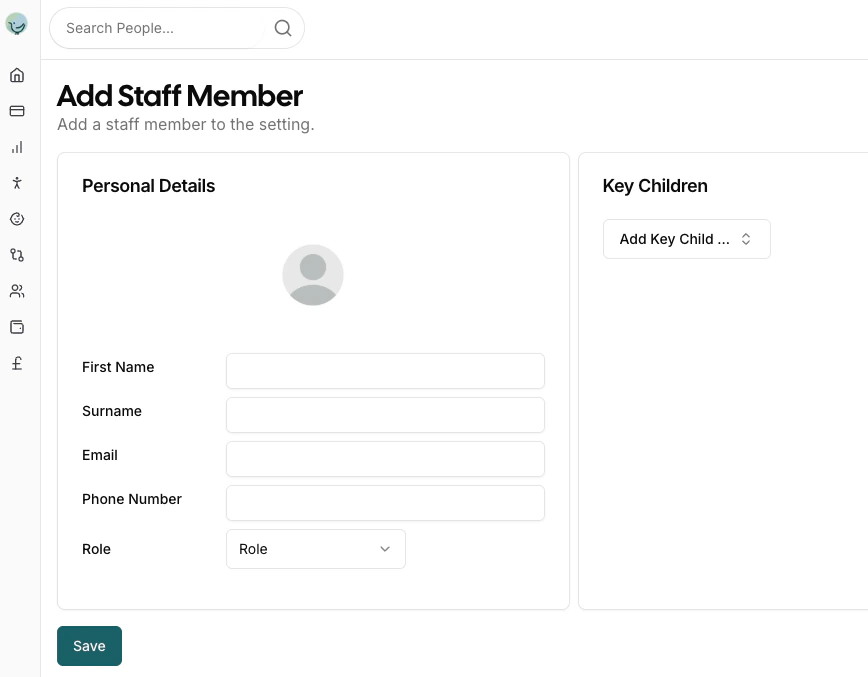
Step 1: Create the Profile
The add form shows only the profile fields — there are no tabs on the add screen. You fill in the staff member’s details and save. Scheduling and other options become available once the profile has been saved and you re-open the staff member for editing (see Step 2).Personal Details
This section collects the staff member’s basic information including:- Profile Picture: Upload a photo for easy identification
- First Name: The staff member’s first name
- Surname: The staff member’s last name
- Email: Contact email address for communications
- Phone Number: Primary contact number
- Role: Select the staff member’s position:
- Manager: Full access to all aspects of the Pigeonhole system including admin functions
- Staff: Access to main nursery features (register, observations, child profiles)
Key Children
The Key Children section allows you to assign specific children to the staff member as their key person. This is important for:- Establishing primary care relationships
- Ensuring continuity of care
- Meeting regulatory requirements for key person assignments
Saving the New Staff Member
At the bottom of the add form you have two options:- Save — creates the staff member’s profile.
- Save and Invite — creates the profile and immediately sends them an invitation email to log in. This button appears once you’ve entered an email address, so you can add the staff member and grant them access in a single step.
Prefer Save if you’re not ready to give the staff member access yet — you can always send an invite later from the staff list (see Staff Login Status below).
Step 2: Configure Schedule (On the Edit Page)
Scheduling isn’t part of the add form. Once the staff member has been saved, open them again from the staff list (click the edit icon). Their edit page has a Profile tab and a Schedule tab — the Schedule tab is where you configure their working schedule.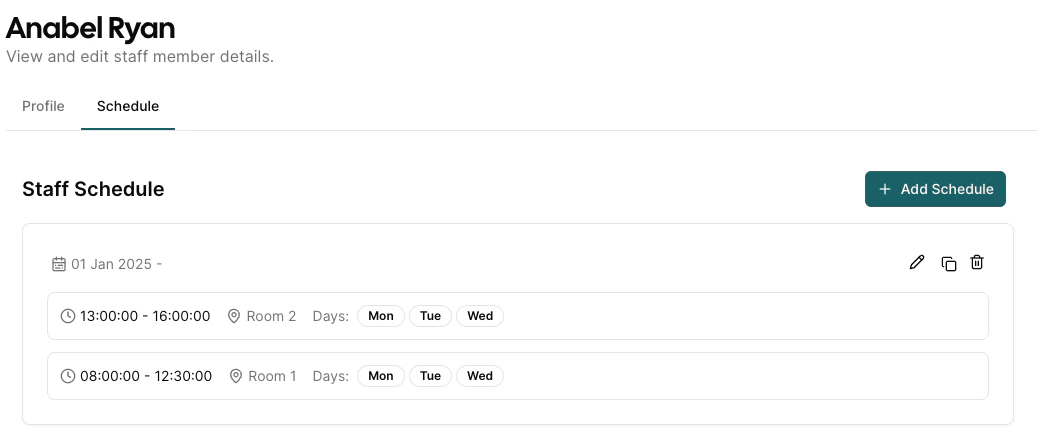
Staff Schedule Management
The schedule section displays all configured working periods for the staff member, showing:- Date Range: When each schedule period is active (e.g., “01 Jan 2025 -”)
- Time Periods: The working hours for each shift (e.g., “13:00:00 - 16:00:00”, “08:00:00 - 12:30:00”)
- Room Assignment: Which room the staff member is assigned to during each period
- Days: The days of the week the schedule applies to (Mon, Tue, Wed, etc.)
Adding a New Schedule
When you click Add Schedule, a dialog opens that allows you to configure all aspects of a staff member’s working schedule: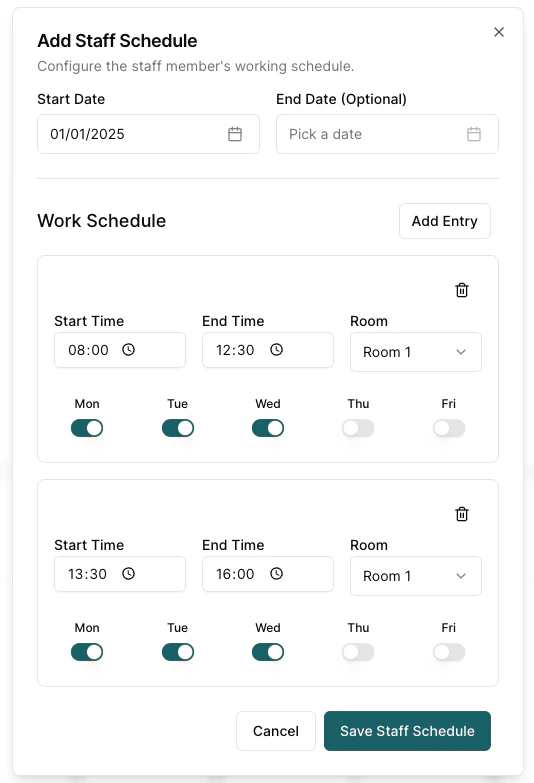
- Start Date: When the schedule becomes active (required)
- End Date: When the schedule ends (optional - leave blank for ongoing schedules)
- Start Time / End Time: The working hours for this period
- Room: Which room the staff member will be assigned to during this time
- Days of the Week: Toggle buttons for Mon-Sun to select which days this schedule applies
- Split shifts (e.g., morning and afternoon sessions)
- Working in different rooms at different times
- Complex scheduling arrangements
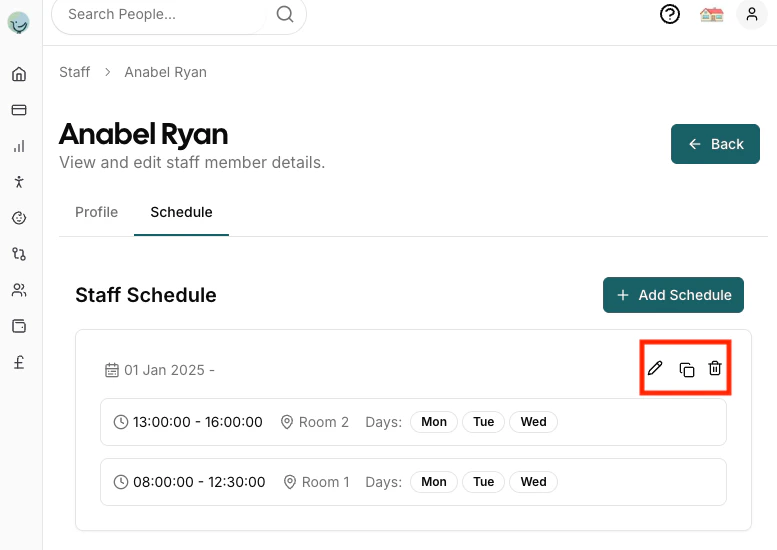
- Edit: Modify an existing schedule using the pencil icon
- Copy: Duplicate a schedule to create similar entries using the copy icon
- Delete: Remove a schedule using the bin icon
Staff Login Status
The staff list shows the current login status for each staff member:Status Indicators
- Last Login Date: Shows the date and time when the staff member last logged in (e.g., “10 Feb 2026 14:30”)
- Invite Sent: A blue mail icon indicates an invitation email has been sent but the staff member hasn’t logged in yet
- Dash (-): No invitation has been sent yet
Sending Invitations
To grant a staff member access to the system:- Click the More Actions (…) button on the staff row
- Select Send Invite
- The staff member will receive an email with a login link