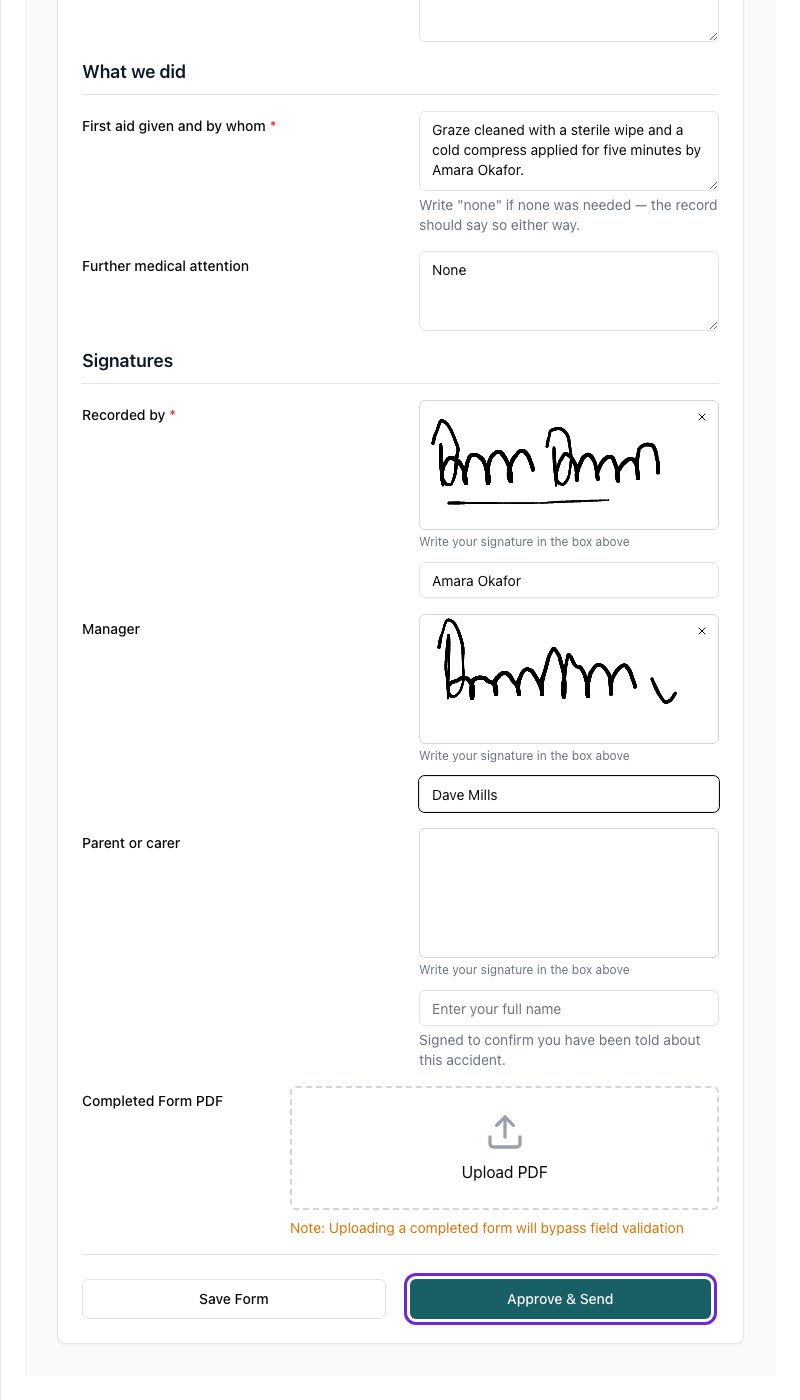
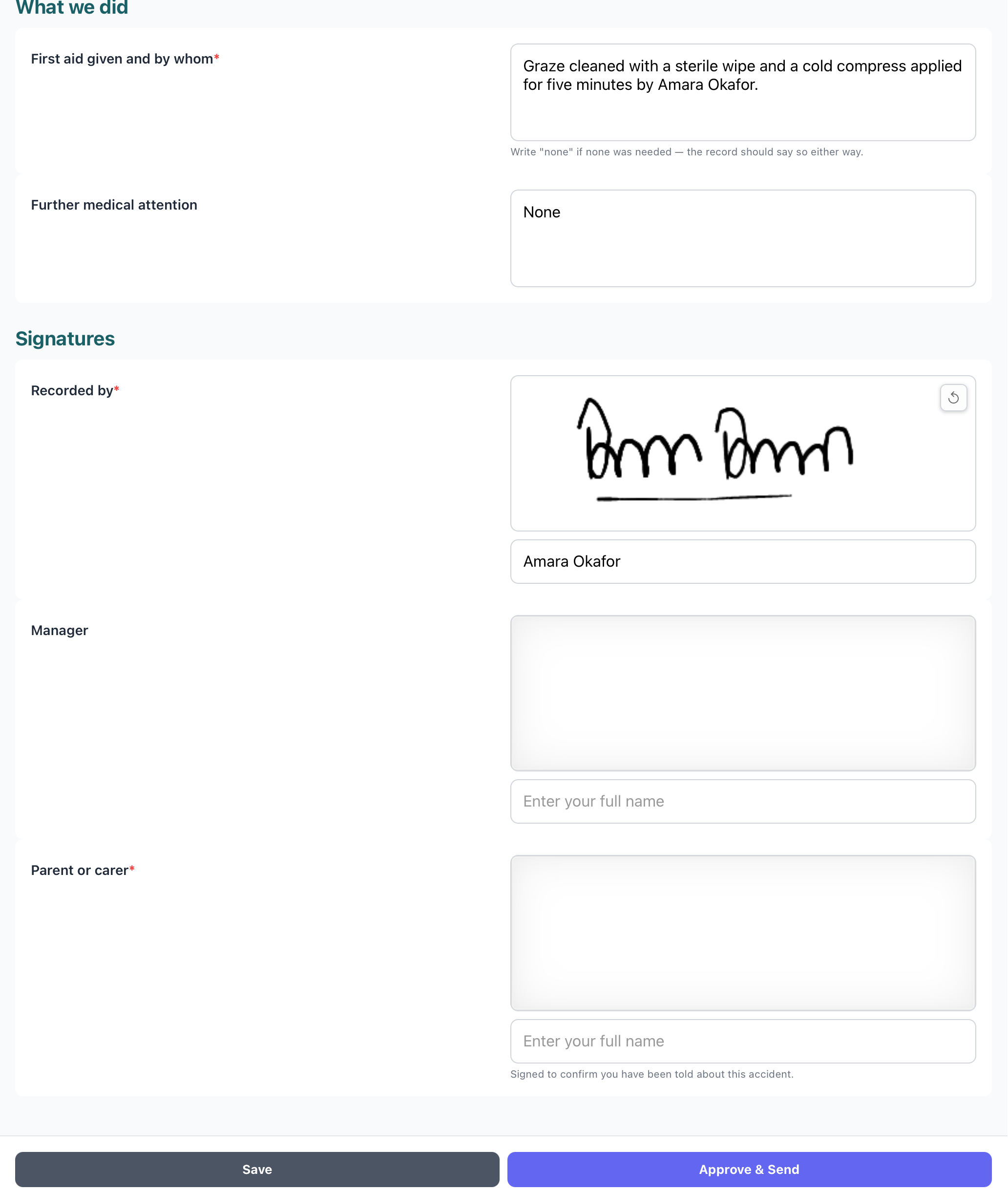
Some forms shouldn’t reach parents until a manager has read them. An accident record is the usual example: a room practitioner fills it in from the register, and a manager checks the wording, adds their signature and then sends it on. When a form needs approval, staff can still raise and fill it in, but they submit it rather than send it. It then waits in an approval queue until a manager or form approver approves it. Approving is what sends it to parents.

Step 1: Turn on approval for a form

  1. Go to Settings → Forms and open the form, or create a new one.
  2. Set Assignment Type to Child.
  3. Set Staff access to Create – manager approves before sending.
  4. Click Save Form.
Open in app: Settings → Forms.
See Staff access for what the other options do.
The ready-made Accident record, Existing injury on arrival and Incident record templates include a Manager signature field that isn’t required. Staff can leave it blank when they submit the form, and the approver signs it when they approve.

Step 2: Decide who can approve

These people can approve forms:
  • Managers (staff with the Manager role)
  • The site owner
  • Any staff member given the Form Approver role
To give someone the Form Approver role, open their staff profile and tick Form Approver under the additional roles. See Staff Permissions. A form approver who isn’t a manager sees a Form Approvals item in the sidebar. It shows only the approval queue, not the rest of Form Submissions.
A form that a manager or form approver raises themselves doesn’t need a second person to approve it. When they finish filling it in, they see Approve & Send instead of Save & Submit for Approval.

How staff submit a form for approval

Staff raise the form from the register as normal, on the web or in the mobile app. Then they either:
  • click Save & Submit for Approval (Save & Submit in the app), or
  • click Save with every required staff field filled in, which submits it too.
The form’s status changes to Awaiting Approval. Parents can’t see it yet. The two work slightly differently:
  • Save & Submit for Approval submits the form even if some required staff fields are still empty, such as a signature only a manager can add. The approver fills those in before approving.
  • Save submits the form only once every required staff field is filled in. Until then, it stays a draft (Created).
Required fields that belong to the parent, such as a parent signature, never count here, because the parent fills those in after approval.

How approvers find out

When a form is submitted, every manager, form approver and the site owner gets one email saying which forms are waiting. If a staff member submits several at once, the email lists them all. Waiting forms also show:
  • in the Awaiting Approval tab on Form Submissions
  • as a number next to Form Submissions (or Form Approvals) in the sidebar
  • as a forms awaiting approval card on the mobile app’s home screen
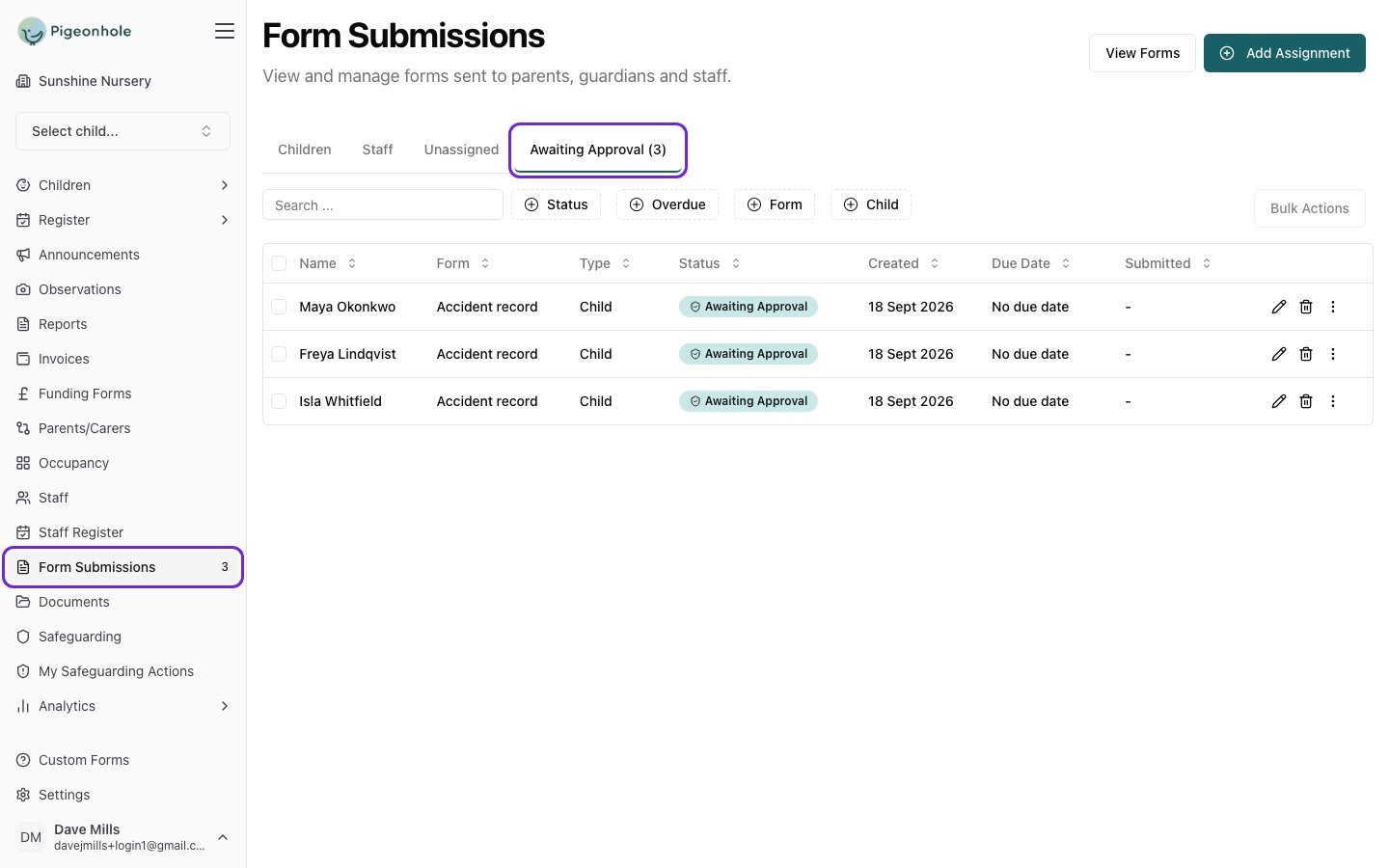
Form Submissions page on the Awaiting Approval tab, with the tab and the sidebar count highlighted

Step 3: Approve a form

On the web

  1. Go to Form Submissions and open the Awaiting Approval tab.
  2. Click the pencil icon on the row to open the form. Read it, then add your signature or correct anything that needs it.
  3. Click Approve & Send.
A form awaiting approval open in the side panel, signed by the manager, with the Approve & Send button highlighted
If you’ve already read the form, you can approve it from the list: open the More Actions (…) menu on the row and choose Approve & Send.
The More Actions menu on a row in the Awaiting Approval tab, with Approve & Send highlighted

In the mobile app

  1. Tap the forms awaiting approval card on the home screen.

    The forms awaiting approval card on the app's home screen
  2. Tap the form to open it, then check it and sign it if needed.
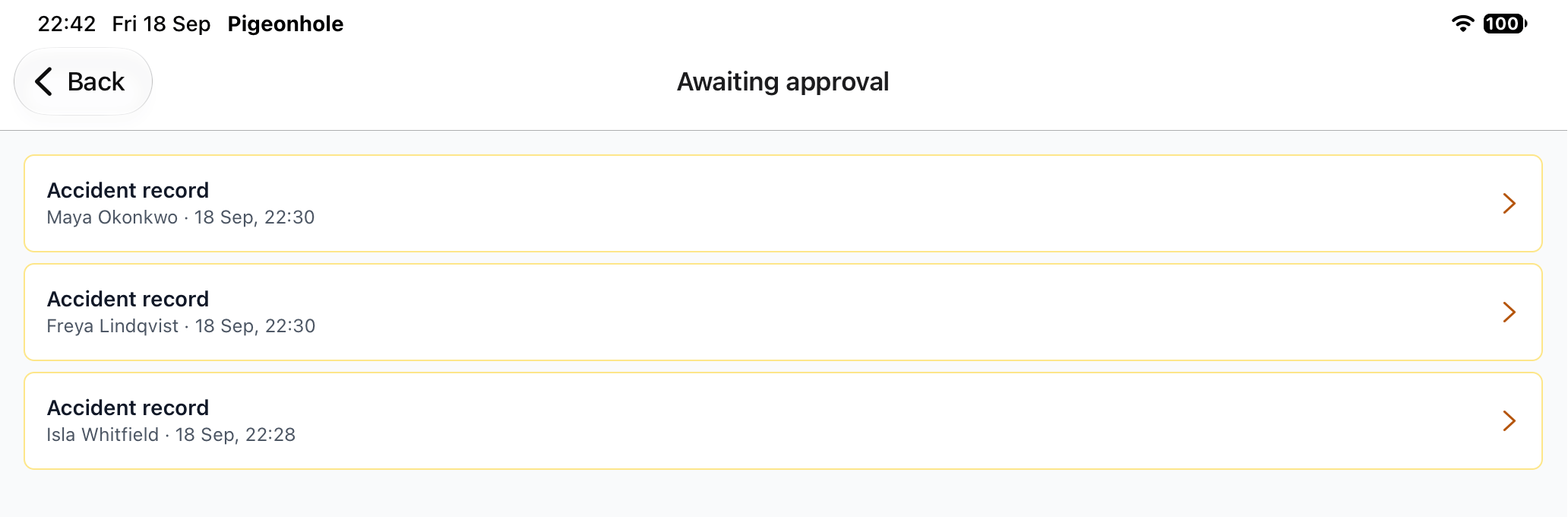
    The Awaiting approval list in the app, showing three accident records
  3. Tap Approve & Send, then confirm.
    An accident record open in the app, with the Save and Approve & Send buttons at the bottom
On a shared device, the app may ask for your PIN before it approves the form. That records you, rather than whoever last signed in, as the approver.

What happens when you approve

  • If the form has something for parents to fill in, such as a parent signature, it’s emailed to them and its status changes to Sent.
  • If there’s nothing for parents to fill in, the form is completed straight away. Its status changes to Completed and parents are emailed a copy.
Your name and the date are recorded on the form. Staff see Approved by under the form when they open it. Parents don’t see who approved it. A form can only be approved once every required staff field is filled in. If one is missing, Pigeonhole tells you which one, and nothing is sent.
If the child has no parent or carer with an email address, the form is still approved and moves on, but nobody is emailed. Pigeonhole shows Approved — no email sent. Add a contact email to the child’s parent or carer and send the form again from Form Submissions.

Frequently Asked Questions

Can staff send the form to parents themselves?

No. For a form set to Create – manager approves before sending, nothing reaches parents until someone approves it, even if a staff member uses an older version of the app that only shows Save & Send.

Two managers approved the same form at once. Was it sent twice?

No. Only the first approval counts. The second person is told the form has already been approved.

Can I switch approval off for a form?

Yes. Change Staff access to Create and send to parents. Forms already waiting stay in the Awaiting Approval tab. Approve those, or send them from Form Submissions.