
Creating Custom Forms
Accessing the Forms Section
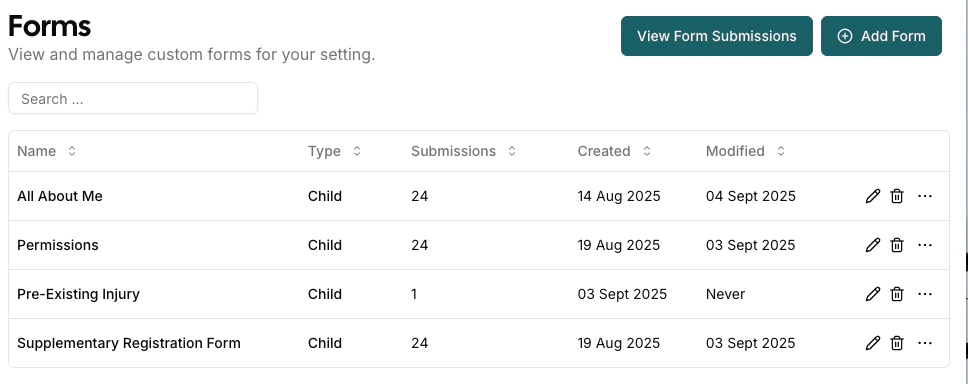
- Navigate to Settings -> Forms from the the top right dropdown under your nursery
- This page displays all existing forms and their details
Creating a New Form
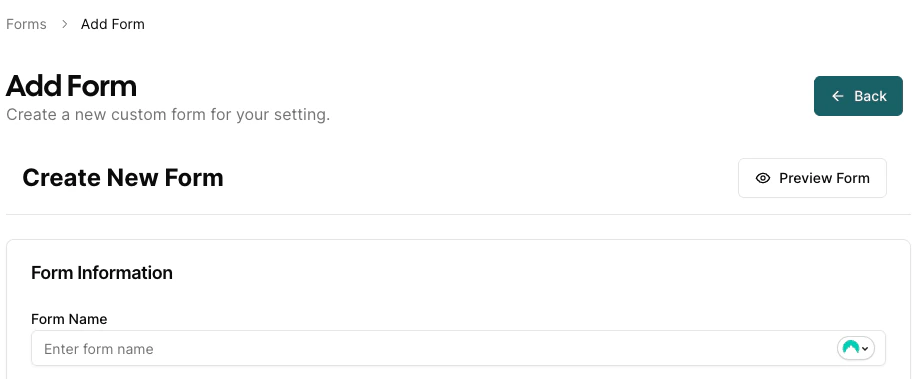
- Click the “Add Form” button in the top-right corner
- You’ll be taken to the form builder interface
Using the Form Builder
The form builder is a single working area. You build your form section by section, and can open a full preview at any time using the Preview Form button in the sticky header at the top of the page.Form Information Section
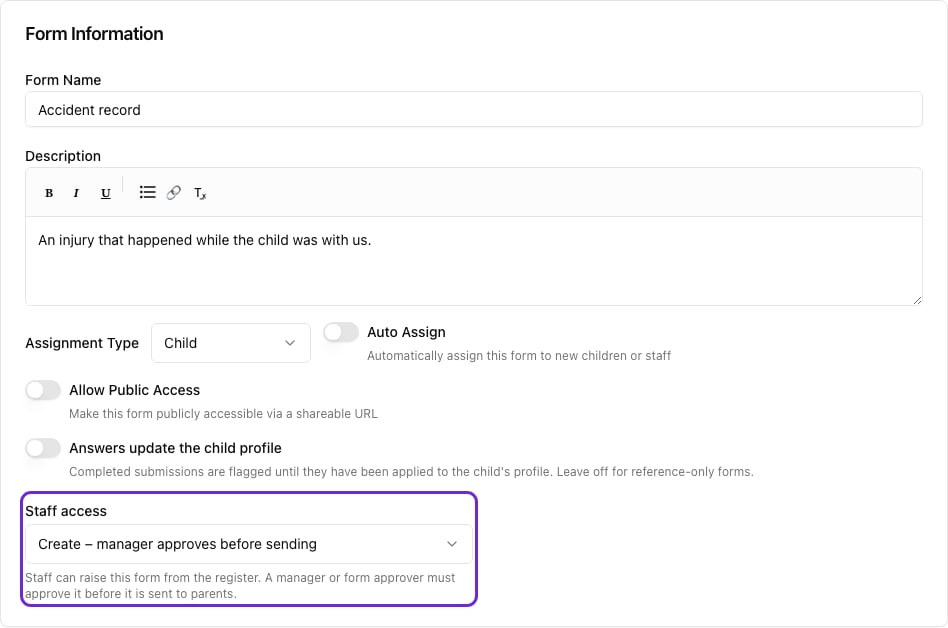
- Form Name: Enter a descriptive name for your form (required)
- Description: Add an optional description explaining the form’s purpose
- Assignment Type: Choose whether this form is for a Child or a Staff member. This determines who the form can be assigned to (and, for child forms, unlocks the Parent Editable option on each field)
- Auto Assign: Toggle to automatically assign this form to new staff members or children
- Allow Public Access: Make this form publicly accessible via a shareable URL (see Public Forms below)
- Staff access: For Child forms only. Controls what staff can do with this form from the register. See Staff access below.
- Answers update the child profile: For Child forms only. When on, completed submissions of this form are flagged on the Form Submissions list until someone has applied them to the child’s profile. Turn it on for forms whose answers belong on the profile (permissions, medical, dietary details); leave it off for reference-only forms so they never nag. See Child Entry Lifecycle.
Staff access
The Staff access dropdown sets how staff can use a child form from the register, on the web and in the mobile app. Whatever it’s set to, managers can still assign and send the form from Form Submissions.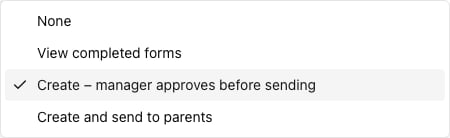
Use Create – manager approves before sending for forms a manager should check first, such as accident and incident records.
Staff forms don’t have this setting. A staff form is about a staff member, so other staff never see it in the register.
Building Form Sections
Forms are organized into sections, which contain fields. Each form starts with one section by default.Adding Sections
- Click “Add Section” to create a new section
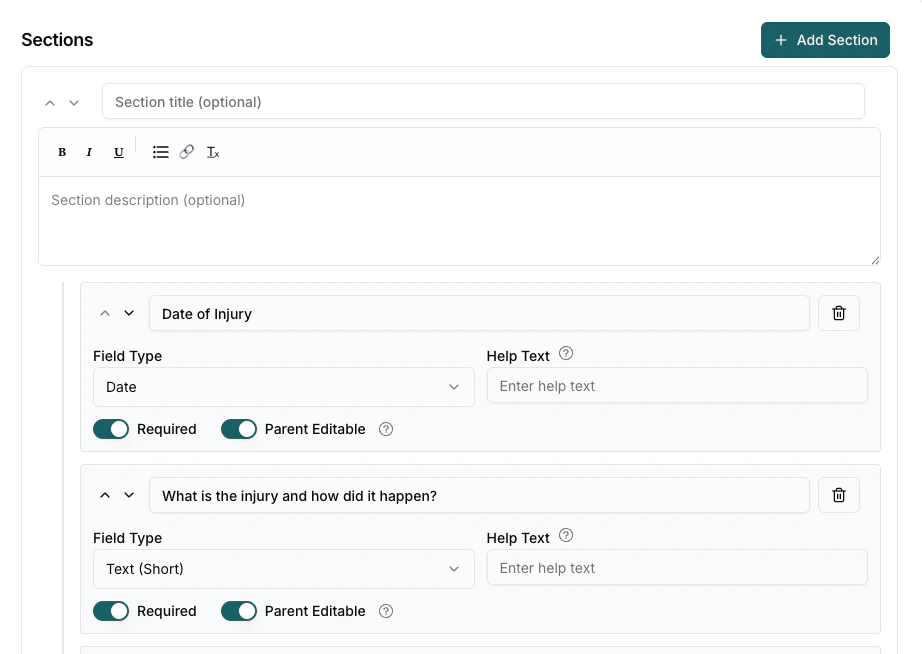
- Enter an optional Section Title (e.g., “Child Information”, “Medical Details”)
- Add an optional Section Description for additional context
Section Management
- Reorder: Use the up/down arrows to move sections up or down
- Delete Sections: Click the trash icon (you can’t delete if only one section exists)
Adding Form Fields
Within each section, you can add various types of fields:Field Types Available
Adding Fields
- Click “Add Field” within a section
- Configure the field properties:
- Field Name: The label users will see (required)
- Field Type: Select from the dropdown menu
- Required: Toggle to make the field mandatory
- Parent Editable: Determines if a parent can edit the field, or needs a staff member to edit it (e.g. a staff signature). This only appears on forms with an Assignment Type of Child.
- Help Text: Additional guidance for users that appears underneath the field
Field Management
- Reorder: Use the up/down arrows to move fields up or down
- Delete Fields: Click the trash icon to remove unwanted fields
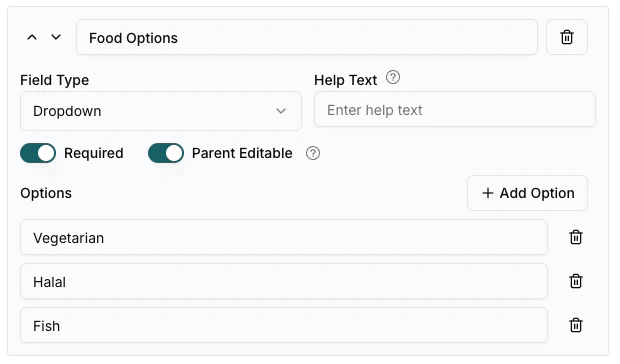
- Field Options: For dropdown and multi-select fields, add/remove/reorder options
Dropdown and Multi-Select Options
For dropdown and multi-select fields:- Click “Add Option” to create new choices
- Enter the option text
- Delete unwanted options with the trash icon
- Minimum 2 options are required
Form Preview
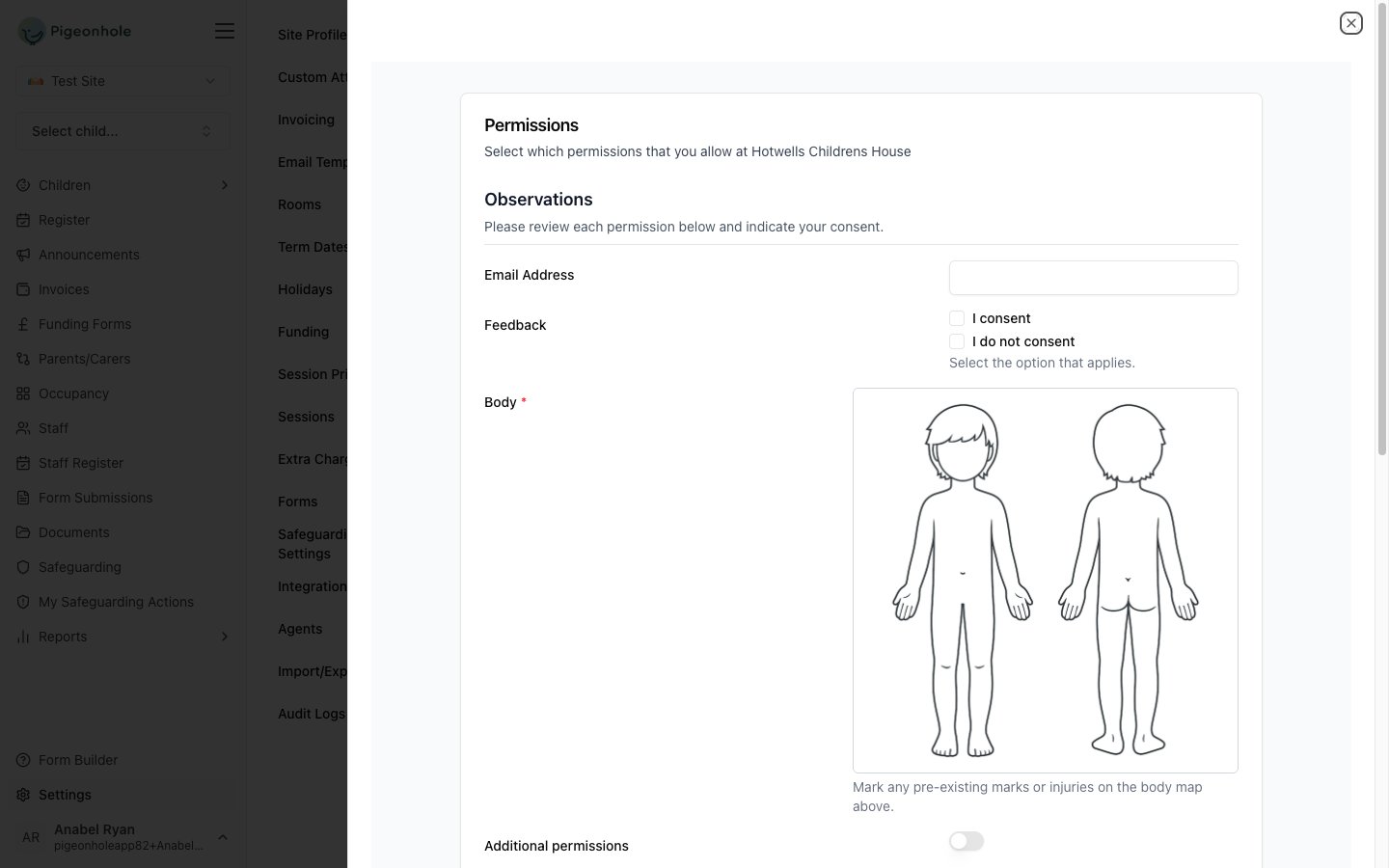
Click the Preview Form button in the sticky header at the top of the form builder to check how your form will appear to parents/guardians. This opens a full-width slide-out panel showing the form exactly as recipients will see it.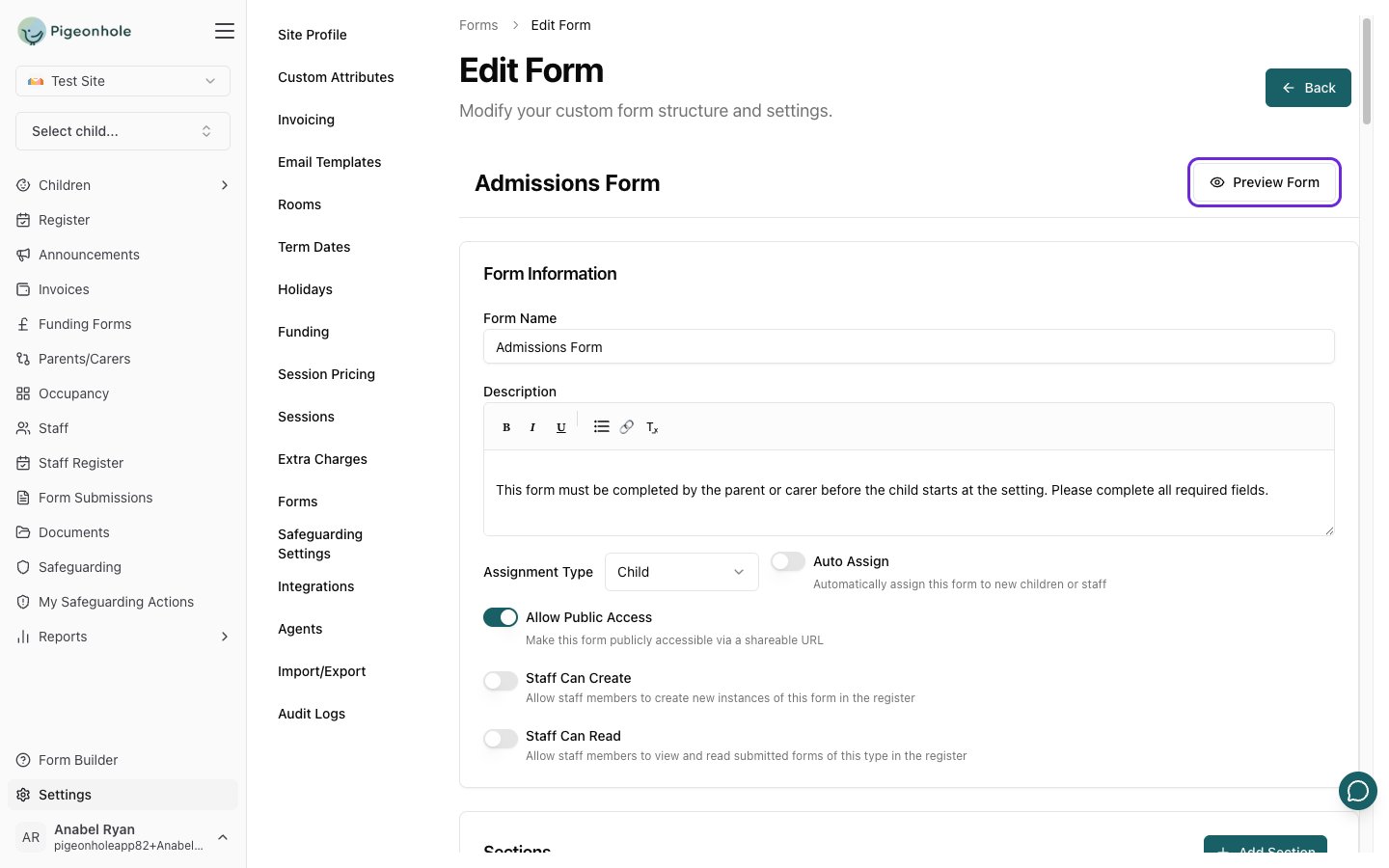
Saving Your Form
- Click “Save Form” when you’re satisfied with your design
- You’ll receive a success confirmation
- The form will be available for assignment to children or staff
For a detailed example of building a form with body maps, signatures, and parent-editable fields, see Example: Injury Form.
Public Forms
Public forms allow anyone with the link to submit a form without needing an account or being registered in Pigeonhole. This is useful for enquiry forms, feedback forms, or any scenario where you want to collect information from the general public.Enabling Public Access
- In the form builder, toggle “Allow Public Access” on
- Save the form
- A globe icon will appear next to the form name in the forms list, indicating it is publicly accessible
Sharing a Public Form
- Go to Settings -> Forms
- Find the form with the globe icon
- Click the More Actions (…) menu -> “Copy URL”
- Share the copied URL via email, your website, social media, or any other channel
https://pigeonholeapp.co.uk/forms/little-stars-nursery/{siteId}/{formId}
How Public Forms Work
- Anyone with the URL can access and submit the form — no login required
- Submitters must provide their name and email address
- reCAPTCHA is used to protect against spam and bot submissions
- Each submission creates a new form entry visible on the Form Submissions page
- The same person can submit the form multiple times
- Public form submissions appear in the submissions list with the submitter’s name and email displayed
Public forms do not need to be individually assigned — the URL is the same for everyone. If you need to send a form to a specific person, use the form assignment feature instead.