Monitoring is where your team keeps track of anything they’re watching in a child’s development before it becomes anything formal. A child might not yet be joining words together, might be unsteady on their feet, or might be finding it very hard to settle. Staff start monitoring it, back it up with observations, and add updates as things change: progress they’ve seen, a conversation with the family, or another agency getting involved. It’s the early, informal stage of SEND support. If you’ve moved from Tapestry, it does the job of Reflections.
Monitoring is staff only. Families never see what’s being monitored, its updates or that it exists. Conversations with parents are recorded as updates, so you have a record of what was shared and when.
Monitoring is for development, not safeguarding. If you’re worried about a child’s safety or welfare, record a safeguarding concern instead.

Switching Monitoring on

Monitoring is off by default.
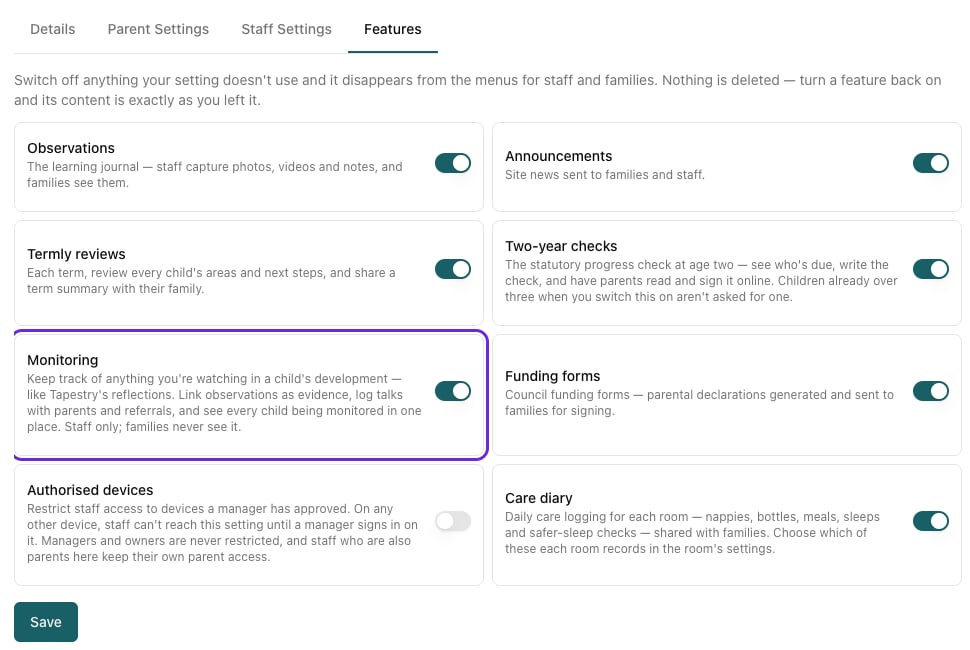
  1. Go to Settings → Site Profile and open the Features tab.
  2. Turn on Monitoring.
  3. Click Save.
The Features tab on Site Profile with the Monitoring switch highlighted and turned on
Switching it on adds:
  • Monitoring to the Development section of the sidebar
  • a Monitoring tab on each child’s Development tab
  • a Monitoring section on the child screen in the staff app
  • an Evidence for something you’re monitoring? switch when staff write an observation for a child who’s being monitored
  • a Being monitored panel on the two-year check
Switching it off again hides all of these. Nothing is deleted, and everything reappears untouched if you turn it back on.

Who can do what

Every member of staff can see everything being monitored at your setting, start monitoring, add updates and link observations. Deciding that monitoring can stop belongs to your SENCo and your managers.

Choosing your SENCo

Give your special educational needs co-ordinator the SENCo permission:
  1. Go to Staff and open their profile.
  2. Under Permissions, tick SENCo.
  3. Click Save.
You can give it to more than one person. Managers already have everything a SENCo has, so they don’t need it. See Staff Permissions. When anyone starts monitoring, your SENCos and managers get an in-app notification saying who started it and what it’s about. The person who started it isn’t notified.

The Monitoring page

Go to Development → Monitoring. It lists everything being monitored at your setting, one row each.
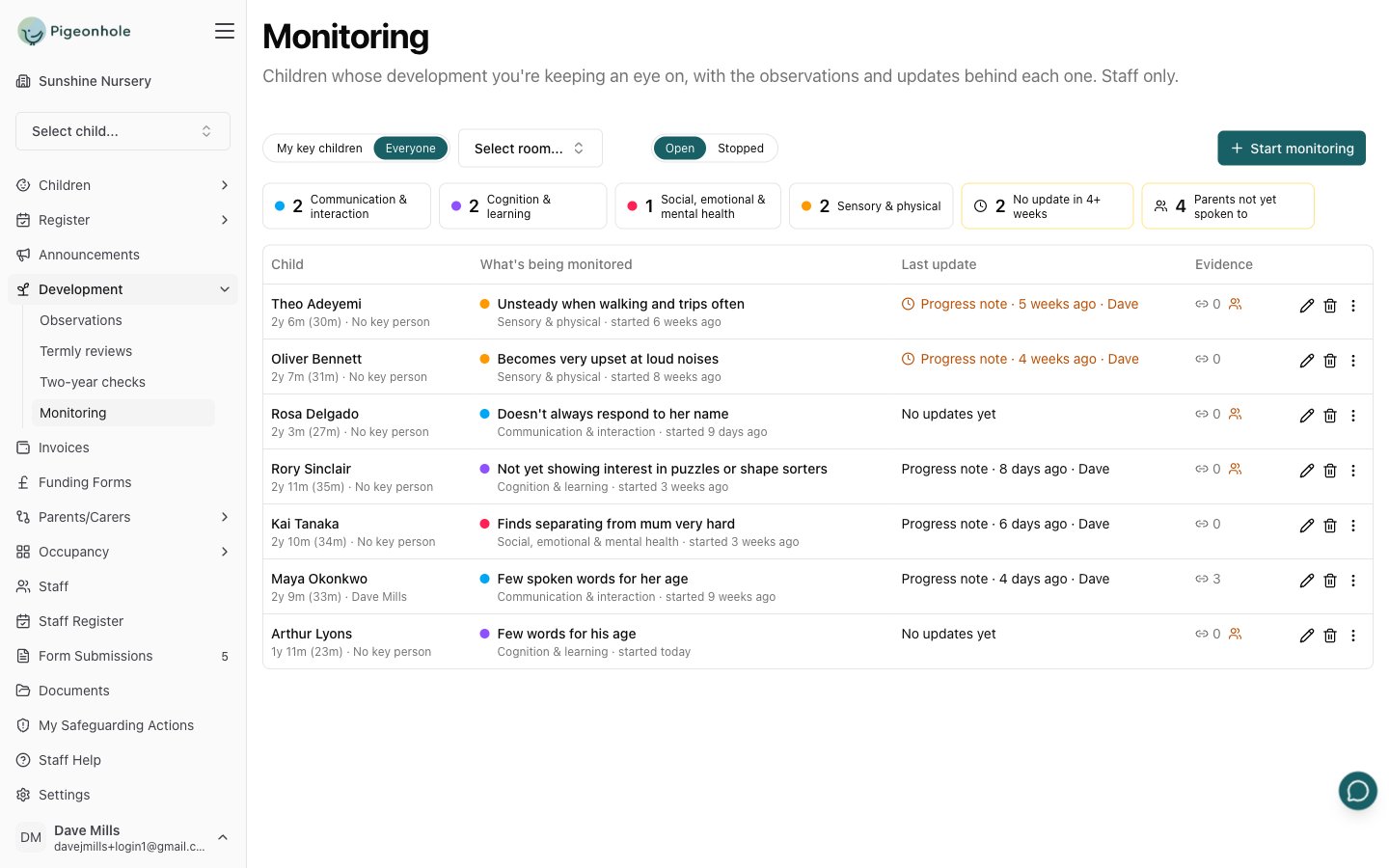
The Monitoring page listing seven children being monitored, with each row's child, what's being monitored, last update, evidence and edit, delete and menu buttons, and the area-of-need counts and filters across the top
Each row shows:
  • the child, their age and key person
  • what’s being monitored, its area of need (with its colour), and how long ago it started
  • the last update, what kind it was, and who added it. It turns amber after four weeks without one.
  • how many observations are linked, and a small people icon if nobody has logged a talk with the family yet
Whatever has gone quietest comes first, so the ones that need attention are always at the top. On the right of each row:
  • the pencil edits the title, area of need or description
  • the bin deletes it (SENCos and managers only)
  • the ⋮ menu downloads the PDF, and lets SENCos and managers Stop monitoring, or Monitor again once it has stopped

Filtering

Across the top:
  • My key children / Everyone: managers and SENCos start on Everyone, other staff start on their own key children.
  • Select room…: just one room.
  • Open / Stopped: switch to Stopped to look back at monitoring that has stopped.
The counts below them are filters too. Click one to show only those rows, and click it again to clear it:
Monitoring doesn’t have review dates or reminders. The page shows you what’s gone quiet instead, so anything nobody has touched for a month rises to the top on its own.

Working through the list

Click a row to open it in a side panel. The panel shows everything in one place: the area of need, what was first noticed, and a timeline of every update and linked observation, newest first.
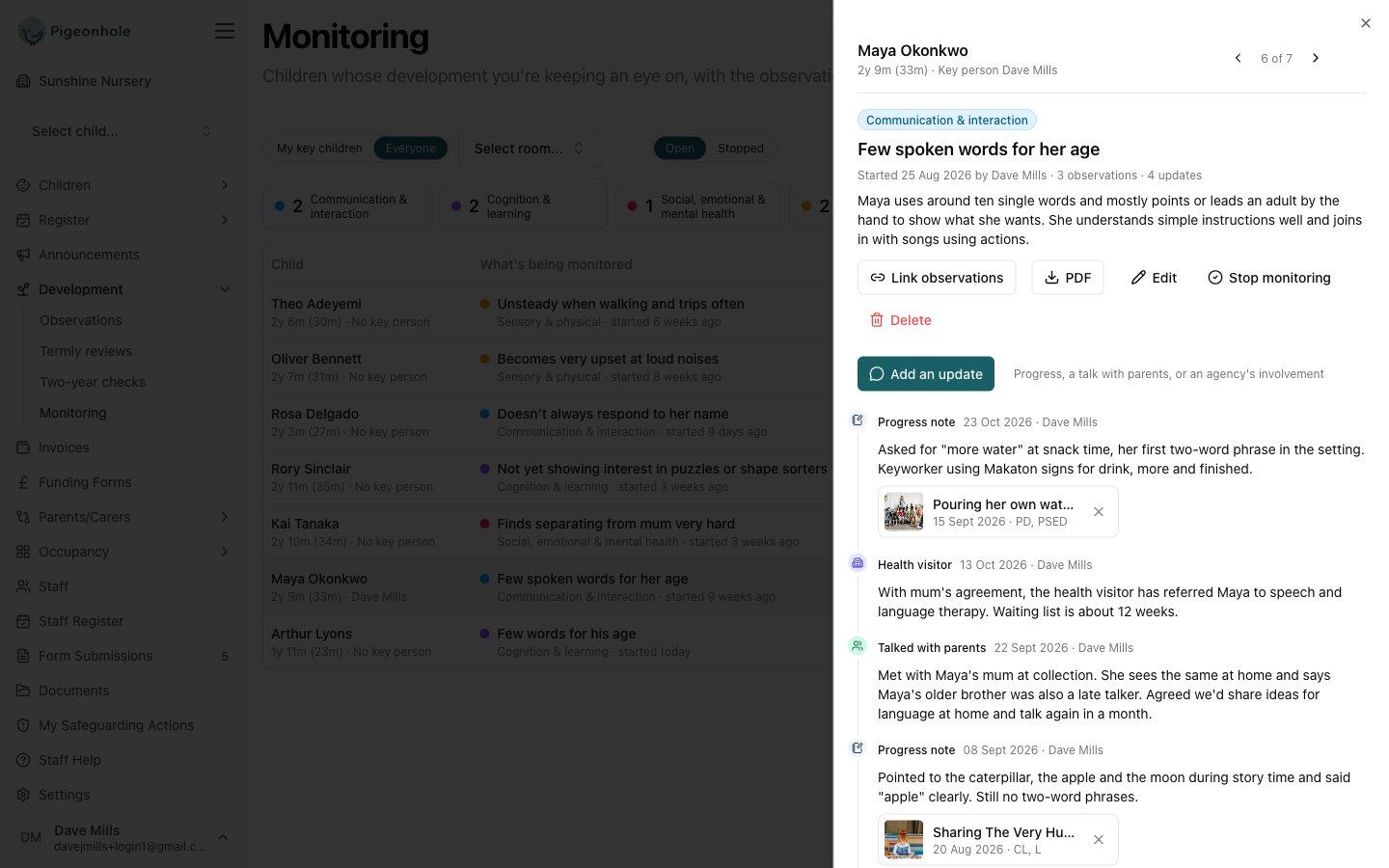
The side panel for Maya Okonkwo's Few spoken words for her age, showing the Link observations, PDF, Edit, Stop monitoring and Delete buttons and a timeline of progress notes, a health visitor update and a talk with parents
Use the arrows at the top of the panel to move to the previous or next row without closing it, so you can work down the list in one go. If more than one thing is being monitored for the same child, they’re listed at the top of the panel; click one to switch to it. From the panel you can also:
  • Add an update or Link observations. See the staff guide for how these work.
  • PDF: download the full history (see Sharing the history).
  • Edit: change the title, area of need or description. Staff can edit what they started; SENCos and managers can edit anything.

Stopping monitoring

Stop monitoring when you no longer need to, for example because:
  • the child has caught up
  • the child now has SEN support or an EHCP, and you’re tracking it there instead
  • the child has left your setting
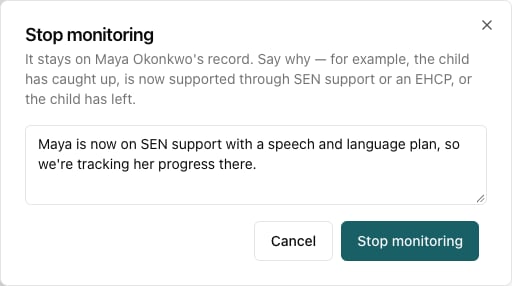
  1. Open it and click Stop monitoring.
  2. Write a short note saying why. You can’t stop without one.
  3. Click Stop monitoring.
The Stop monitoring dialog, with a note explaining the child is now supported through SEN support
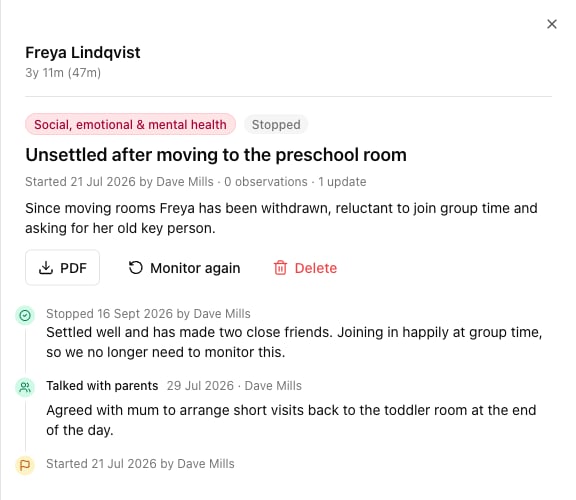
It stays on the child’s record with its whole timeline and your note at the top. Find it under Stopped on the Monitoring page, or with the Show … stopped link on the child’s Monitoring tab. You can no longer add updates or link observations once monitoring has stopped.
Stopped monitoring for Freya Lindqvist, with the Stopped badge, the PDF, Monitor again and Delete buttons, and the closing note at the top of the timeline
If something comes back, click Monitor again to pick up the same timeline rather than starting a new one.

Deleting

Delete removes it and its whole timeline. It’s for something added by mistake, such as monitoring started on the wrong child. When monitoring has genuinely run its course, stop it instead so the record is kept.
Deleting can’t be undone from Pigeonhole. The linked observations themselves aren’t affected; they just stop being linked.

Sharing the history

Click PDF on anything being monitored, open or stopped, to download its history. It includes:
  • the area of need, when and by whom monitoring started, and what was noticed
  • every update, oldest first, with its date, type and author
  • the linked observations
  • if monitoring has stopped, why
It’s useful when you make a referral, meet the family or hand over to another setting or to school.

On the two-year check

When a child who’s being monitored, or whose monitoring stopped in the last six months, is due their progress check at age two, the check shows a Being monitored panel above the Other professionals involved and our plan box. The key person can click Add a summary to this box to start that section from what’s been recorded.
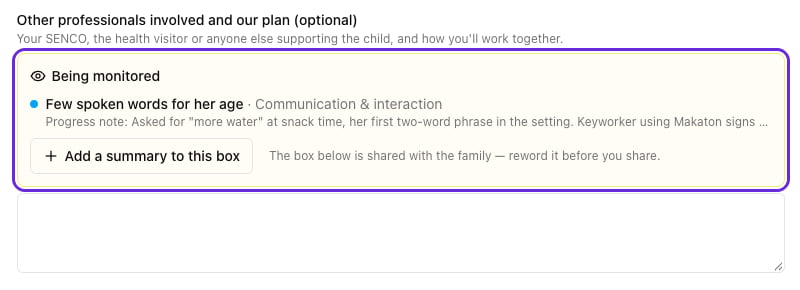
The Being monitored panel on Maya's two-year check, listing Few spoken words for her age with its latest progress note and an Add a summary to this box button
The two-year check is shared with the family, so the panel reminds staff to reword the summary before sharing. Monitoring itself stays staff only.

Frequently Asked Questions

Can parents see what’s being monitored?

No. Monitoring is never shown in the parent portal or in any email to families. Only what you choose to write into a two-year check or another shared report reaches them.

Who can see what’s being monitored for a child?

Every member of staff at your setting. Monitoring is about supporting the child day to day, so the whole team needs to know what to look out for. If something is sensitive enough that it should be restricted, it probably belongs in safeguarding.

How is this different from a termly review’s “concern”?

A termly review records a judgement about each area once a term. Monitoring is ongoing: it stays open, gathering evidence and updates, for as long as you need it, and stops when it’s no longer needed.

We used Reflections in Tapestry. Can we bring them across?

Not automatically. Start monitoring for each child you’re still watching, and paste in a short summary of the history as the first update.

Can we set review dates?

No. Instead of reminders, the Monitoring page puts anything with no update for four weeks at the top and counts it under No update in 4+ weeks.