
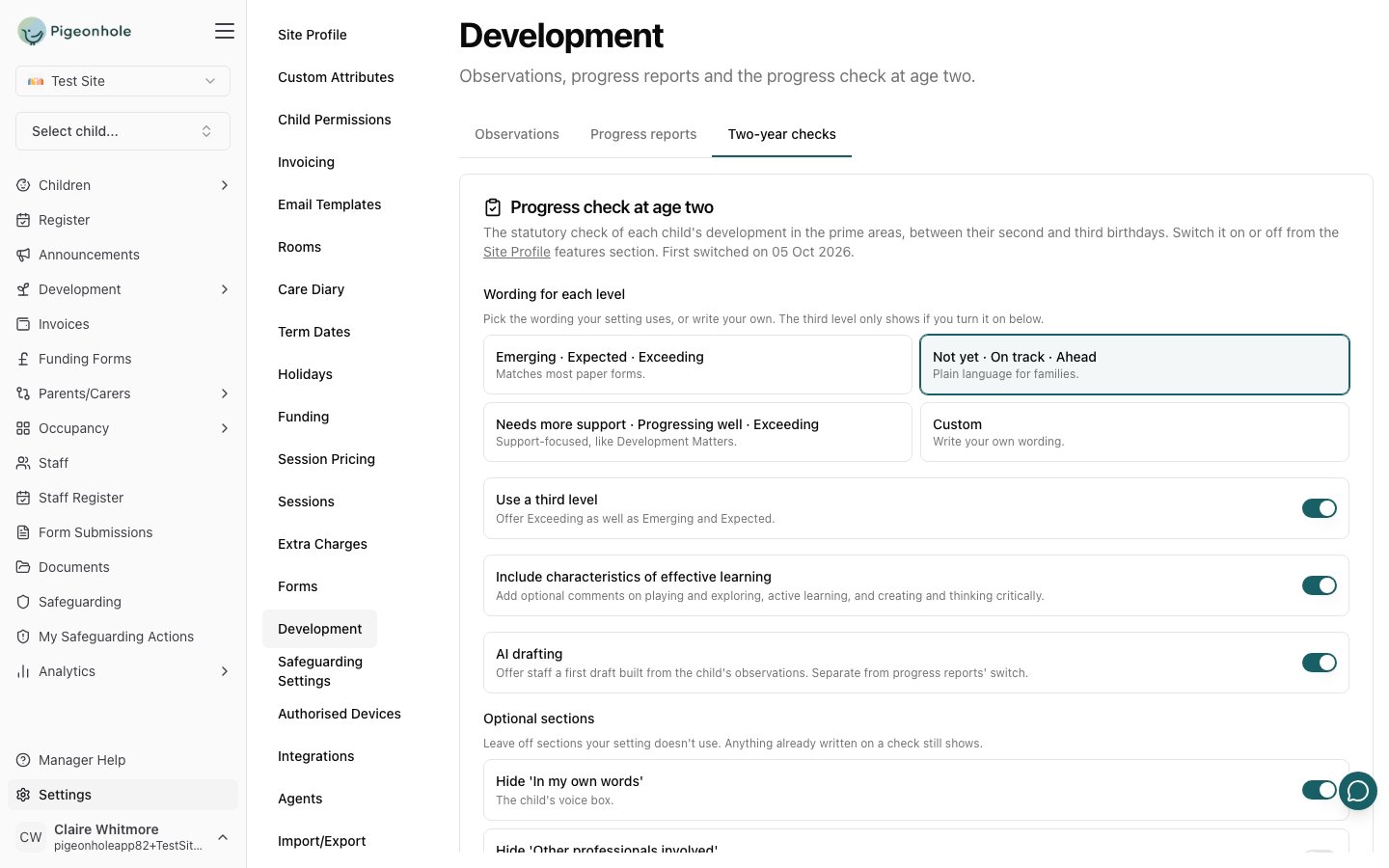
Open in app: the Two-year checks tab of Settings → Development. Staff write checks under Development → Two-year checks in the sidebar — see the staff guide for the step-by-step.
Switching it on
Two-year checks are a feature of their own, separate from progress reports. Turn on Two-year checks in the Features card on Site Profile. They then appear under Development → Two-year checks in the sidebar. Children who were already over three on the day you first switch checks on are left out, so you aren’t asked to record checks for children who have already had theirs. The details are on the Two-year checks tab of Settings → Development:- Wording for each level. Pick Emerging · Expected · Exceeding (the default), Not yet · On track · Ahead, Needs more support · Progressing well · Exceeding, or Custom to write your own.
- Use a third level adds the third level (off by default).
- Optional sections — use the Hide switches to leave off In my own words, Other professionals involved, Ideas to try at home or the area and aspect comments if your setting doesn’t use them. Anything already written on a check still shows.
- Include characteristics of effective learning adds optional comments on playing and exploring, active learning and creating and thinking critically.
- AI drafting and Two-year check writing rules work like the progress report ones, but are set separately. The AI drafting switch only appears while Observations are switched on.
Who’s due
Development → Two-year checks lists every child from 23 months: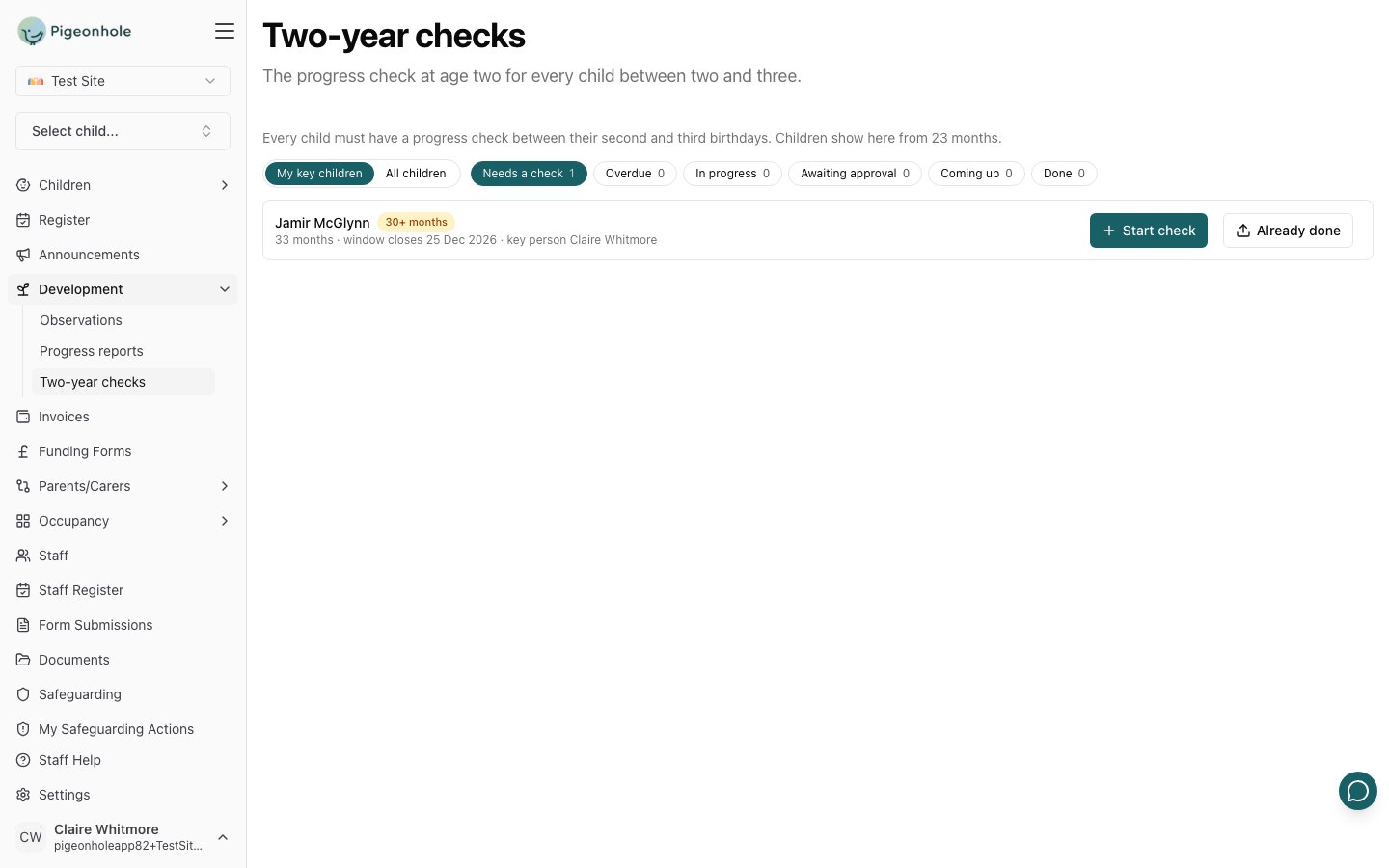
The list opens on My key children with the Needs a check filter, so key people see their own children first. Switch to All children, or use the Overdue, In progress, Coming up and Done filters. Each row shows the child’s age, when their window closes and their key person. Once a check is shared, the row also shows Awaiting parent signature until a parent signs.
Children who are due, whose check is in progress, or whose check is waiting for a parent’s signature also get a banner on their profile, and the children list has a 2-year check column and filter. Approvers get an Awaiting approval filter showing checks waiting on them. Leavers, archived children, children who haven’t started yet and children who joined after their third birthday aren’t tracked.
Writing a check
Only the child’s key person or a manager can start a check, and each child has one. Every box on the check is plain text — press Enter for a new line. The check holds:- a level for each of the seven aspects — self-regulation, managing self, building relationships, listening, attention and understanding, speaking, gross motor and fine motor
- an optional comment on each prime area, and on any aspect (Add comment under it). Comments appear in the grid, under their area or aspect, for parents and on the PDF
- the characteristics of effective learning comments, if your setting includes them
- Areas in which I’m making progress, Areas where I need more support and To support progress, we will (parent and setting)
- optionally, Ideas to try at home, the child’s own voice, and other professionals involved (your SENCO, the health visitor, speech and language) and your plan
- up to six moments that show this — the child’s published observations, linked as evidence. Families can open each one in their journal, and the PDF lists them by date and title
- the key person’s comment and signature, which is required before the check can be shared
Parents read and sign
When a check is shared, every parent with parental responsibility is emailed and asked to read and sign it. You can add a personal message to the email when you share it (or resend it) — it goes in that email only. You can see when each parent first opens the check, even before anyone signs: the check shows Read by … with the date, and the tracking list marks it Read or Not opened. Parents can add their own comment and say whether you may share the check with their health visitor and other professionals — the EYFS requires that consent before you share it directly. If no one has signed after a week, they get one reminder; Resend to parents sends another. The first parent to sign completes the check, and it then becomes read-only. If something needs changing, a manager can Reopen it: both signatures are cleared, it goes back to its author with your reason, and parents are asked to sign again once it’s reshared. A signed check can’t be deleted. Staff and parents can download the check as a PDF laid out like a paper form.Checks already done
For children whose check was done before you used Pigeonhole for checks, or by another setting where the child spends most of their time, use Already done on the tracking list. In Record an existing check, choose Done here, on paper or Done at another setting, enter the Date the check was completed, and upload the completed form as PDFs or photos of each page. The upload is required for a paper check done here and optional for another setting’s check, where you can also note which setting did it. It counts as done, parents can see it, and nobody is emailed.If a child leaves or is deleted
- When a child is archived, their check stays on their record for staff but disappears for parents, and reminders stop. Restoring the child brings it back.
- When a child is permanently deleted, their two-year check is deleted with them.