
Open in app: the Observations tab of Settings → Development. This used to be its own Settings → Observations page. Observations can be switched off entirely from the Features card on Site Profile.
The approval workflow
Every observation moves through these states:
How a member of staff moves through those states depends on their role:
- Regular staff write an observation, then Submit for approval. Everyone who can approve gets an email. They can withdraw it back to a draft while it’s waiting.
- Publishers and managers skip the queue — they see a Publish button instead of Submit for approval, and publish their own work directly.
- An approver either publishes the observation (now or at a set time), or returns it with Return with comment. A comment is required, so the author always knows what to fix. They’re emailed, edit, and resubmit.
Term summaries and two-year checks go through the same draft, approval and publish steps, but they can’t be scheduled — they’re shared as soon as they’re published.
The Publisher role is granted per staff member on their profile, under additional roles. It also lets them publish announcements directly. See Staff Permissions.
Who can see and edit what
Scheduling observations
An approved observation doesn’t have to go out straight away. You can schedule it so families see it at a time you choose — for example after pickup, rather than while their child is still at nursery.When staff ask for a time
Anyone writing an observation can fill in Publish at (optional) before they submit it. It’s a request, not a decision: when you open the observation to approve it, a grey box shows the time they asked for, such as “Hannah asked for this to be published 24 Oct 2026 10:00.” Click Publish and the dialog is already filled in with that time. Keep it and click Schedule, pick a different time, or clear it to publish straight away. If the requested time has already passed by the time you approve it, the observation is published immediately.Scheduling your own observations
Publishers and managers can set Publish at (optional) on their own observations too. When a future time is set, the Publish button becomes Schedule, and you’re asked to confirm.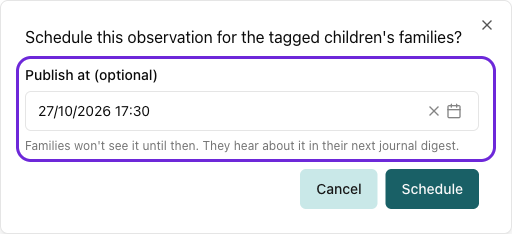
Managing a scheduled observation
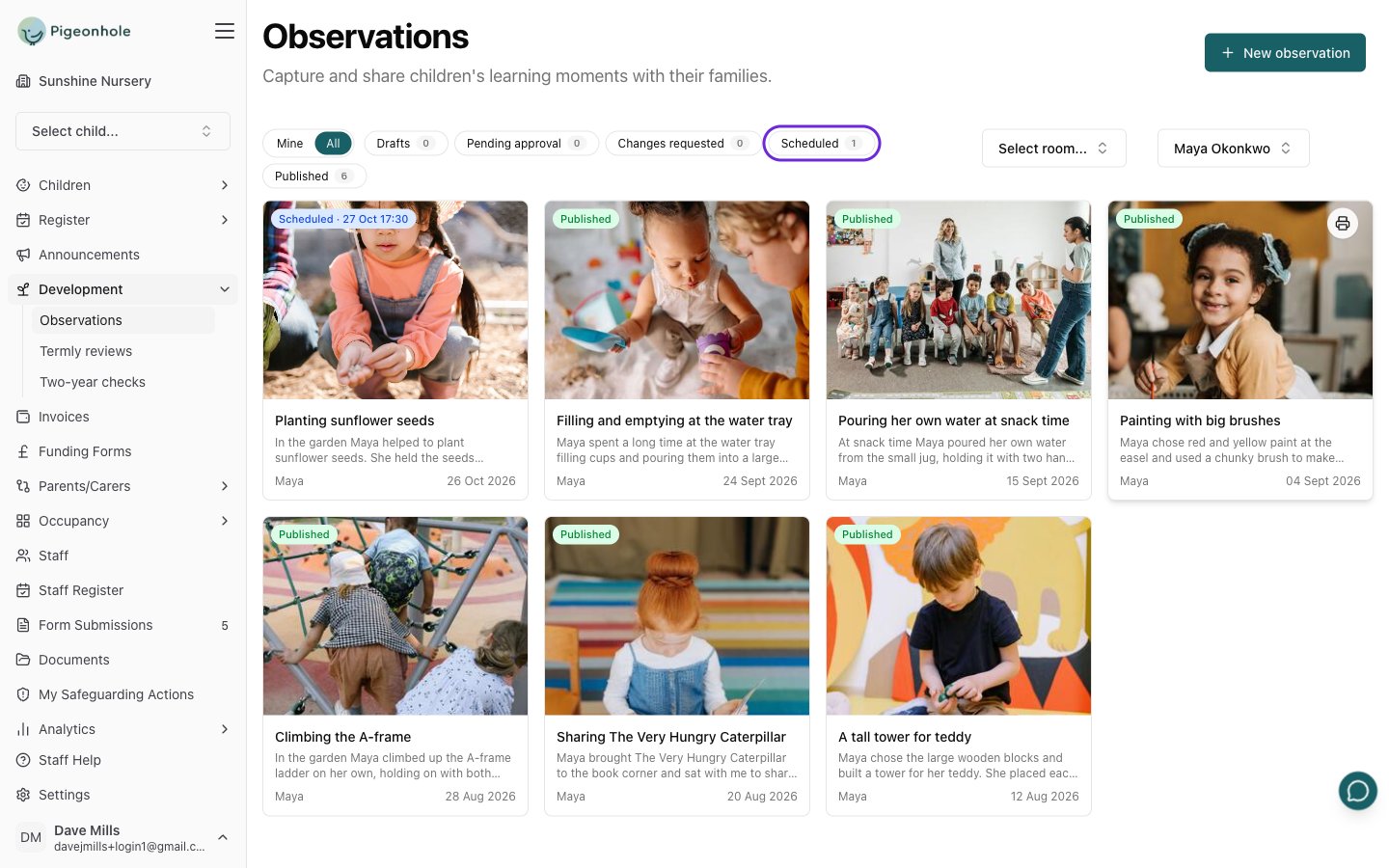
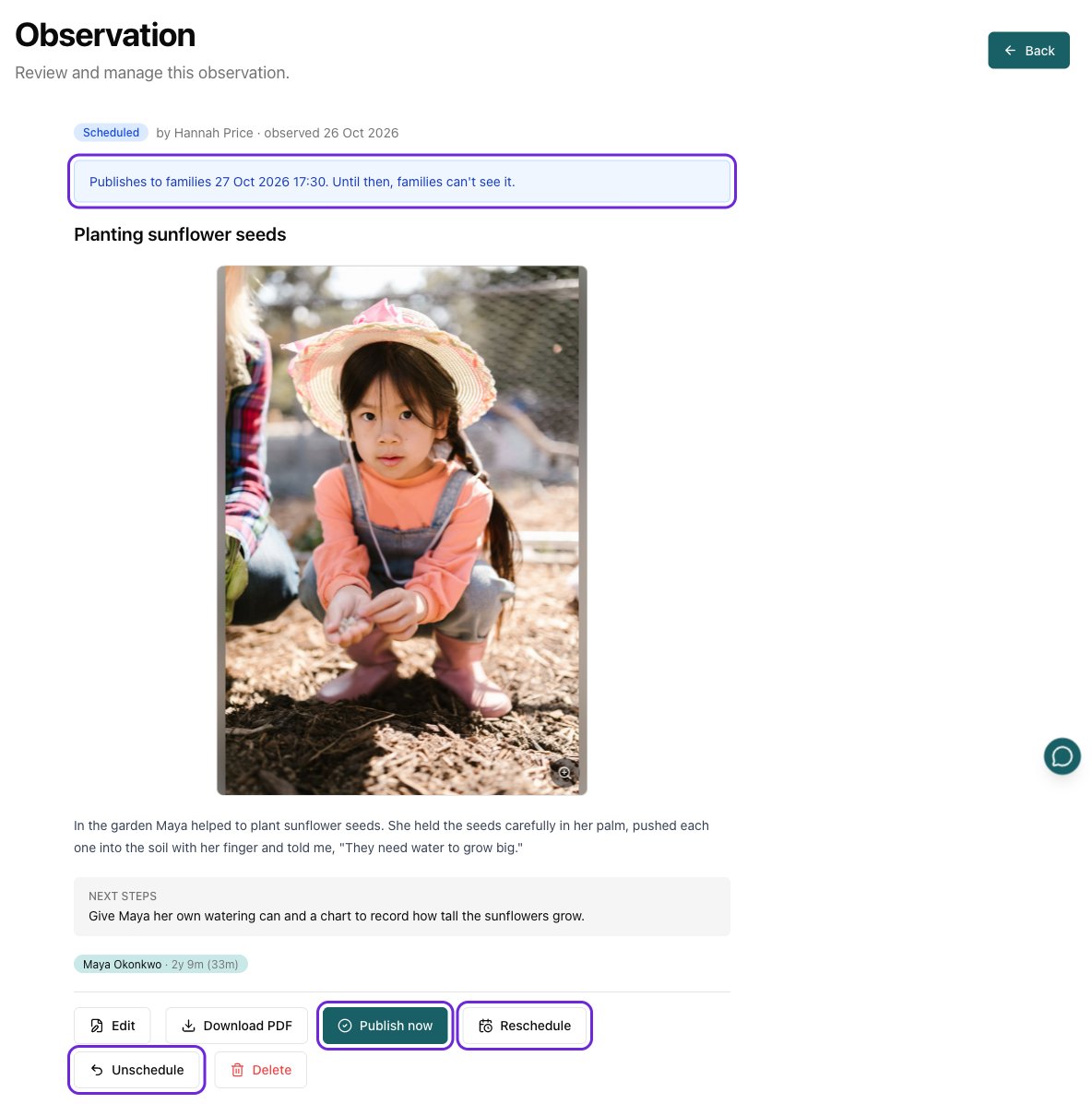
A scheduled observation has a blue Scheduled pill showing when it goes out, and a banner reading “Publishes to families … Until then, families can’t see it.” Click the Scheduled chip on the Observations list to see everything waiting to go out. Open it to change its timing:- Publish now — share it straight away.
- Reschedule — choose a new time.
- Unschedule — take it back to Pending approval. It won’t go out until someone approves it again.
Until it’s published, a scheduled observation doesn’t count anywhere families or reports would see it. It isn’t read by termly reviews, and it can’t be picked as evidence for a two-year check.
Sharing drafts with staff
By default a draft is private to whoever wrote it — even managers can’t see it. Half-finished notes about a child stay unread until their author chooses to submit them. If your team works together on observations — finishing a colleague’s write-up at the end of a shift, or tidying an apprentice’s draft — you can share drafts with every member of staff. Choose an option under Staff drafts in the Journal emails & AI rules card:
Once drafts are shared they appear in everyone’s All list, with the author’s first name on the Draft badge so nobody mistakes a colleague’s draft for their own. The Draft chip reads Drafts rather than My drafts.
Sharing never changes who a draft belongs to:
- Only the author can submit it for approval. A regular member of staff editing a colleague’s draft sees Save draft only.
- Publishers and managers can publish it. They see Publish on a colleague’s draft, so a draft doesn’t get stuck when its author is away — on long-term sick, say, or after they’ve left. The observation keeps the author’s name, and you’re recorded as the approver.
- Only the author can delete it — managers included.
- Observations sent back with changes requested stay private to their author and approvers, whatever this setting says. An approver can make the changes and publish it themselves if the author can’t.
- The author’s name stays on the observation, and every edit is recorded in the audit log.
If two people edit the same observation at once, the first save wins. The second person sees “Someone else changed this observation while you were editing it” and their save is refused rather than overwriting the first — their changes stay on screen, so they can copy anything they need, reopen the observation and add it back.
Staff using an older version of the Pigeonhole app can see shared drafts but won’t be offered Edit until they update the app.
Journal emails and AI rules
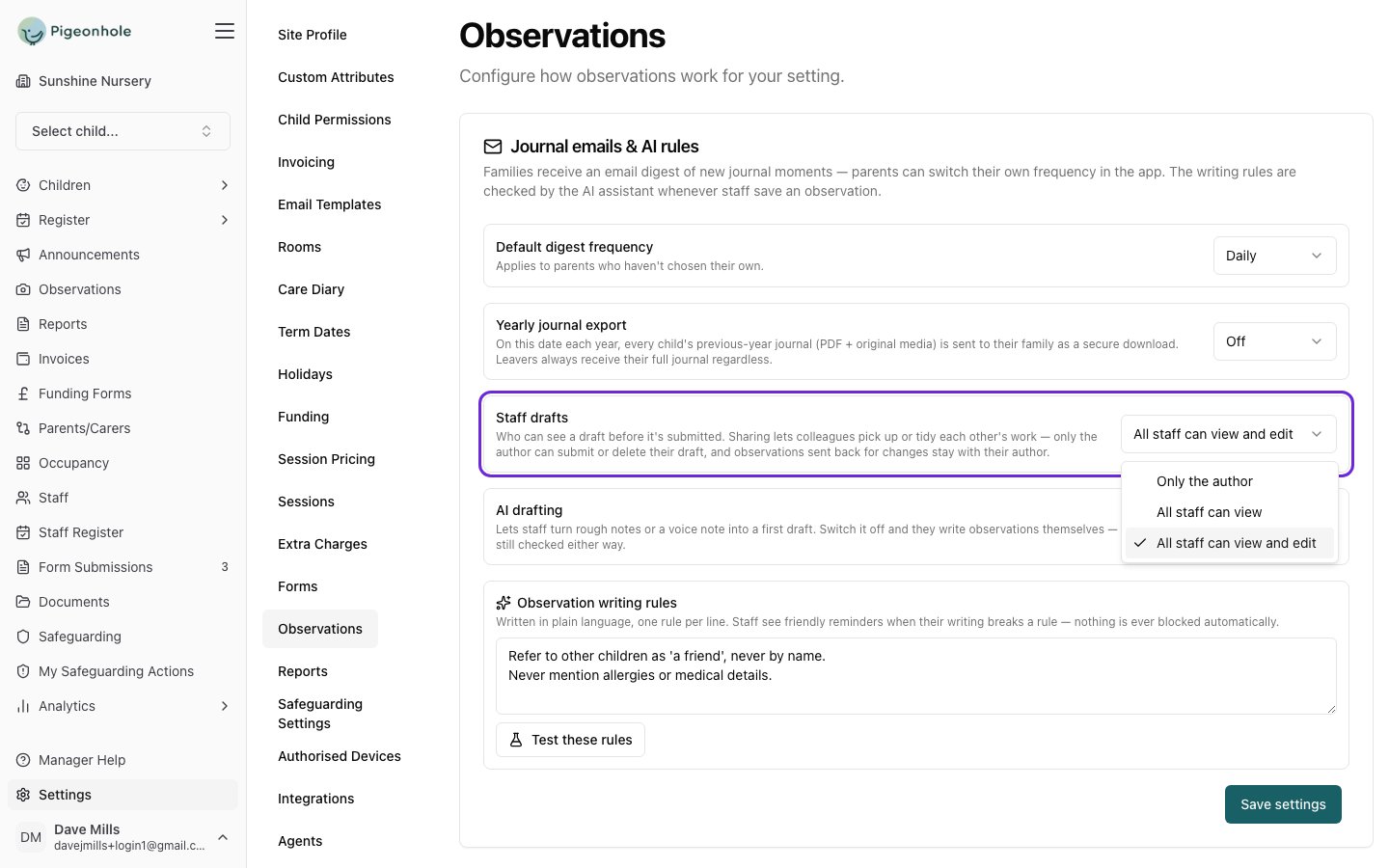
- Default journal emails — how families are emailed about new journal moments. Choose As it happens (the default), which emails each new moment when it is published, or Weekly summary. This applies to parents who haven’t picked their own preference; each parent can override it in their own account.
- Yearly journal export — pick a month and day (for example 31 August) and every child’s previous-year journal is sent to their family on that date. Off by default.
- Staff drafts — whether staff can see, or see and edit, each other’s drafts. Only the author by default. See Sharing drafts with staff.
- AI drafting — lets staff turn rough notes or a voice note into a first draft. On by default. Switching it off doesn’t disable the writing-rules check below.
- Observation writing rules — see below.
AI writing rules
Writing rules are the most useful control on this page. Write them in plain language, one per line, and the AI checks staff writing against them whenever an observation is submitted or published:Refer to other children as ‘a friend’, never by name. Never mention allergies or medical details.Staff see a friendly reminder with a suggested rewrite, plus a Fix all option and a Proceed anyway button. Nothing is ever blocked — the rules nudge, they don’t gate. Human approval is unchanged.
Leave the box empty and no check runs at all.
Testing your rules
Click Test these rules to see exactly what staff would be shown, without saving first and without storing anything. Type something a member of staff might realistically write and click Check it.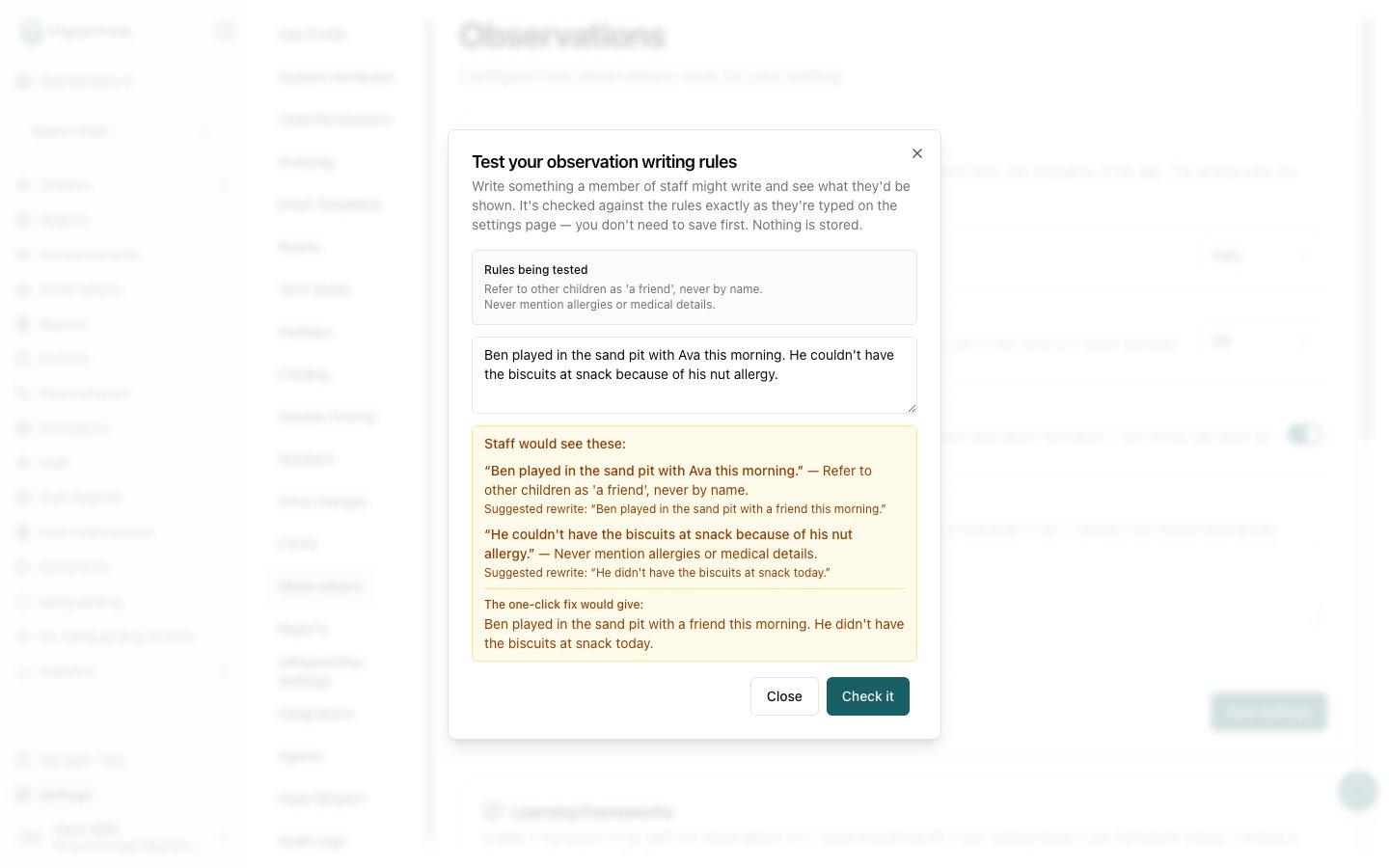
Ben played in the sand pit with Ava this morning. He couldn’t have the biscuits at snack because of his nut allergy.is flagged twice — once for naming another child, once for the medical detail. The one-click fix gives:
Ben played in the sand pit with a friend this morning. He didn’t have the biscuits at snack today.Notice that Ben’s own name is left alone. The check allows the names of the children the observation is actually about — only other children are flagged.
Learning frameworks
Frameworks let staff link an observation to areas of learning. They are all off by default — leave them off if your setting doesn’t use framework linking, and tagging stays optional for staff either way.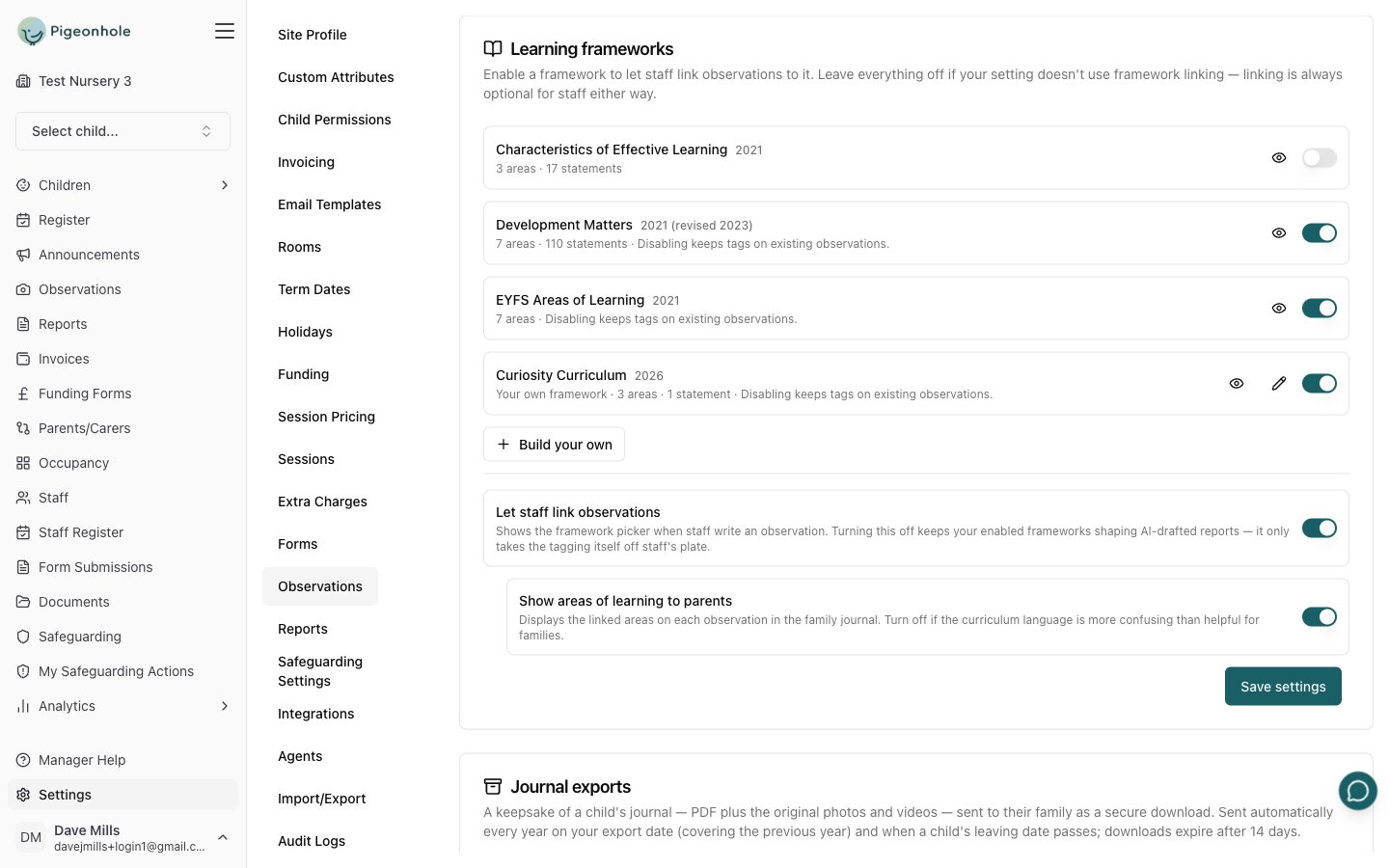
Use the eye icon on any framework to preview exactly what’s inside it — every area and every statement, grouped by band — before you switch it on.
Whichever frameworks you enable also shape AI-drafted reports: the draft is structured around your areas of learning, using your area names. See Termly Reviews.
Tagging and what parents see
Two switches at the bottom of the card control how frameworks show up day to day. Unlike the framework switches above them, these are saved with the Save button on the card.- Let staff link observations — shows the framework picker when staff write an observation. On by default. Turn it off if tagging every moment is more work than it’s worth for your team.
- Show areas of learning to parents — displays the linked areas on each observation in the family journal. On by default, and only shown while the switch above is on. Turn it off if the curriculum language is more confusing than helpful for families.
Turning Let staff link observations off does not stop your frameworks shaping AI-drafted reports. It only takes the tagging itself off staff’s plate — the report drafter still works from your enabled frameworks and infers the area from what each observation describes.
Building your own framework
If your setting follows a curriculum that isn’t one of the built-ins, click Build your own. Give it a name and an optional version, then add the areas staff will tag — these become the chips on the compose screen. Statements are optional detail within an area; add them only if your setting works that way, and use the band field to group them. Your framework switches on as soon as you create it and sits alongside the built-ins with an edit pencil. The built-in frameworks can’t be edited.Home Moments and comments
Families can share photos from home for staff to review and add to the journal, and staff (and optionally families) can comment on observations. Both are set in the Home Moments & comments card on this page. See Home Moments and Comments.Journal exports
Journal exports are keepsakes for families: a PDF of the journal plus the original photos and videos, emailed as a secure download link. The link needs a one-time code sent to the family’s email and expires after 14 days. They happen three ways:- Yearly — on the export date you set above, each child’s previous year’s journal is sent automatically.
- When a child leaves — once their leaving date passes, their complete journal is sent automatically.
- Manually — pick a child on the Observations tab and click Generate export at any time.