What’s in a term summary
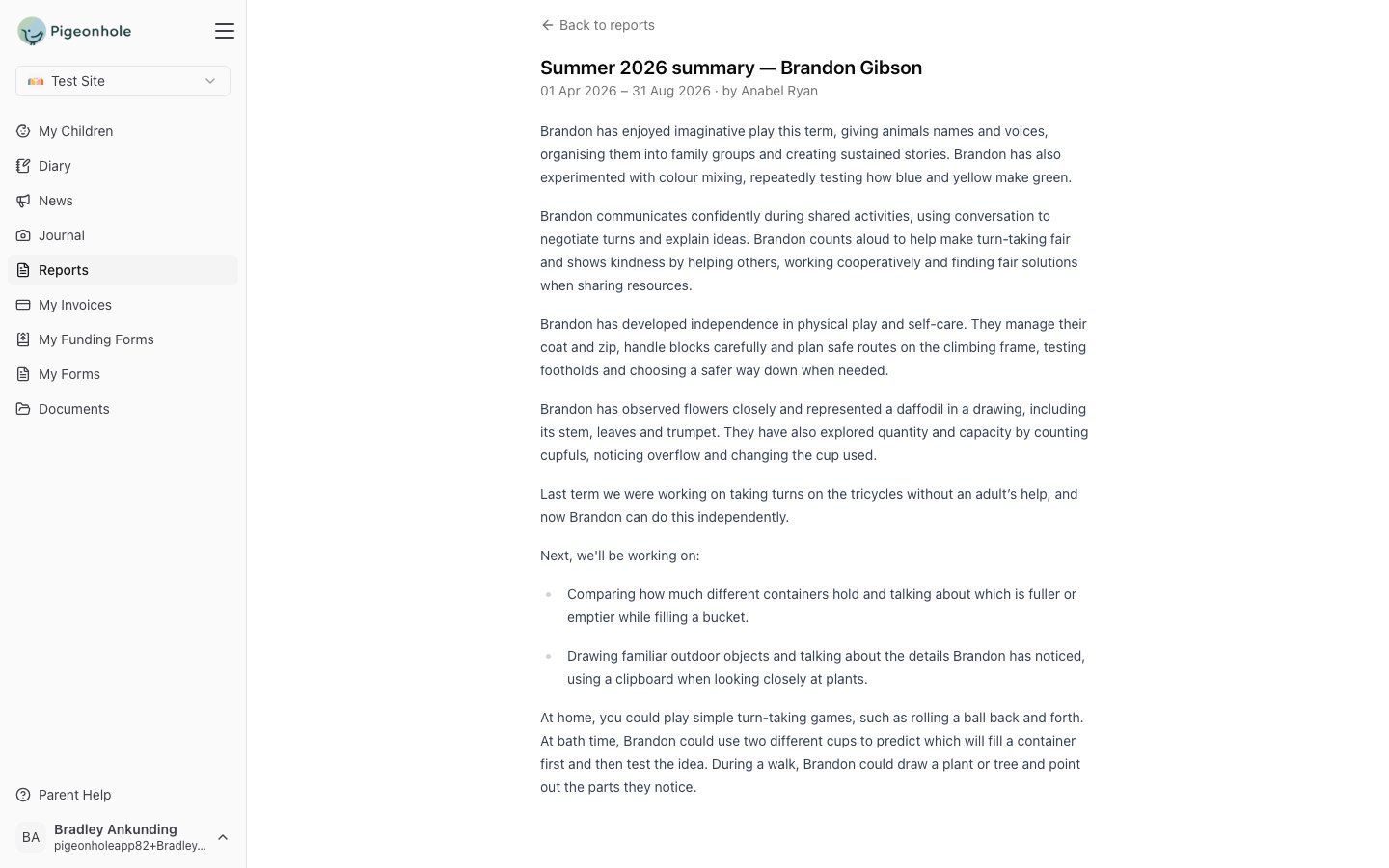
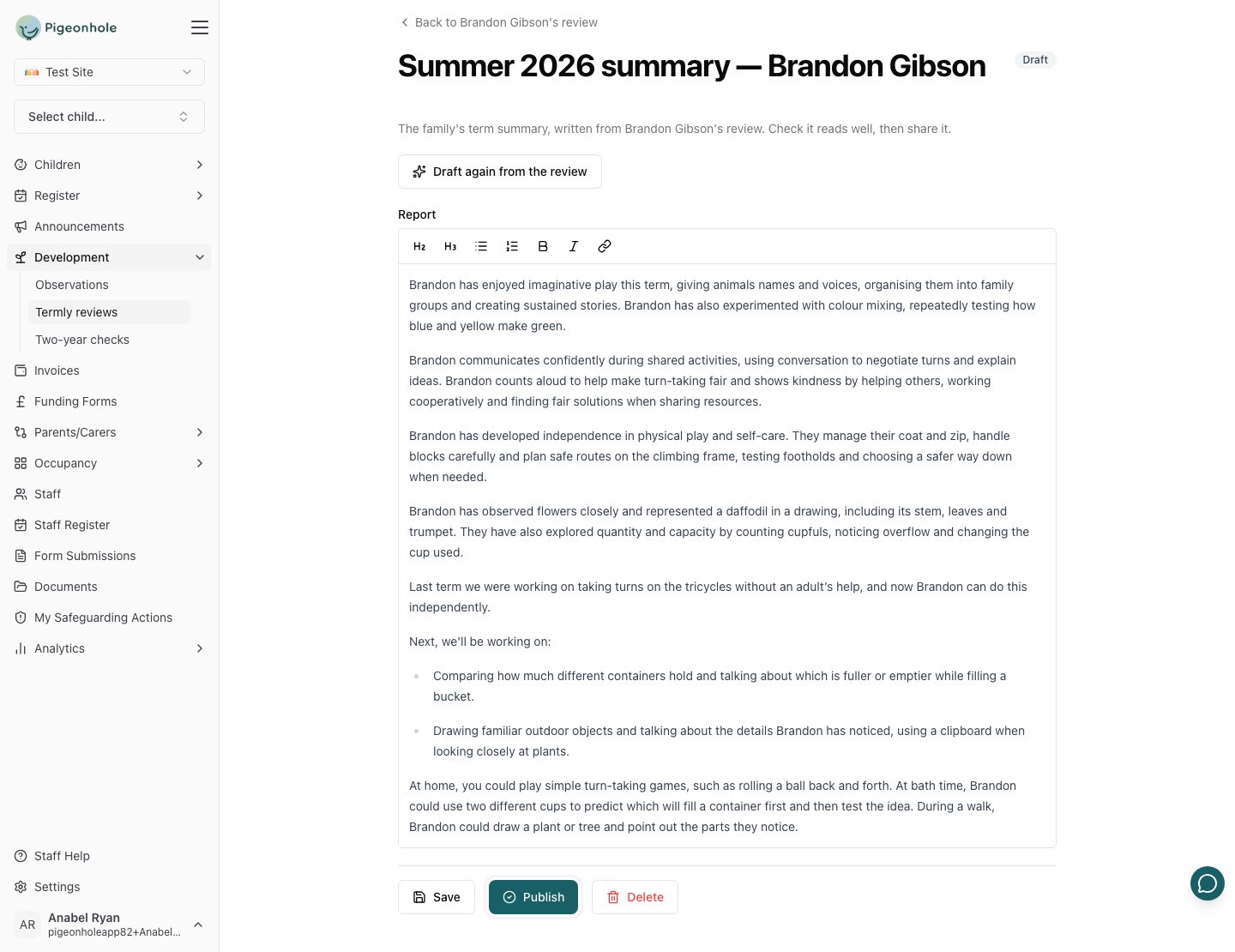
When it’s drafted from a review, a summary has, in order:- a few short paragraphs on what the child has enjoyed and achieved this term, drawn from the review’s area notes;
- the next steps achieved this term (“Last term we were working on… and now…”);
- Next, we’ll be working on, with a list of the open next steps that are shared with the family;
- ideas to try at home.
How a summary is started
- With Start the term summary when a review is completed switched on (the default), completing a review drafts the summary and opens it straight away for the key person to check.
- With it switched off, a completed review shows Write term summary, so you can share only some terms (for example, the summer term) or only when it suits you.
Editing and redrafting
The summary is ordinary text: edit it however you like. Draft again from the review replaces it with a fresh draft from the review’s current state, which is useful after a review has been reopened and changed.Approving and publishing
Term summaries go through the same steps as observations:
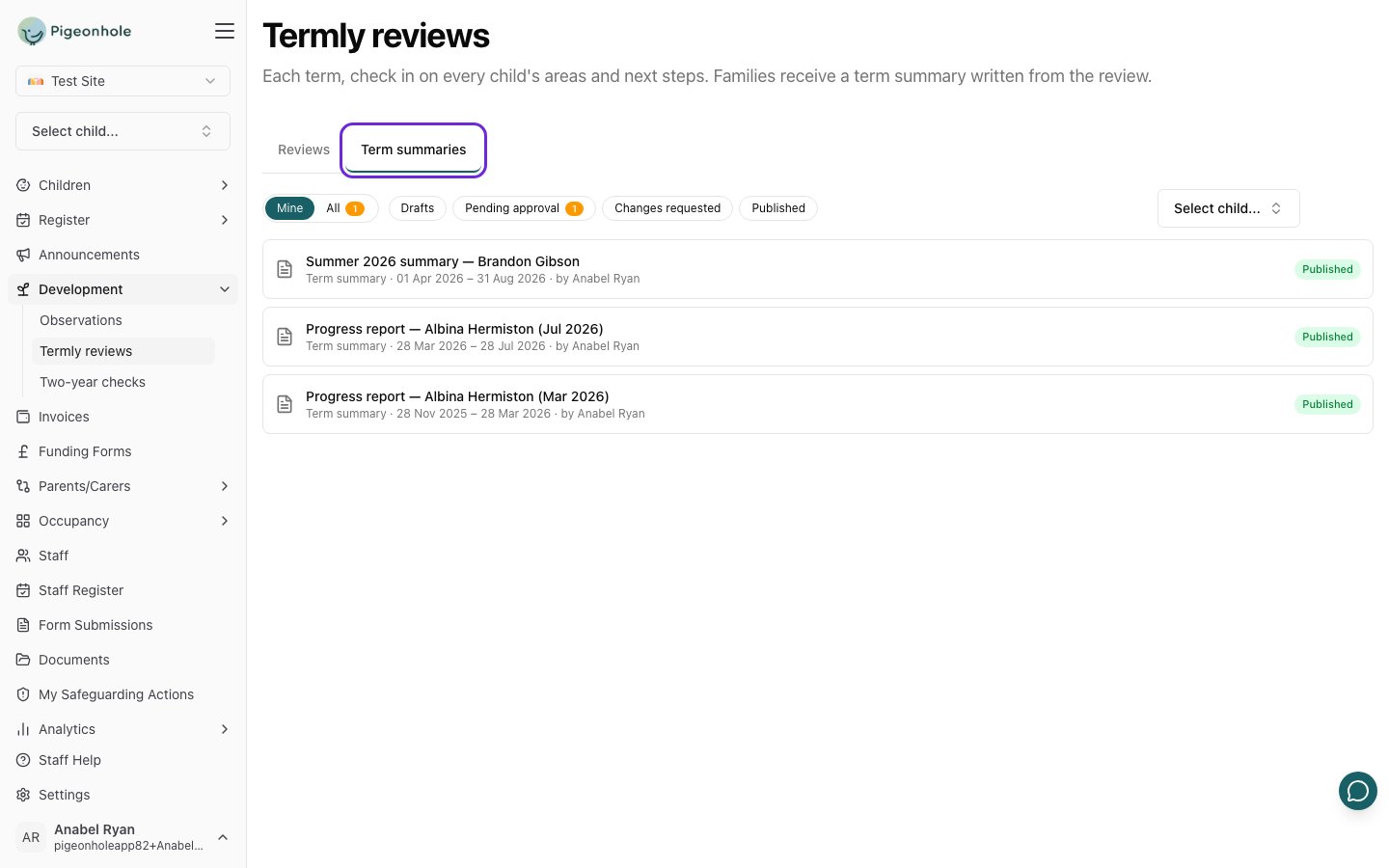
Staff click Submit for approval; managers and staff with the Publisher role Publish directly. Approvers find summaries waiting for them on the Term summaries tab of the Termly reviews page: the All scope and the Pending approval filter both show a count.
Writing rules
Your setting’s Term summary writing rules (on the Termly reviews tab of Settings → Development) are plain-language rules such as “Never name another child”. The AI follows them when it drafts, and summaries are checked against them when they’re submitted or published. Staff see what was flagged and a suggested fix; nothing is ever blocked. Writing rules work the same way as observation writing rules.What families see
Published summaries appear on the family’s Reports page in the parent app, alongside the progress check at age two. See Reports in the parent guide.