
Open in app: Development → Two-year checks. If it’s not in your sidebar, your setting hasn’t switched two-year checks on.
Step 1: Find who’s due
Go to Development → Two-year checks. The page opens on My key children with the Needs a check filter, so you see your own children who still need one first.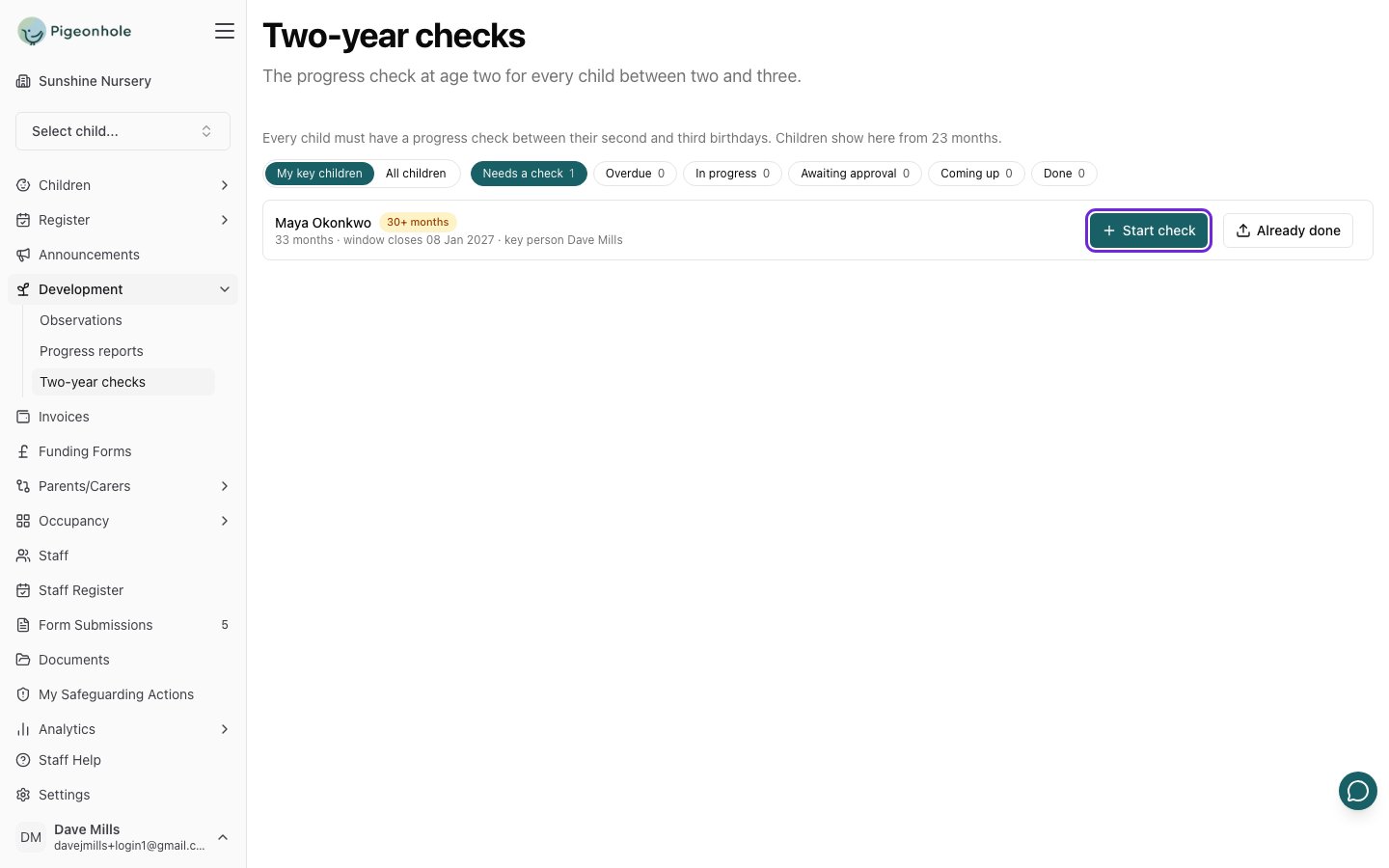
Switch to All children to see every child in the window, or use the Overdue, In progress, Coming up and Done filters. A banner on a child’s profile also tells you when their check is due.
Only a child’s key person or a manager can start their check. If you see Key person to start, the check belongs to someone else. If a child has no key person, ask your manager.
If the check was already done
If the check was done on paper before your setting used Pigeonhole for it, or by another setting the child also attends, click Already done instead of starting a new one.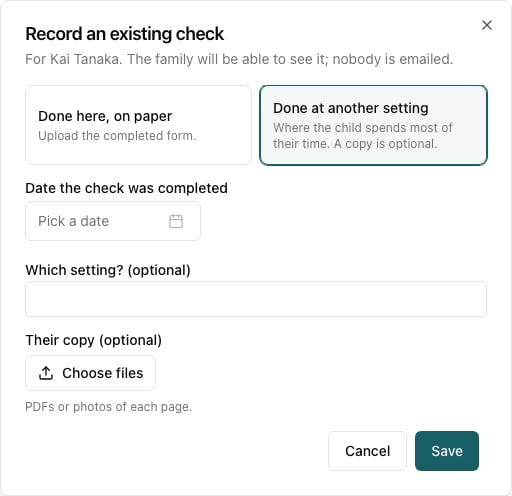
- Choose Done here, on paper or Done at another setting.
- Enter the Date the check was completed.
- For another setting, add Which setting? if you know it.
- Click Choose files to upload the completed form as a PDF, or as a photo of each page. This is required for a paper check done here, and optional for another setting’s check.
- Click Save.
Step 2: Start the check
Click Start check next to the child. The check opens straight away as a draft.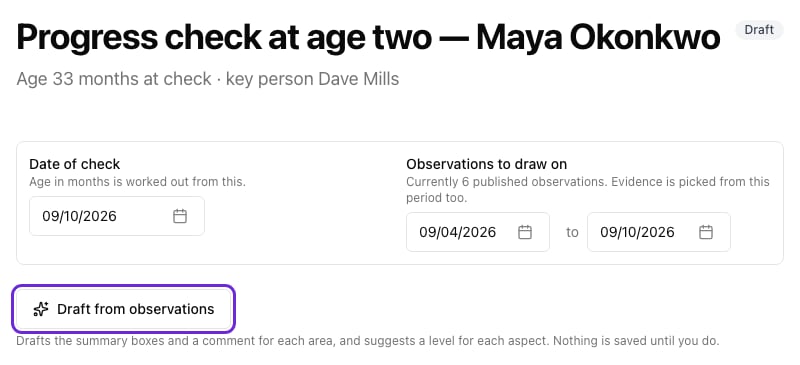
- Date of check is when you did the check. The child’s age in months is worked out from it.
- Observations to draw on is the stretch of the child’s journal the check uses. It sets which observations you can choose as evidence, and which ones the AI drafts from. The note underneath tells you how many published observations it covers.
Step 3: Draft from observations
If your setting uses AI drafting, click Draft from observations. Within a few seconds it fills in:- a comment on each prime area
- the summary boxes further down
- a suggested level for each of the seven aspects, with the reason
- a suggested set of observations to use as evidence
Step 4: Choose a level for each aspect
Under The prime areas there’s a card for each area, with its aspects underneath:- Personal, Social and Emotional Development — self-regulation, managing self and building relationships
- Communication and Language — listening, attention and understanding, and speaking
- Physical Development — gross motor and fine motor
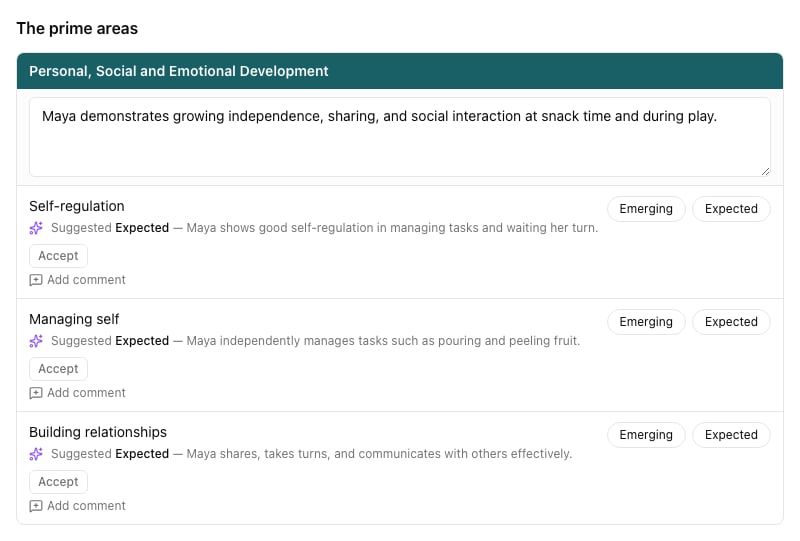
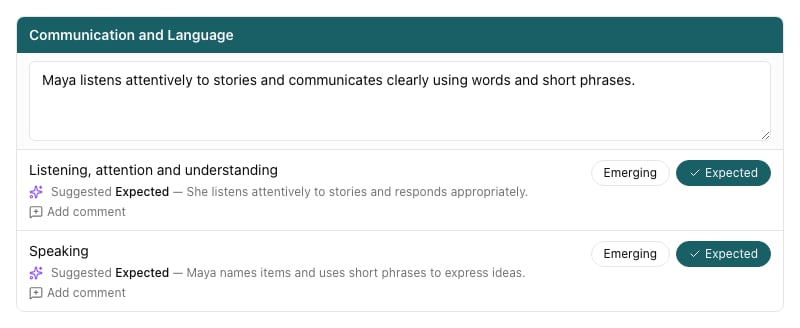
- The box at the top of each card is a comment on the whole area. Families see it in the grid.
- Click Add comment under an aspect to say something about that aspect on its own.
- The level names are set by your setting — for example Emerging and Expected, or Not yet and On track.
- If your setting includes the characteristics of effective learning, a How I learn card asks for optional comments on playing and exploring, active learning and creating and thinking critically.
Step 5: Write the summary
Below the grid are the summary boxes. Every box is plain text — press Enter for a new line.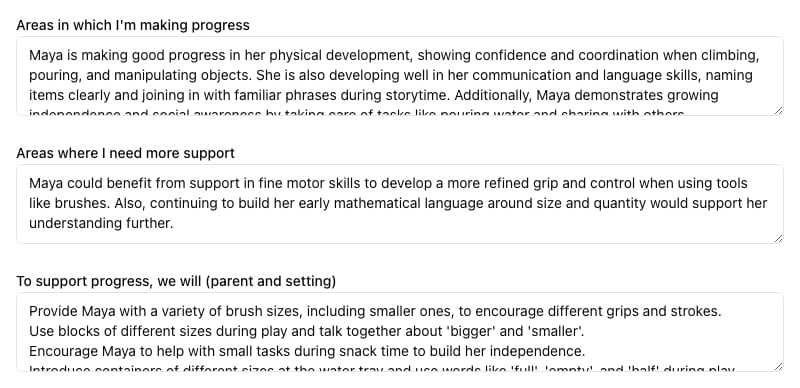
- Areas in which I’m making progress
- Areas where I need more support
- To support progress, we will (parent and setting)
- Ideas to try at home — a few simple, playful things the family could do together (optional)
- In my own words — what the child says, enjoys or tells you about themselves (optional)
- Other professionals involved and our plan — your SENCO, the health visitor or anyone else supporting the child, and how you’ll work together (optional)
Step 6: Choose the evidence
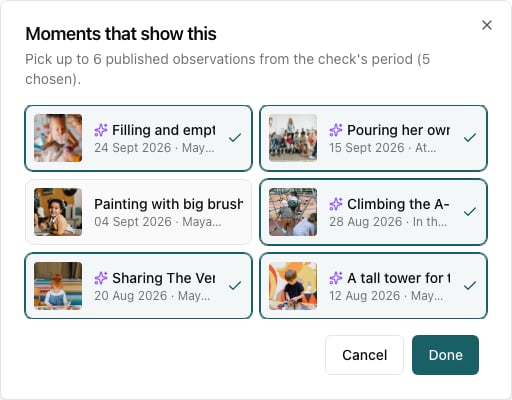
Under Moments that show this, link up to six of the child’s published observations that show their development. Families can open each one from the check, and the PDF lists them by date and title.- Click + Add evidence. If you’ve drafted the check, you can click The draft suggests N observations — review them instead.
- Click the observations you want. Suggested ones are marked ✨.
- Click Done.
Step 7: Add comments and sign
- Write your Key person comment.
- If you’ve talked the check through with the family, note what they said in Parent / carer comment. Otherwise leave it blank — parents can add their own comment when they sign.
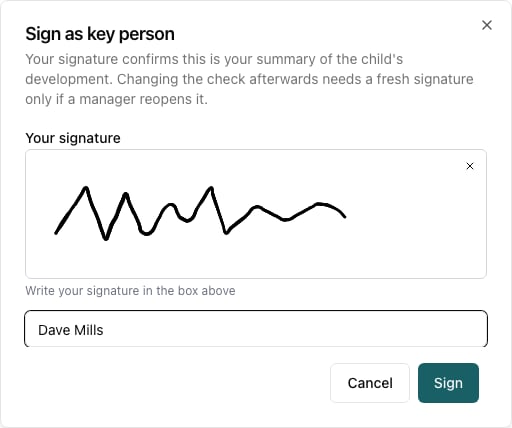
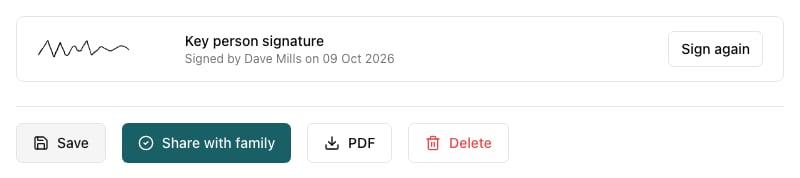
- Click Sign in the Key person signature box.
- Draw your signature in the box (or click Use my signature if you’ve saved one), type your full name, and click Sign.
Step 8: Submit or share
Click Save to keep your work. When the check is finished:- Most staff click Submit for approval. An approver reviews it and shares it with the family, or returns it to you with a comment.
- If you have the Publisher role or you’re a manager, you’ll see Share with family instead. You can add a personal message to the email. It’s included in that email only, not on the check.
After it’s shared
Every parent with parental responsibility is emailed and asked to read and sign the check online. The check shows when each parent has opened it, and whether anyone has signed. On the tracking list, the row shows Awaiting parent signature with Read or Not opened.- If no one has signed after a week, parents get one reminder. Approvers can send another with Resend to parents.
- When the first parent signs, the check is complete and becomes read-only.
- If something needs changing after that, a manager can Reopen it. Both signatures are cleared, it comes back to you with their reason, and parents sign again once it’s reshared.