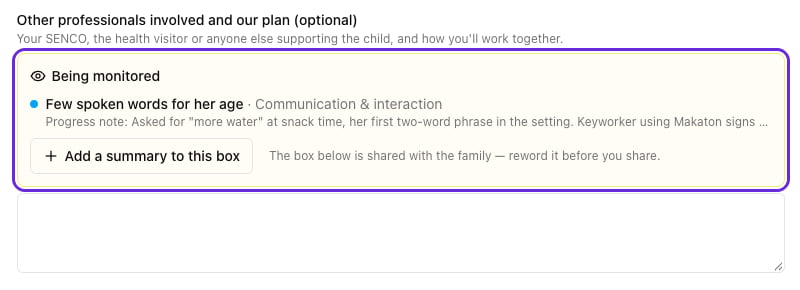
Monitoring is staff only. Families never see what you’re monitoring or its updates. If you talk to a parent about it, log that conversation as an update.
Open in app: Development → Monitoring. If it’s not in your sidebar, your setting hasn’t switched Monitoring on.
Starting monitoring
You can start from the Monitoring page with Start monitoring, or from the child’s profile: open their Development tab, choose Monitoring and click Start monitoring.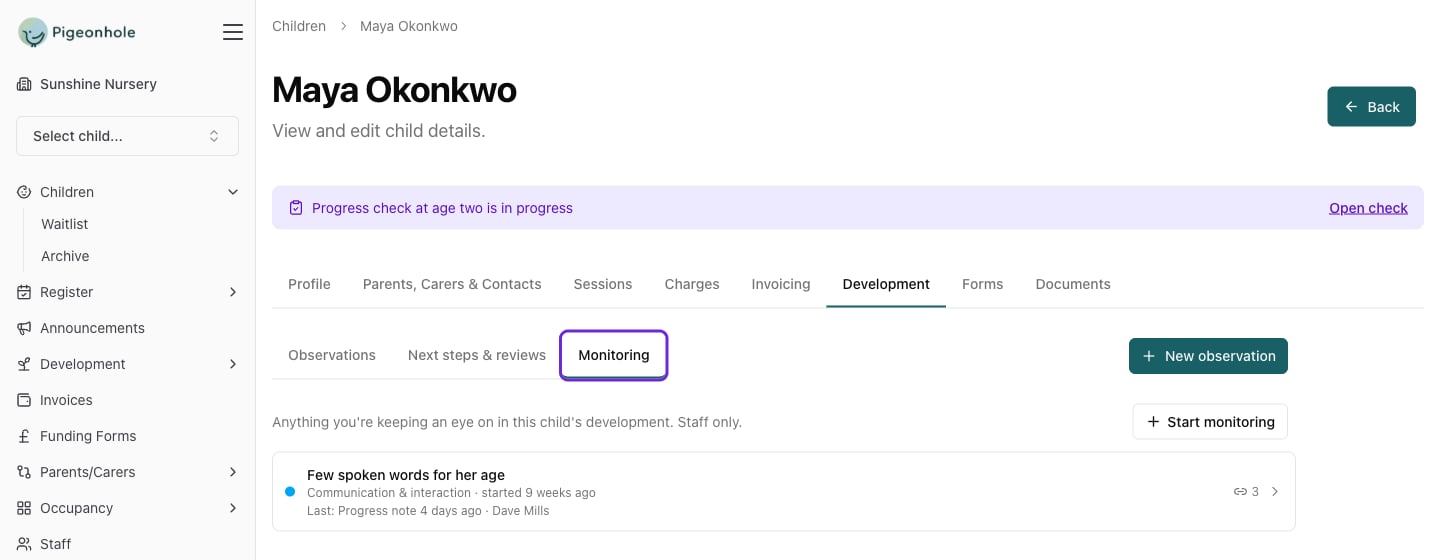
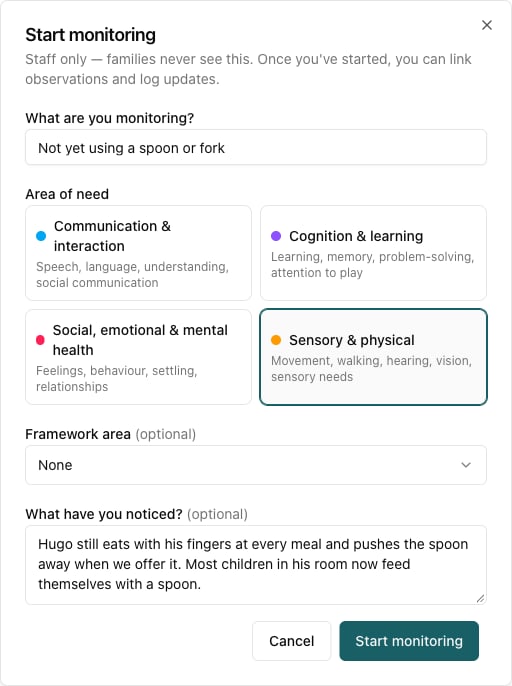
- Choose the Child, if you started from the Monitoring page.
- Under What are you monitoring?, give it a short title, such as Few spoken words for her age or Unsteady when walking.
- Choose the Area of need it falls under:
- Communication & interaction: speech, language, understanding, social communication
- Cognition & learning: learning, memory, problem-solving, attention to play
- Social, emotional & mental health: feelings, behaviour, settling, relationships
- Sensory & physical: movement, walking, hearing, vision, sensory needs
- Optionally, pick the Framework area it relates to, such as Communication and Language.
- Under What have you noticed?, describe what you’ve seen and how it compares with what you’d expect for their age.
- Click Start monitoring.
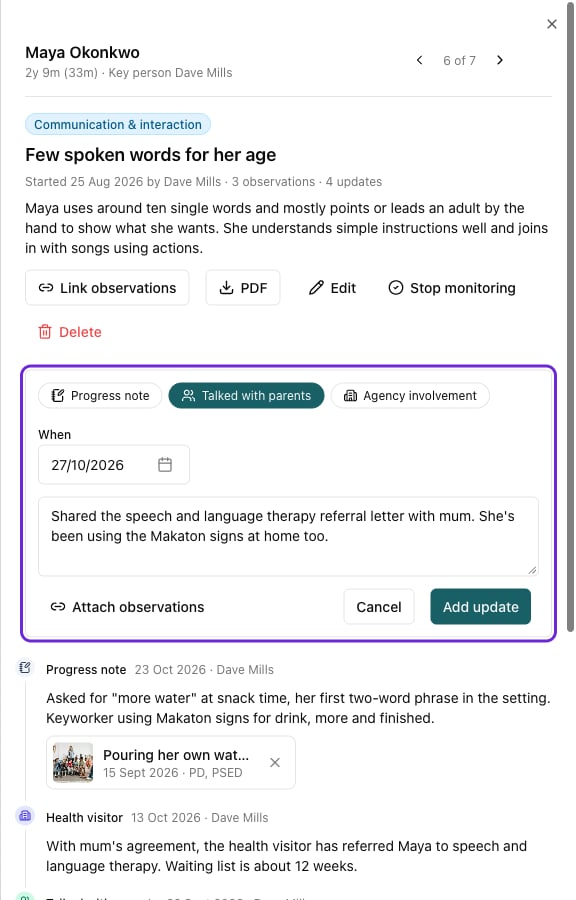
Adding an update
Add an update whenever something changes. Open what you’re monitoring and click Add an update, then:- Choose what kind of update it is:
- Progress note: what you’ve seen since, good or bad
- Talked with parents: what you discussed, and anything the family has noticed at home
- Agency involvement: another professional is involved, such as the health visitor or speech and language therapy. Add the agency’s name too.
- Check the date under When. It’s today unless you change it, and it can’t be in the future.
- Write the update.
- Optionally, click Attach observations to attach the observations that show it.
- Click Add update.
Linking observations as evidence
Observations show what you’ve noticed, so link the ones that matter. There are two ways.From the Monitoring timeline
Click Link observations, tick the observations that show what you’re monitoring, and click Link observations. Ones already linked are ticked for you.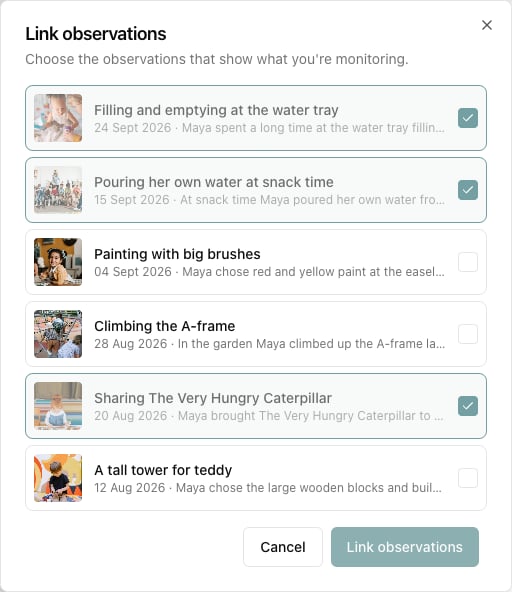
While writing an observation
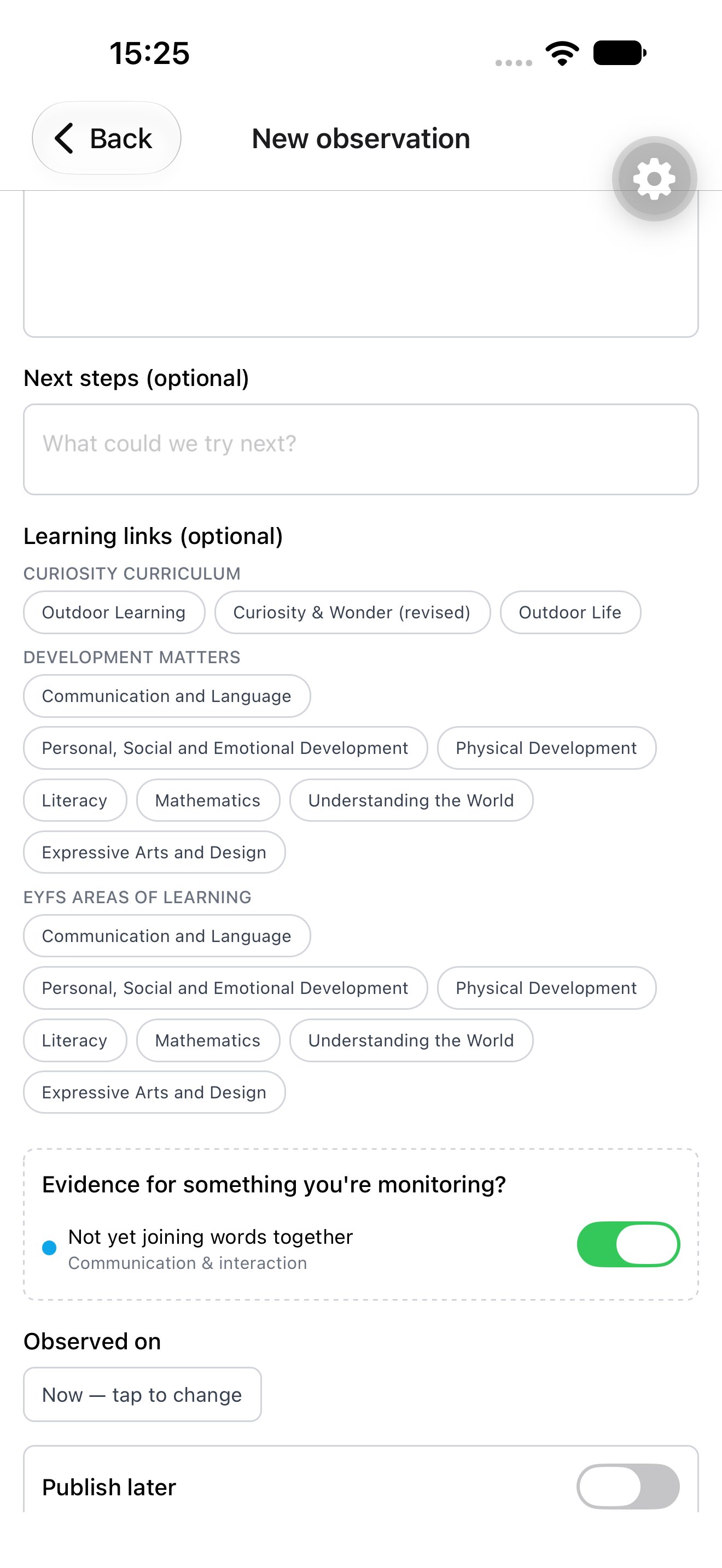
When you write an observation for a child who’s being monitored, an Evidence for something you’re monitoring? box appears under the learning links. Turn on the switch for the one it relates to, and the observation is linked when you save it.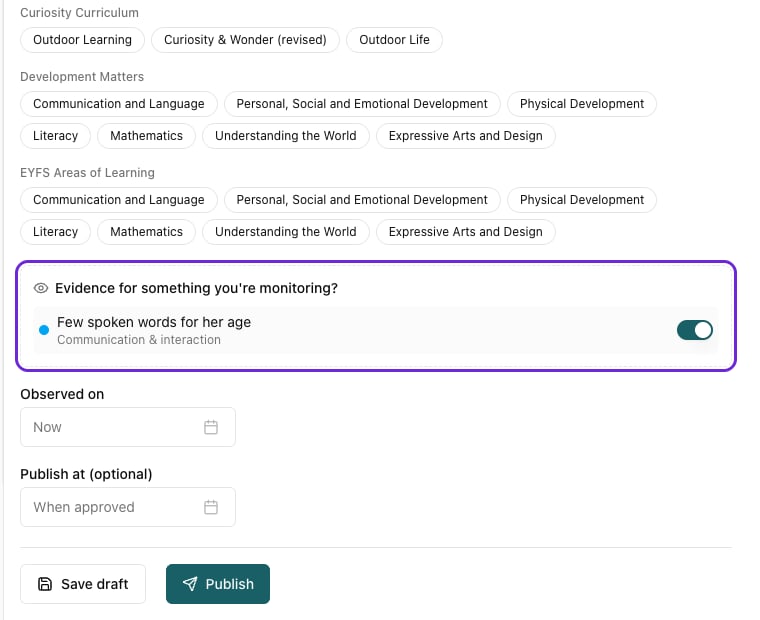
Linking an observation never shares what you’re monitoring. Families see the observation in their child’s journal as usual, with no mention of Monitoring.
Using the staff app
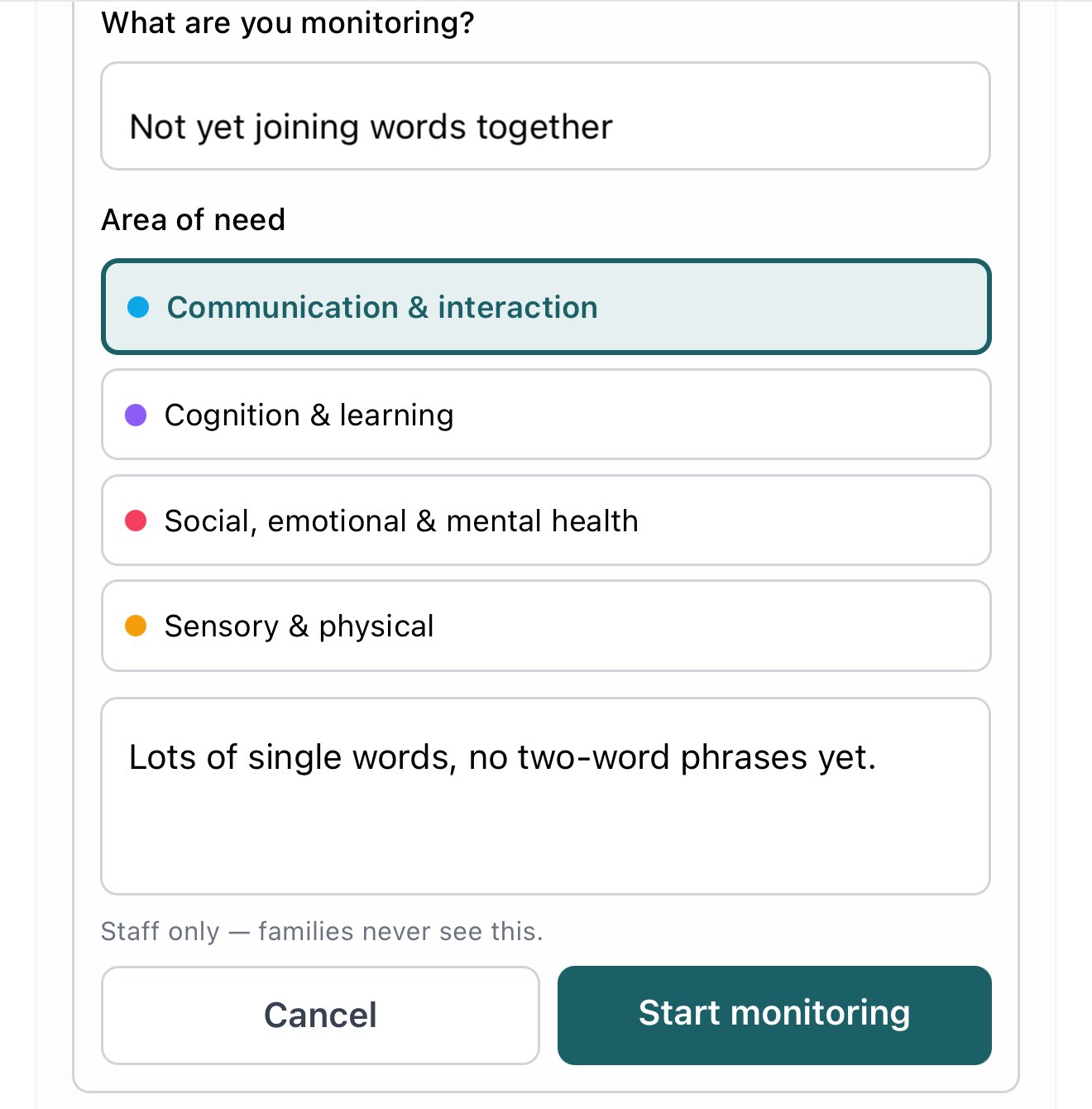
In the staff app, open a child’s profile and scroll down to Monitoring.- To start monitoring, tap Start monitoring, fill in What are you monitoring?, choose the Area of need, add what you’ve noticed, and tap Start monitoring.
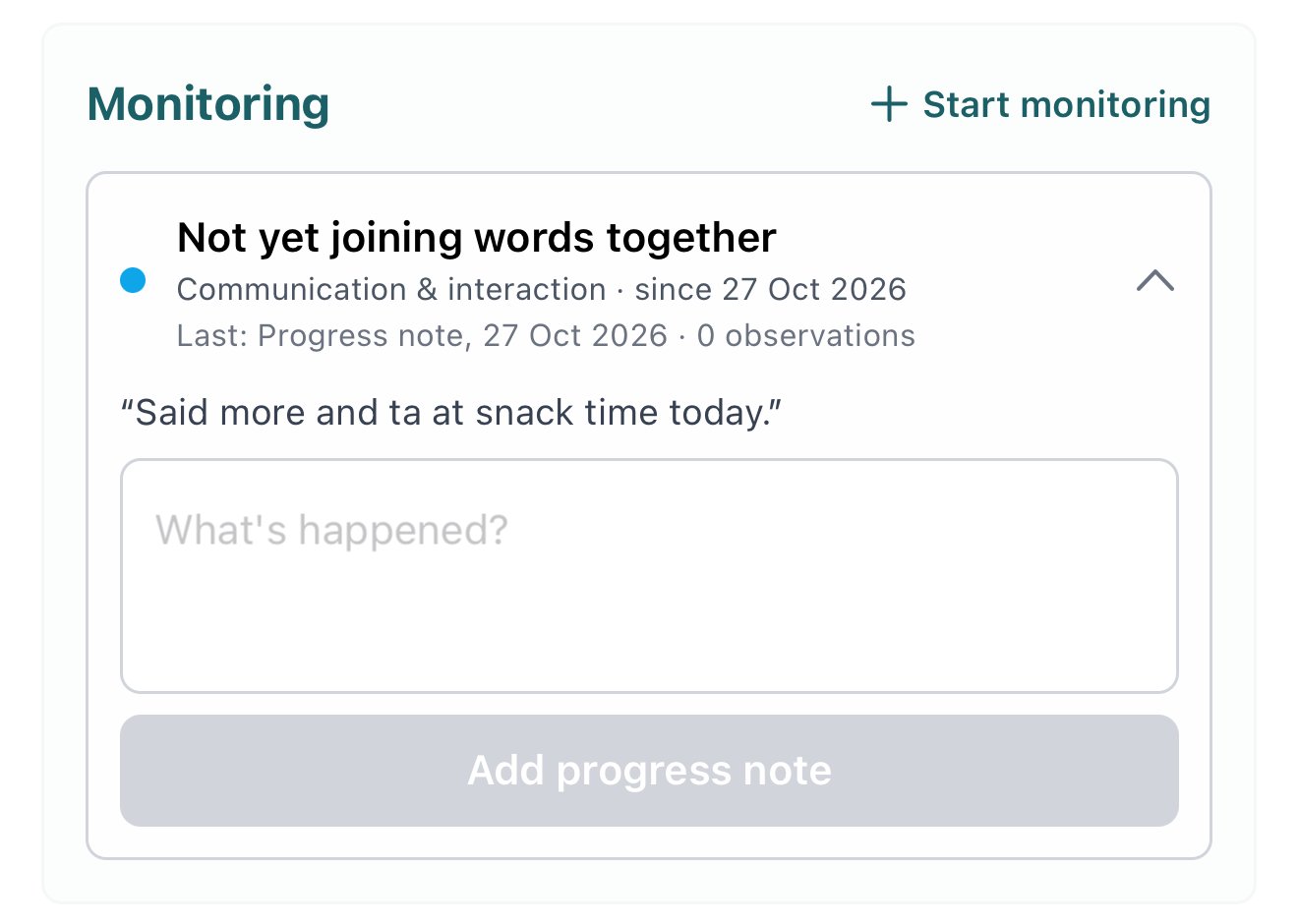
- To add a progress note, tap what you’re monitoring to open it, type what’s happened, and tap Add progress note. Talks with parents and agency involvement are recorded on the web.
On the two-year check
If you’re writing a two-year check for a child who’s being monitored, you’ll see a Being monitored panel above Other professionals involved and our plan. Click Add a summary to this box to start that section from what you’ve recorded.