
Open in app: Development → Termly reviews. Managers: see Termly reviews for settings, approvals and how the AI helps.
Step 1: Find your key children
Development → Termly reviews opens on the current term (autumn, spring or summer) with My key children selected. Switch to Everyone, or pick a room, to see other children, or choose an earlier term from the term list. Each row shows the child’s key person, how many observations they have this term and how many next steps are open. Click Start review, or click a child whose review you’ve already started.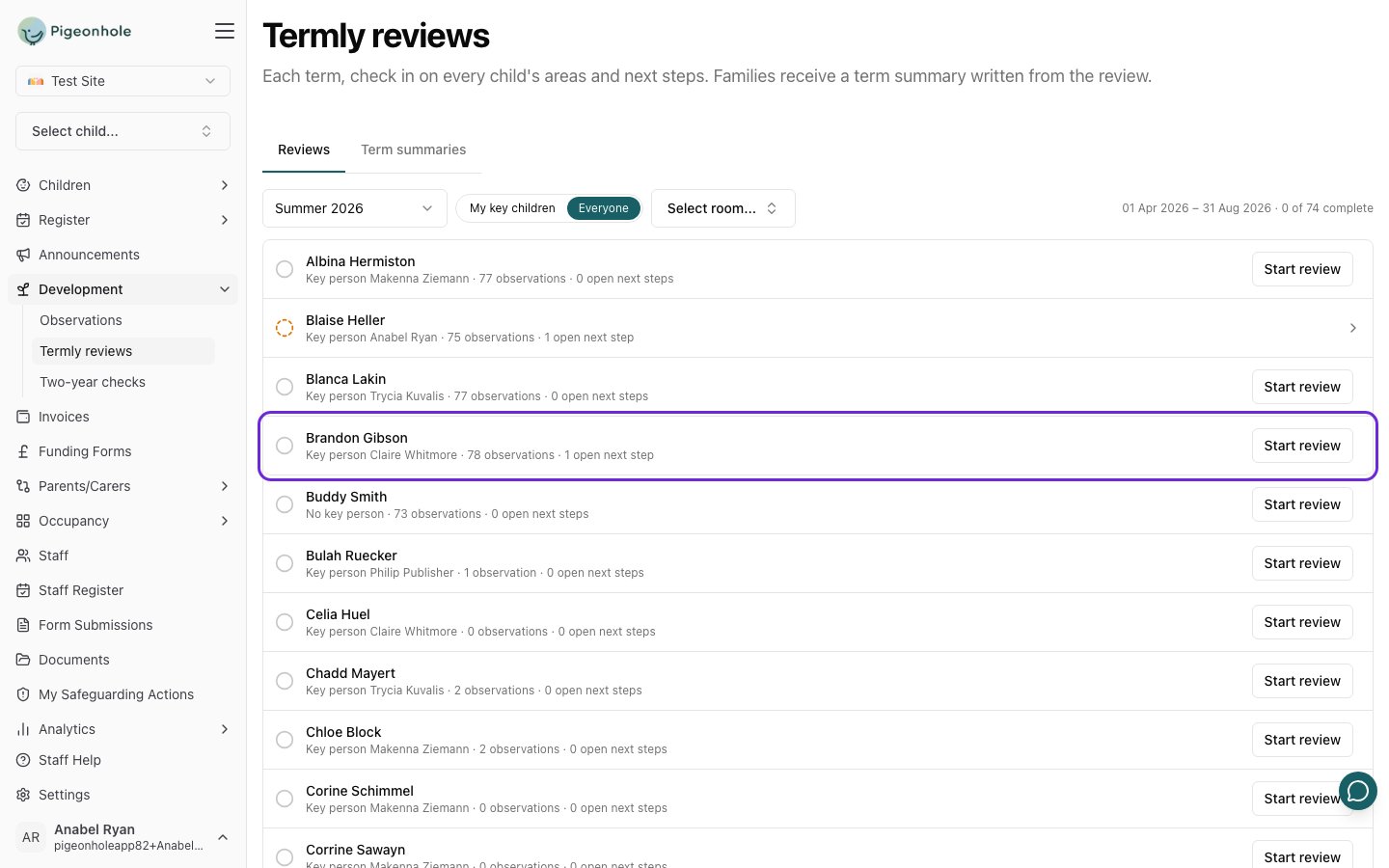
Step 2: Prepare with AI
Click Prepare with AI, at the top right. In a few seconds it reads the child’s observations from the term and fills in suggestions, each with the observations it’s based on. You decide everything.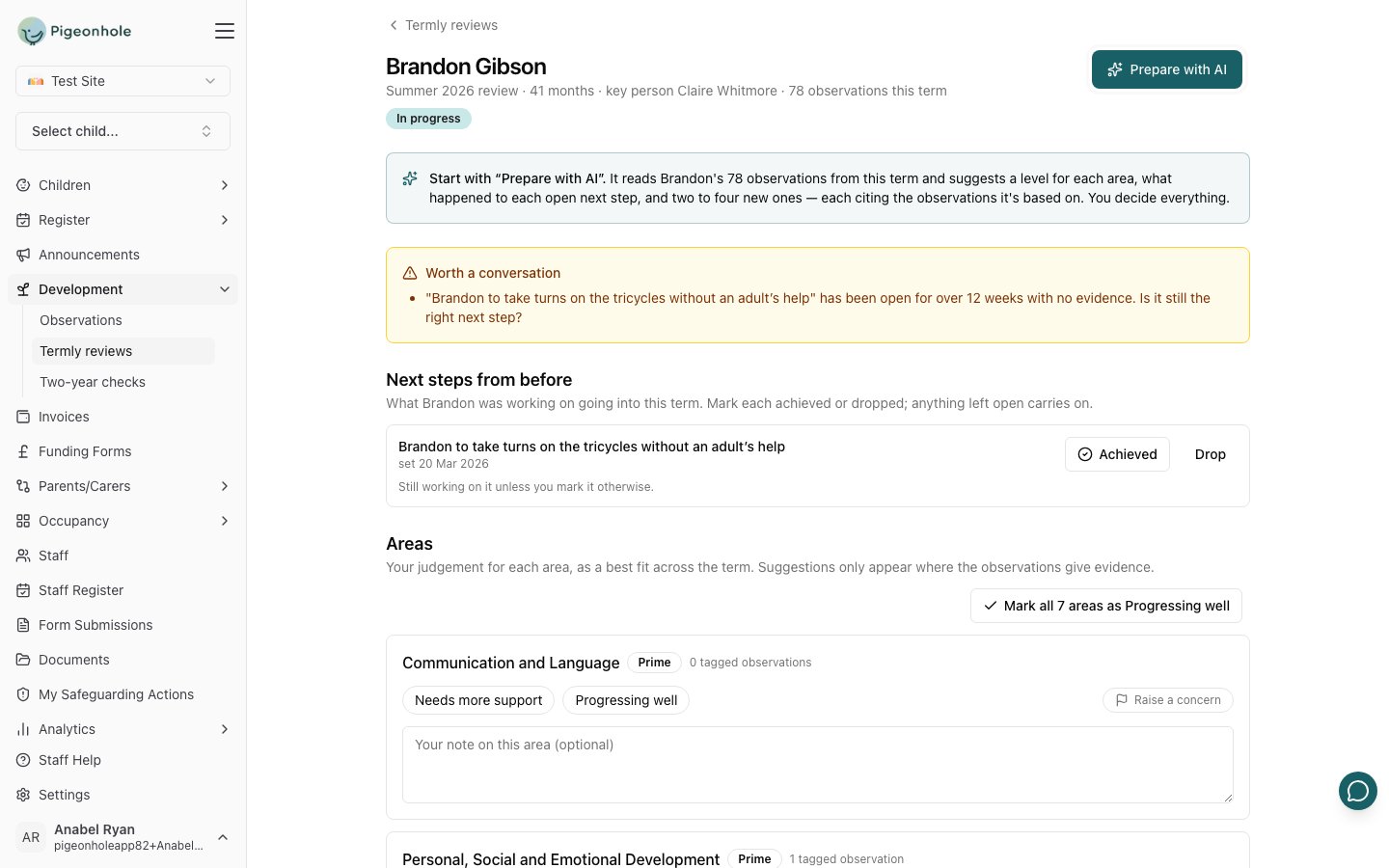
If the button is greyed out, the child has no published observations this term, so there’s nothing for the AI to read. Hover over it to see why. You can still complete the review yourself.
Step 3: Next steps from before
For each next step that was open going into the term, the suggestion shows whether it looks achieved, whether progress was seen, or whether there’s no evidence this term. Click Achieved or Drop. Leave it, and it carries on into next term.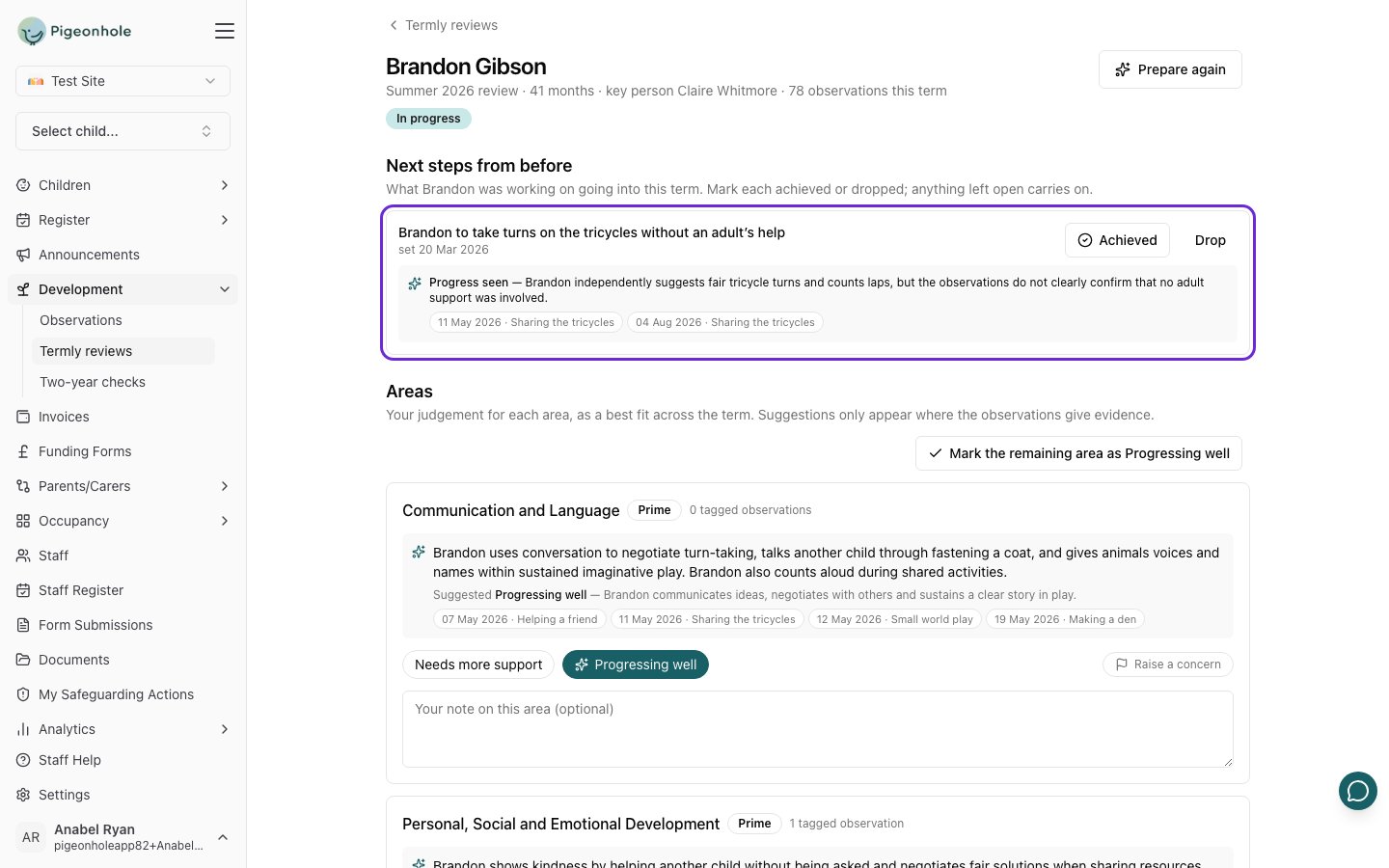
Step 4: The areas
For each area, read the summary. The AI’s suggested level is already selected, marked with a sparkle. If it fits, there’s nothing to do. If it doesn’t, click the level that fits best across the term. Click Raise a concern if something worries you, and add a note if it helps.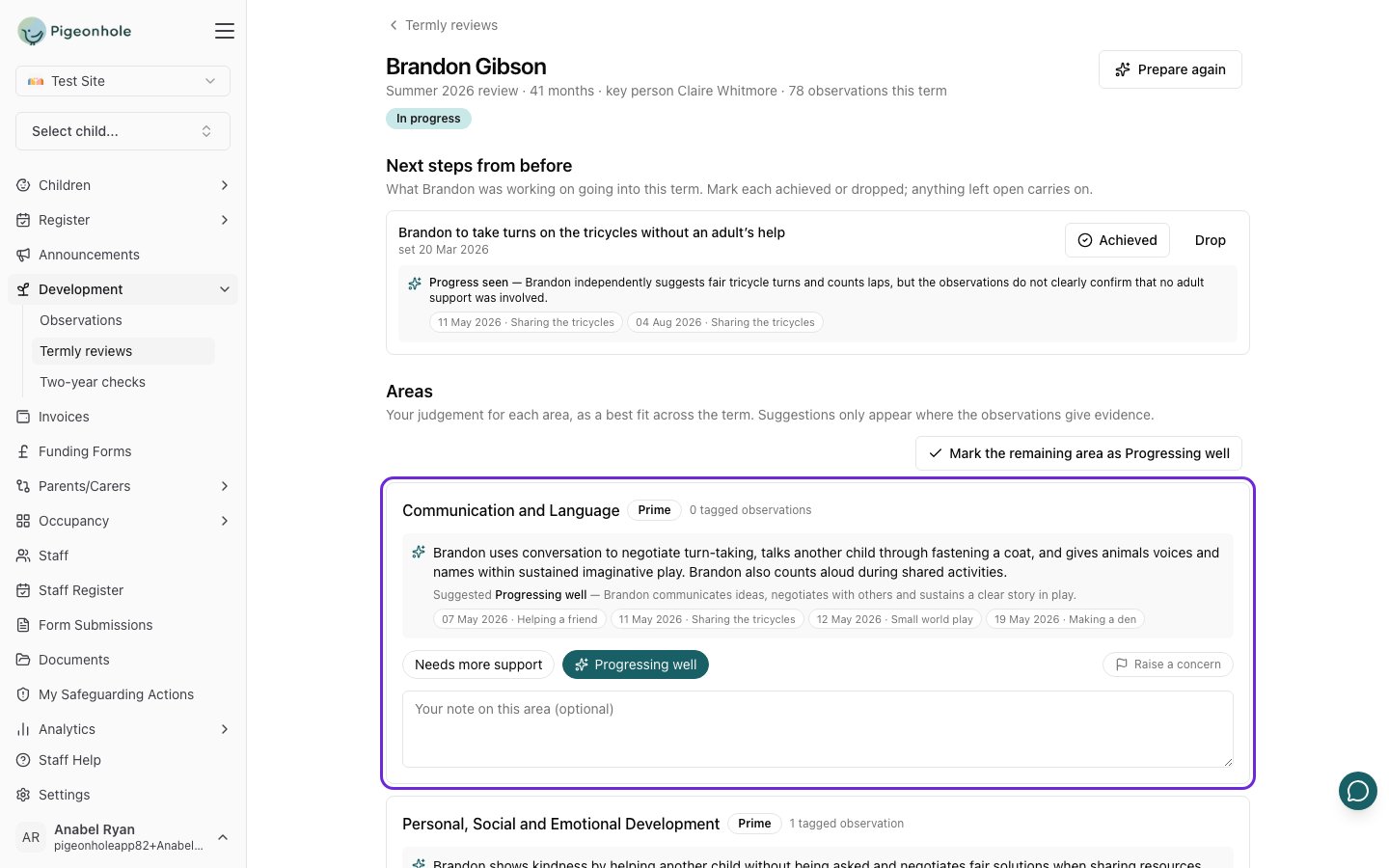
Checking the evidence
Click any of the dated observations under a suggestion to read it in a side panel, without leaving the review.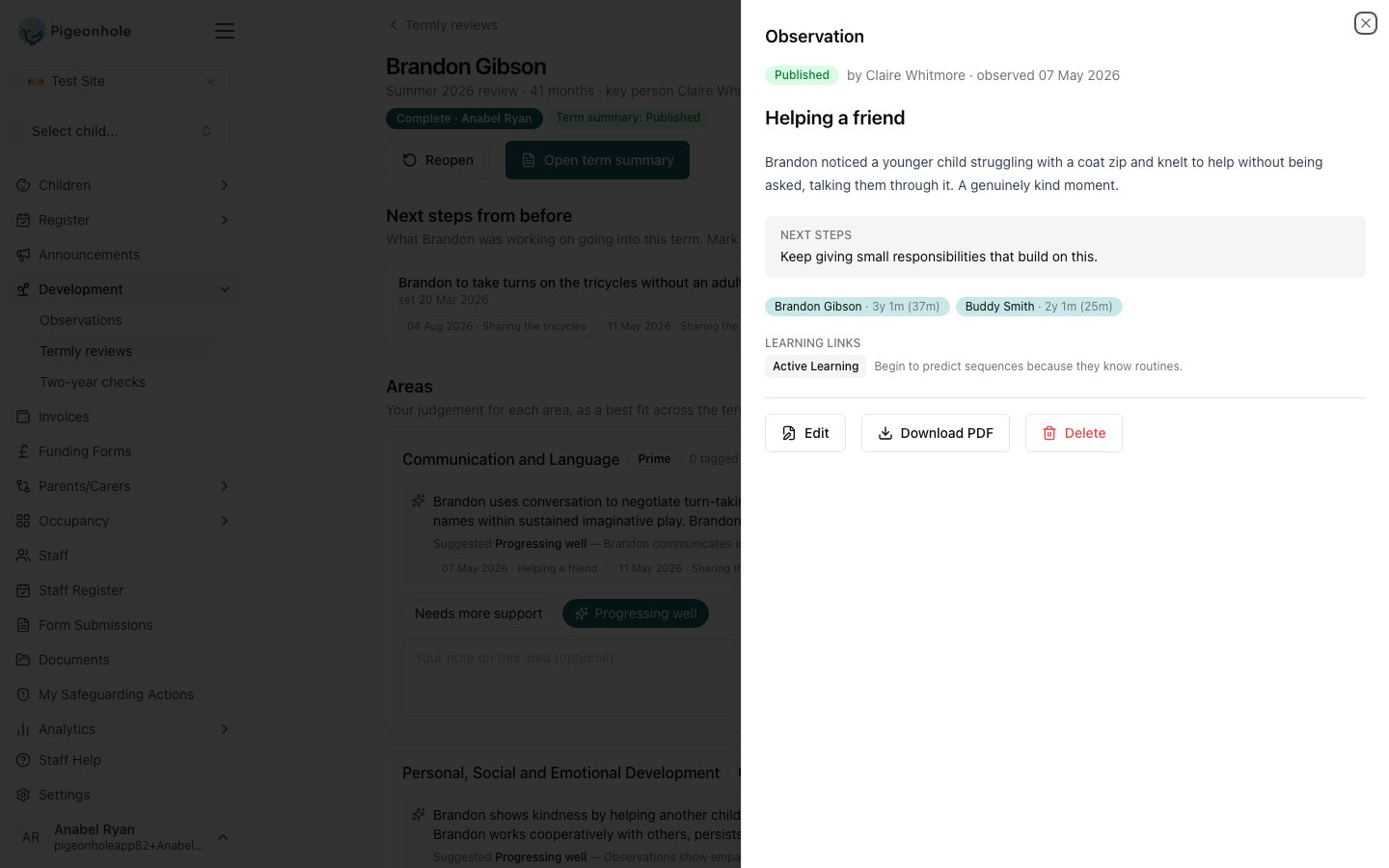
Step 5: New next steps
Accept, edit or remove each suggested next step, or Add a next step of your own. Aim for two to four in total, specific to the child. Each can have an idea for home, and can be kept for the team only by switching off Share with the family.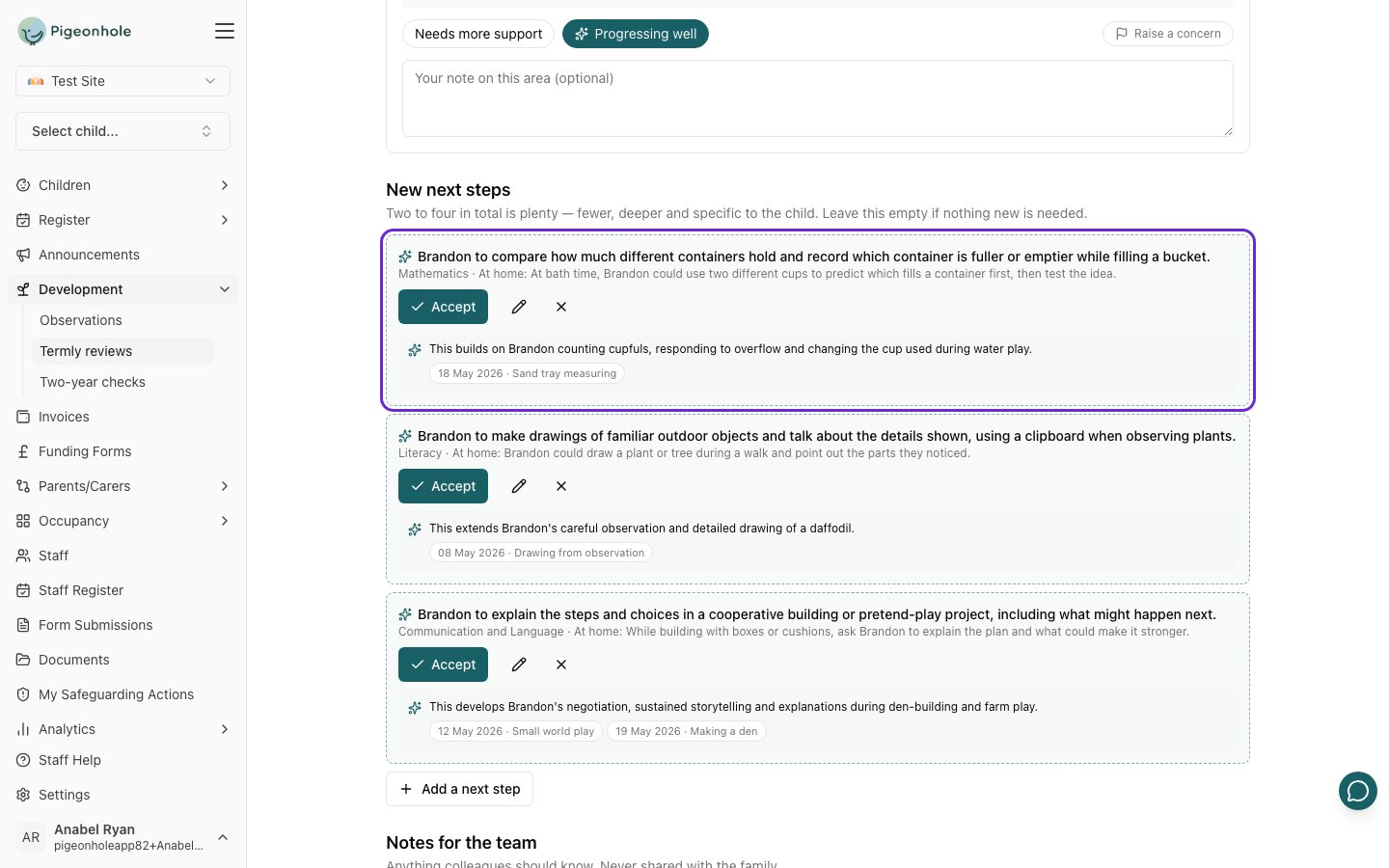
Step 6: Save or complete
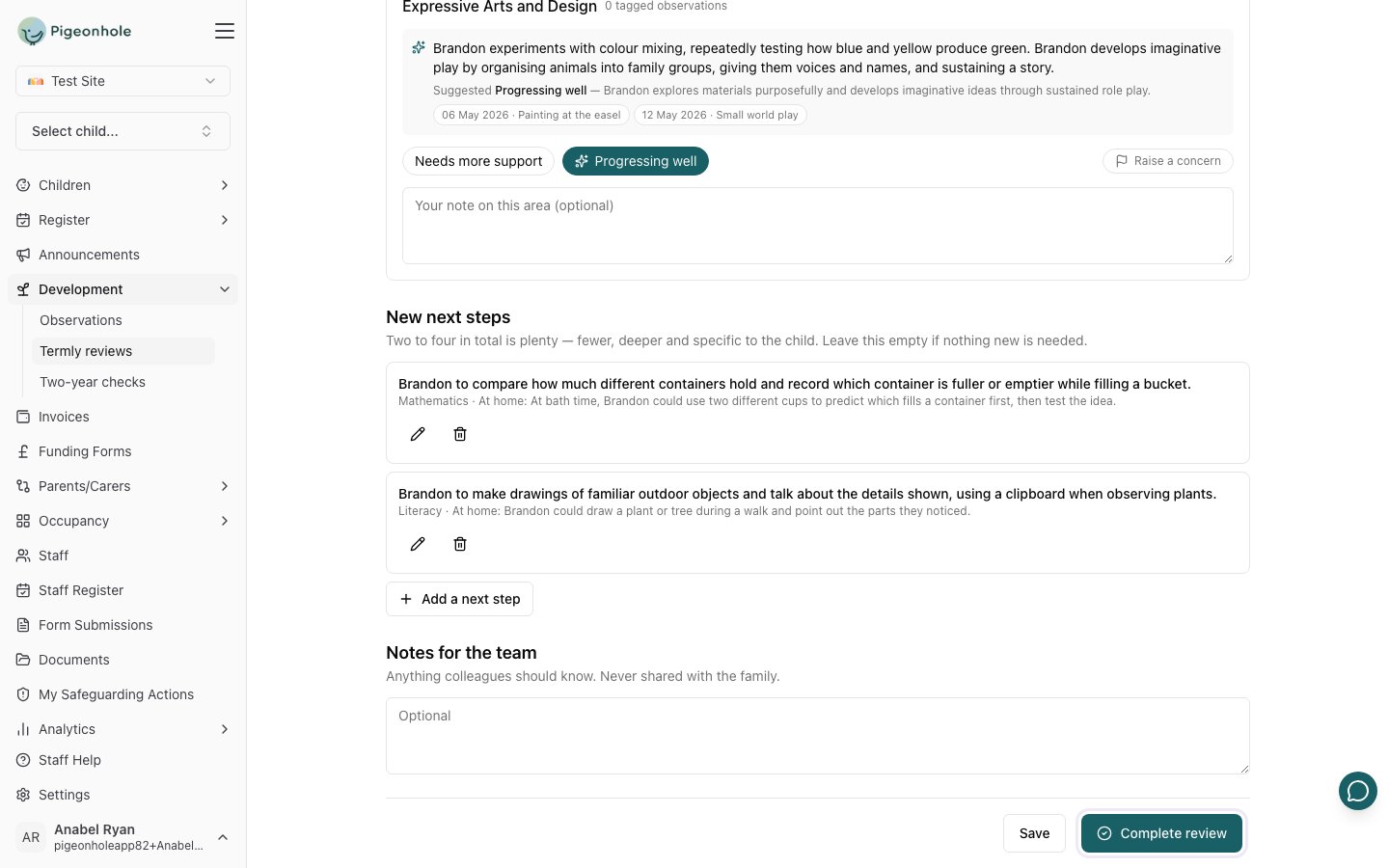
At the bottom of the review:- Save keeps the review in progress and takes you back to the list, so you can finish it later.
- Complete review finishes it. Suggested next steps you didn’t accept are discarded.
Next steps between reviews
A child’s open next steps are on their profile, under Development → Next steps & reviews. You can mark one achieved or dropped there, or Add one between reviews.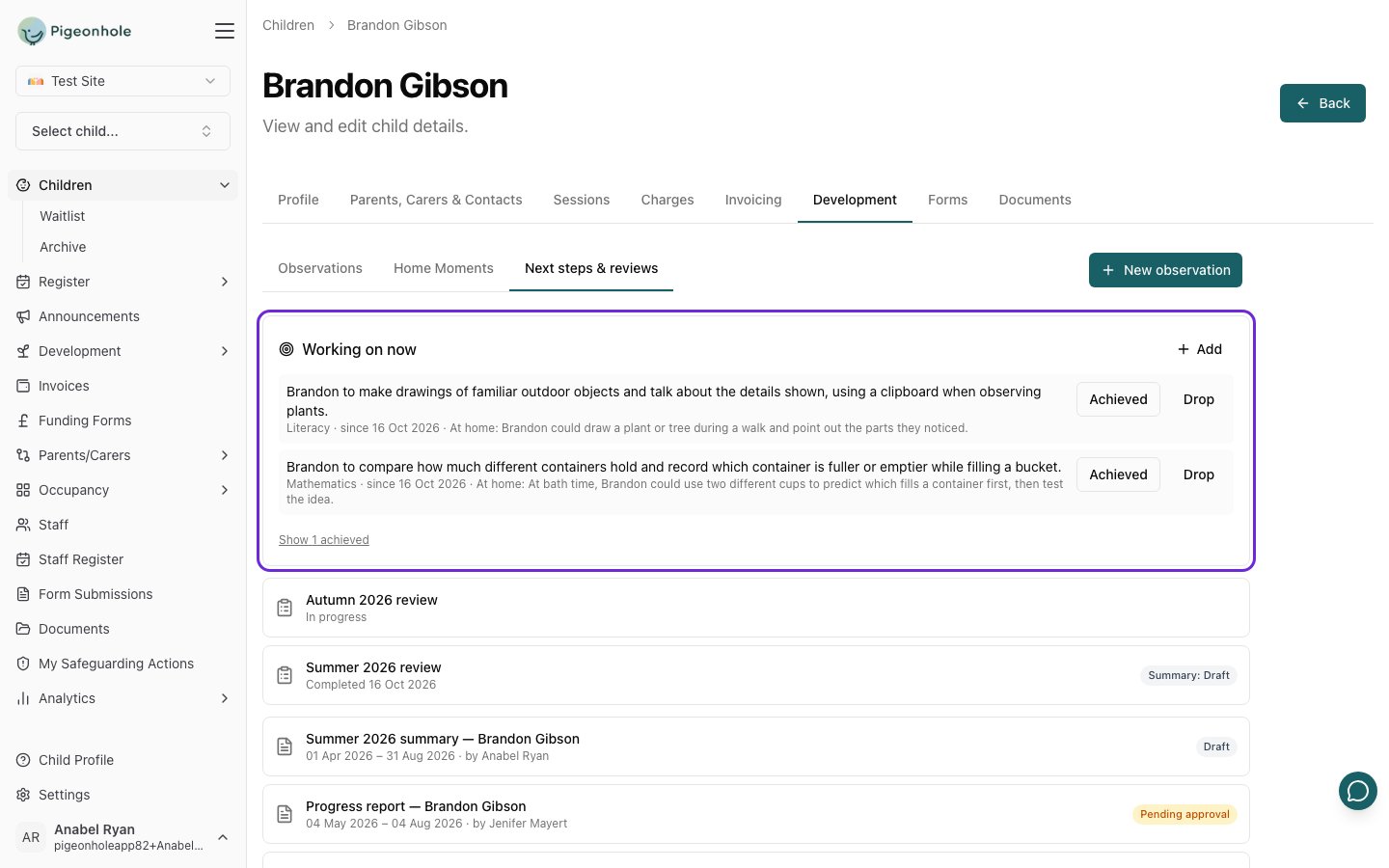
Tips for good next steps
- Write about the child, not the room. “Brandon to compare which container holds more” rather than “Provide a variety of containers”.
- Build on what they love. A next step that starts from a child’s interest (dinosaurs, the mud kitchen, the tricycles) is easier to plan for and more fun.
- Fewer is better. Two to four in total, not one per area. “No new next step” is fine.
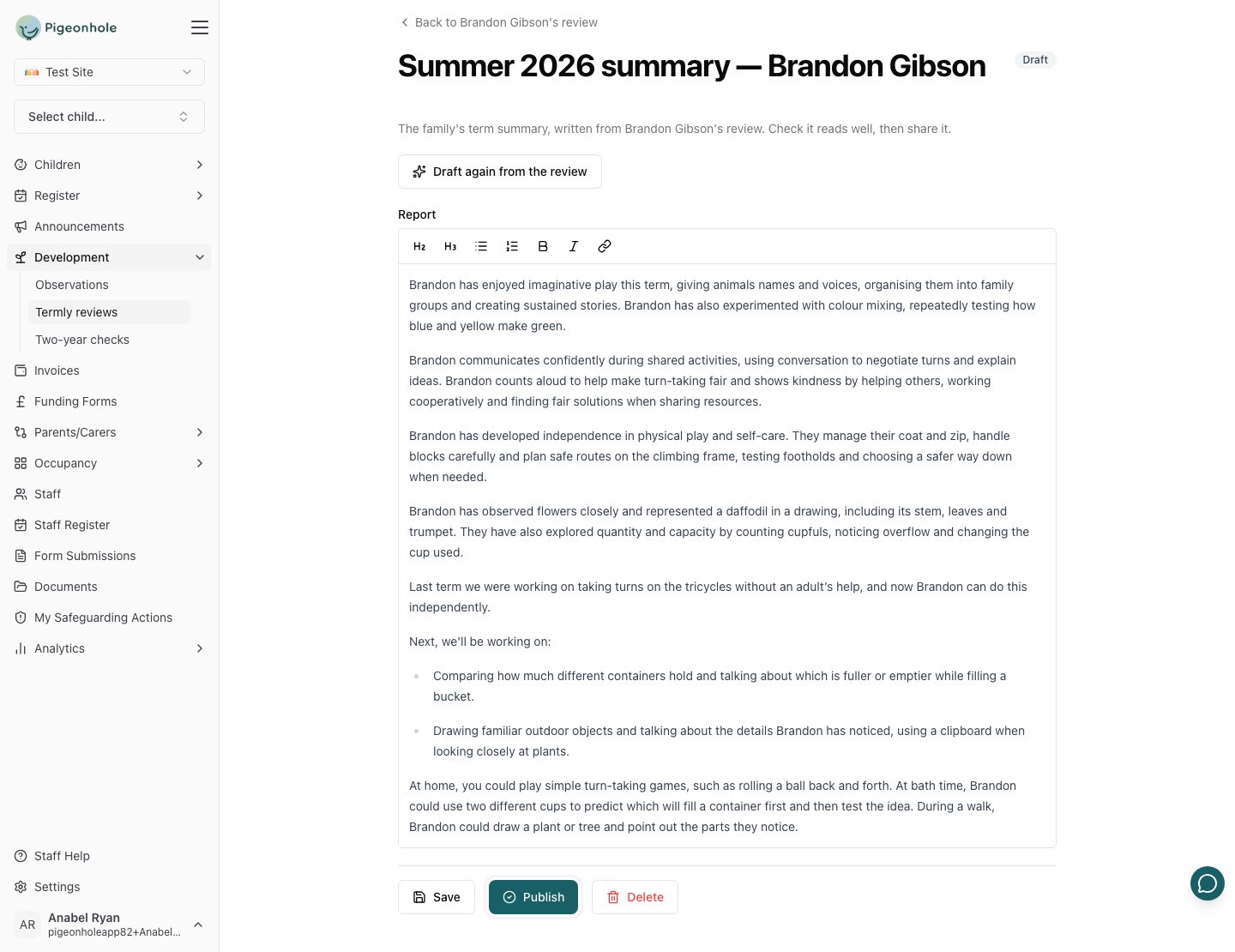
- Add an idea for home. Families see it in the term summary, and it’s often the part they act on.