
Adding Parents & Carers
There are two ways to add a parent or carer: directly from the Parents & Carers list, or from a child’s profile. Both workflows allow you to configure personal details, relationship types, and billing settings.Adding from the Parents & Carers List
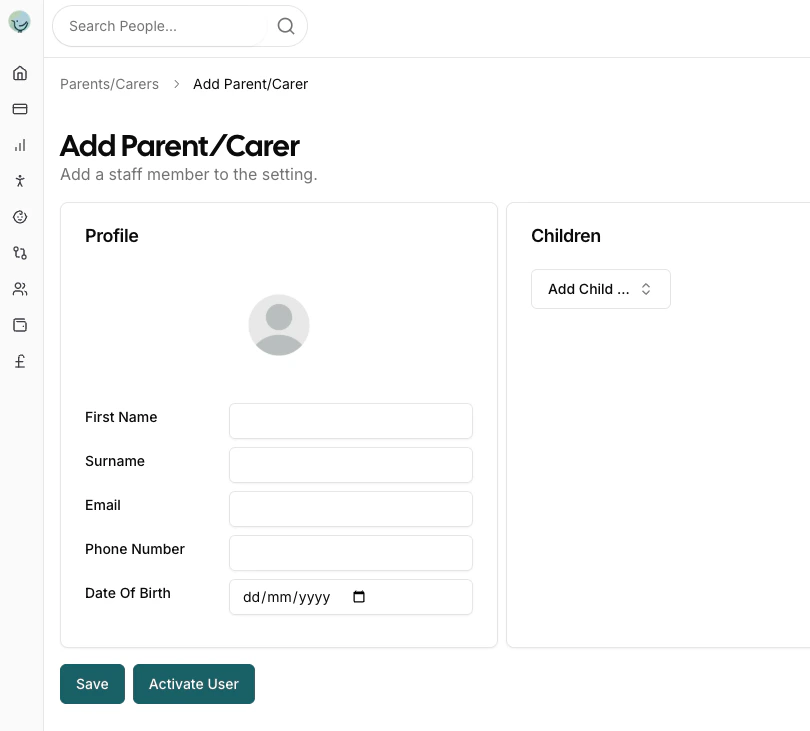
To add a new parent or carer, click the Add Parent/Carer button in the top right corner of the parent/carer list.Personal Details
The profile creation form collects the following information:- Profile Picture: Upload a photo for easy identification
- First Name: The parent/carer’s first name
- Surname: The parent/carer’s last name
- Email: Contact email address for communications and system access
- Phone Number: Primary contact number
- Date of Birth: Optional field for the parent/carer’s date of birth
Children Relationships
The Children section allows you to establish relationships between the parent/carer and specific children. For each relationship you can configure:- Child Selection: Choose which child this parent/carer is associated with
- Relationship Type: Select the relationship:
- Mother: Biological or adoptive mother
- Father: Biological or adoptive father
- Grandmother: The child’s grandmother
- Grandfather: The child’s grandfather
- Other: Any other caring relationship (e.g., guardian, step-parent)
- Bill Payer: Toggle to indicate if this person is responsible for paying bills for this child. Bill payers will be sent invoices.
- Parental Responsibility: Toggle to indicate if this person has legal parental responsibility for this child
A parent/carer can have different relationship types, billing responsibilities, and parental responsibility settings for different children.
Saving the New Parent/Carer
At the bottom of the form you have two options for a new parent/carer:- Save — creates the parent/carer profile.
- Save and Invite — creates the profile and immediately sends them an invitation email to access the parent portal.
Adding from a Child’s Profile
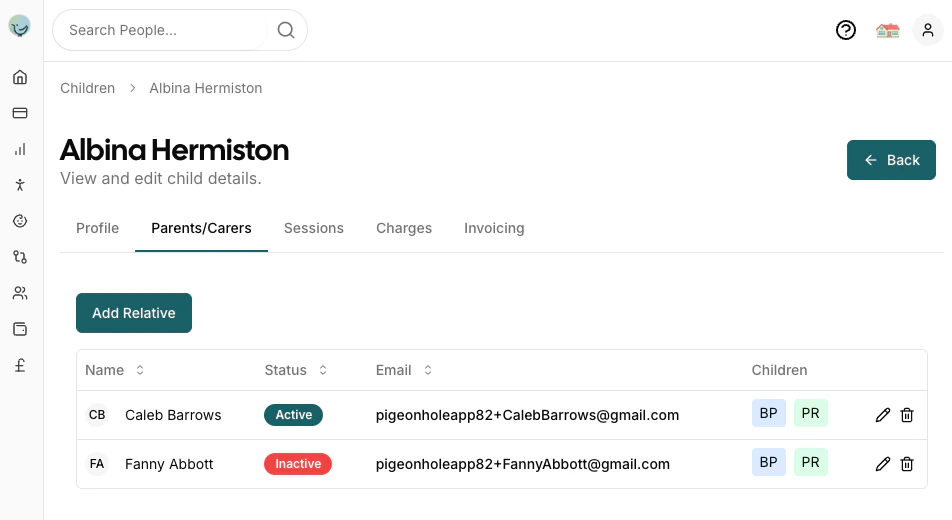
You can also add parent/carer relationships directly from a child’s profile:- Navigate to a child’s profile in the Admin Portal
- Click on the Parents tab
- Click Add Relative to create a new parent/carer relationship
Two Workflows
When adding a parent/carer from the child’s profile, you have two options:Option 1: Select an Existing Parent/Carer
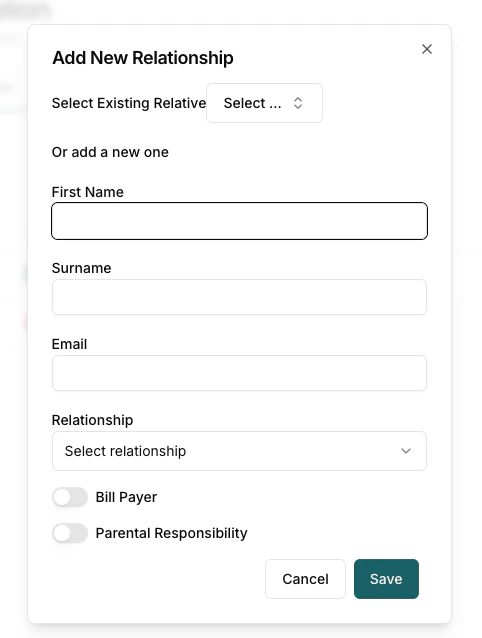
If the parent/carer already exists in the system:- Use the Select Existing Relative dropdown
- Choose the parent/carer from the list
- Configure the relationship details (relationship type, bill payer, parental responsibility)
- Click Save
Option 2: Create a New Parent/Carer
If the parent/carer does not exist in the system yet:- Leave the Select Existing Relative field empty
- Fill in the new parent/carer details:
- First Name
- Surname
- Configure the relationship details
- Click Save
Login Status and Invitations
After adding a parent or carer, you can invite them to access the parent portal.Status Indicators
The parent/carer list shows the current login status for each person:- Last Login Date: Shows the date and time when the parent/carer last logged in (e.g., “10 Feb 2026 14:30”)
- Invite Sent: A blue mail icon indicates an invitation email has been sent but the parent/carer has not logged in yet
- Dash (-): No invitation has been sent yet
Sending Invitations
To grant a parent/carer access to the parent portal:- Click the More Actions (…) button on the parent/carer row
- Select Send Invite
- The parent/carer will receive an email with a login link