Chrome Extension Import
The Pigeonhole Chrome Extension allows you to import data directly from your current nursery software provider’s website - no CSV required!Installation
- Install the Pigeonhole Chrome Extension from the Chrome Web Store
- Click the extension icon and log in with your Pigeonhole credentials
- Select your nursery from the dropdown (if you manage multiple sites)
- Import Children - Import child records from provider pages
- Import Parents/Carers - Import parent and carer records
Importing Children
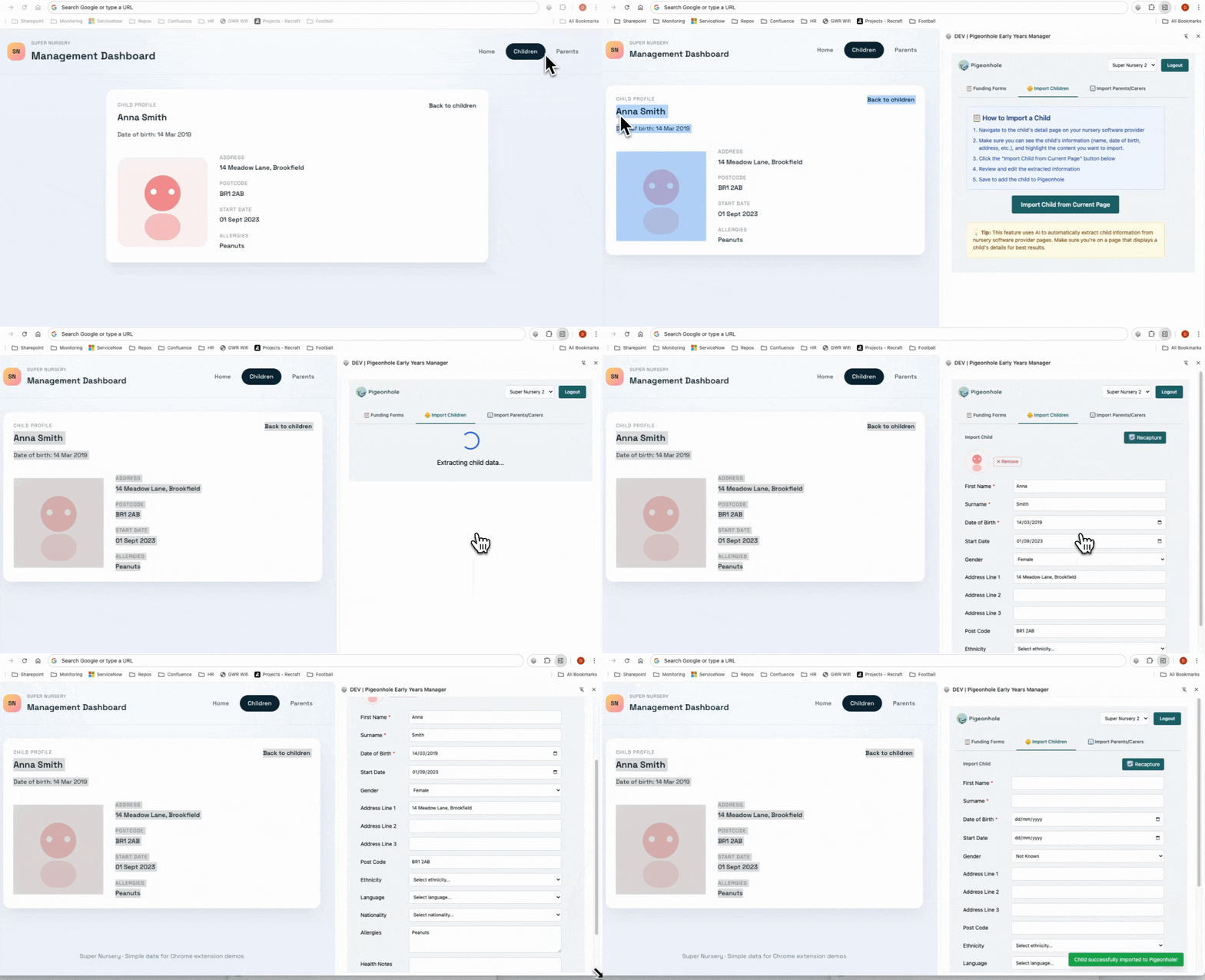
How It Works:- Navigate to a child’s detail page in your current nursery software
- Highlight the content you want to import (name, DOB, address, etc.)
- Open the Pigeonhole extension and click the “Import Children” tab
- Click “Import Child from Current Page”
- The AI extracts information from the highlighted content
- Review and edit the extracted data
- Save to add the child to Pigeonhole
Tip: Make sure you’re on a page displaying a child’s details and highlight all relevant information before clicking import. The AI works best with structured data like tables, forms, and labeled fields.
Importing Parents/Carers
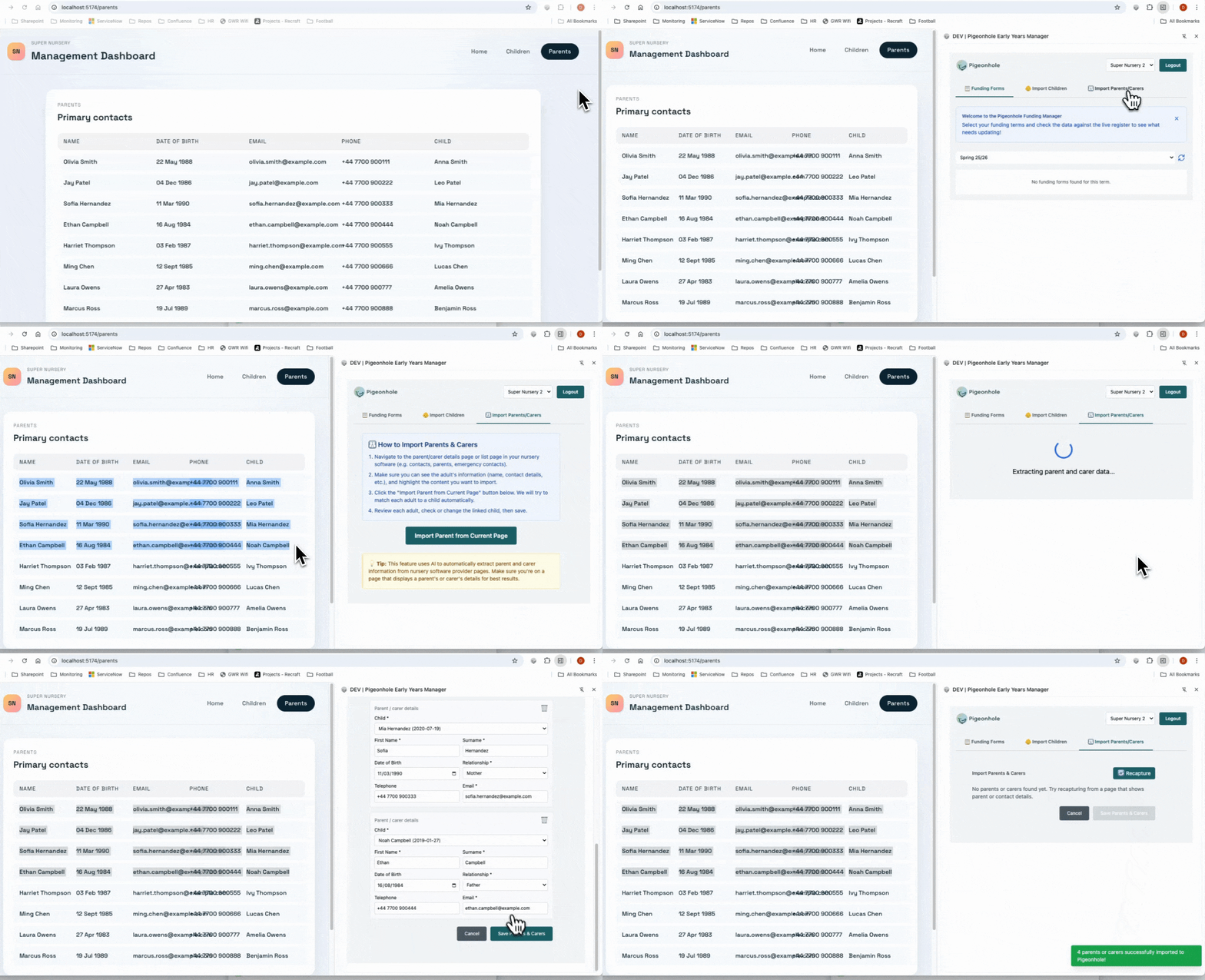
How It Works:- Navigate to a parent/carer detail page or list page in your current software
- Highlight the content you want to import (names, emails, phone numbers, relationships) to get a better result from the AI import
- Open the Pigeonhole extension and click the “Import Parents/Carers” tab
- Click “Import Parent from Current Page”
- The AI extracts parent/carer information and attempts to match them to children
- Review each adult record, check or change the linked child, then save
Tip: Works with both individual parent pages and list views. The AI automatically attempts to match adults to children based on surnames, but you can manually adjust child assignments before saving.