
Open in app: Development → Progress reports. You can also start a report from the Reports tab on a child’s Journal.
The Progress reports page
Go to Development → Progress reports. Each row shows the child, the report’s title, the period it covers, who wrote it and its status.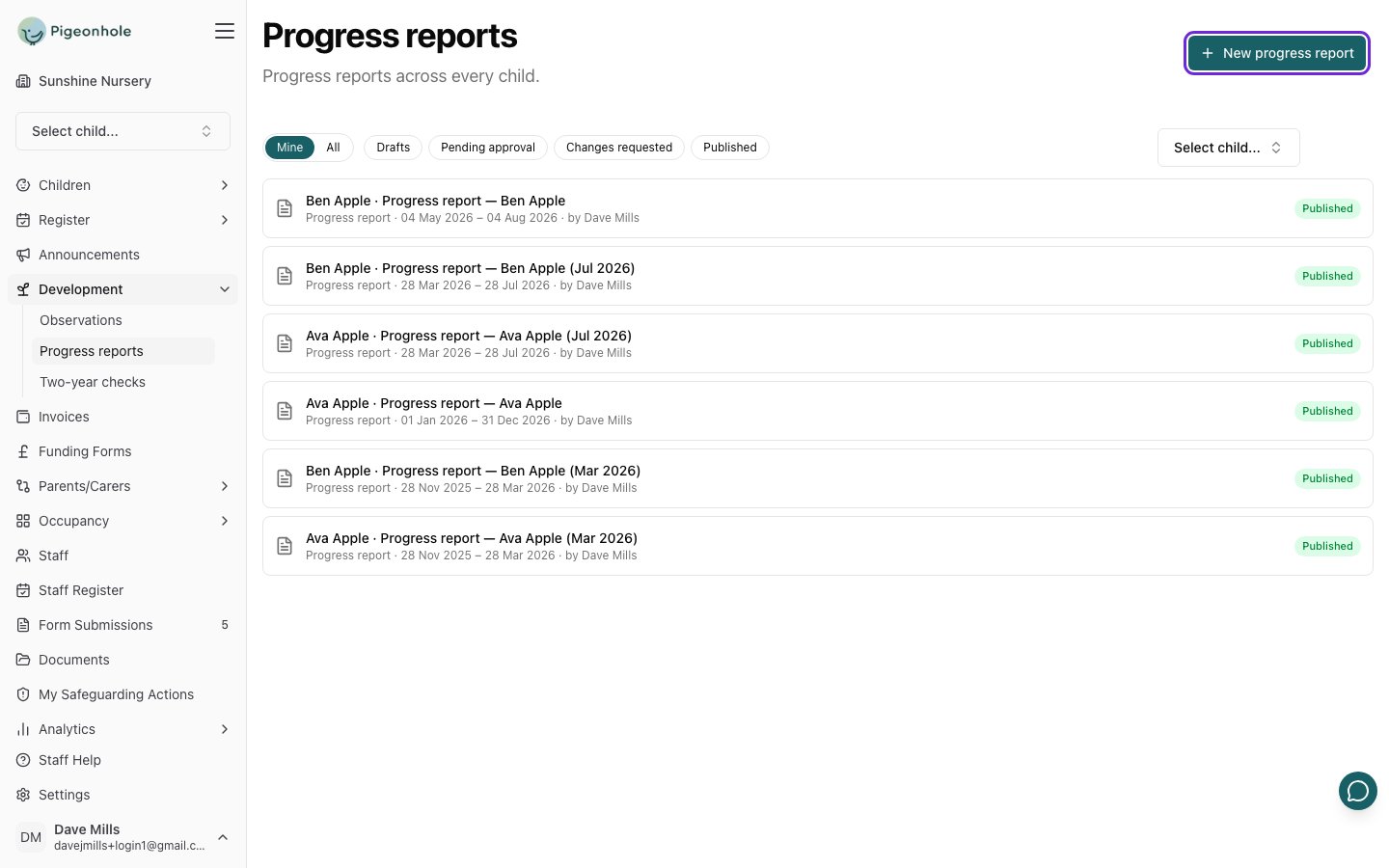
Step 1: Create the report
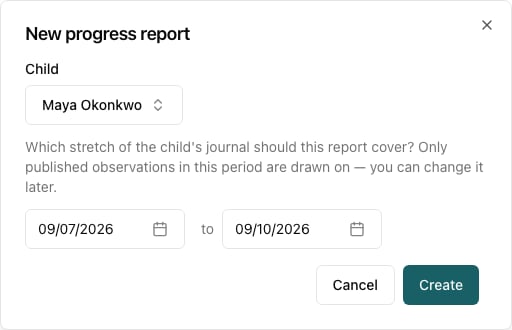
- Click New progress report.
- Pick the Child. You won’t be asked if you started from the child’s Journal.
- Set the reporting period — the stretch of the child’s journal the report covers. It starts as the last three months.
- Click Create. The report opens as a draft.
Step 2: Check the reporting period
The Reporting period box at the top shows how many published observations the report is drawing on. If the number is low, widen the dates and click Save to bring in more of the journal. You can change the period at any time while the report is still a draft.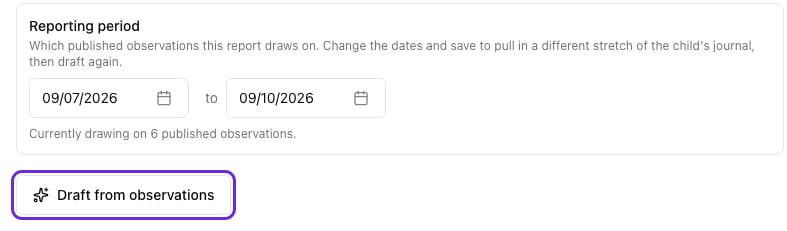
Step 3: Draft and edit
If your setting uses AI drafting, click Draft from observations. In a few seconds you’ll have a first draft built from the child’s published observations in the period, using their write-ups, next steps and learning links.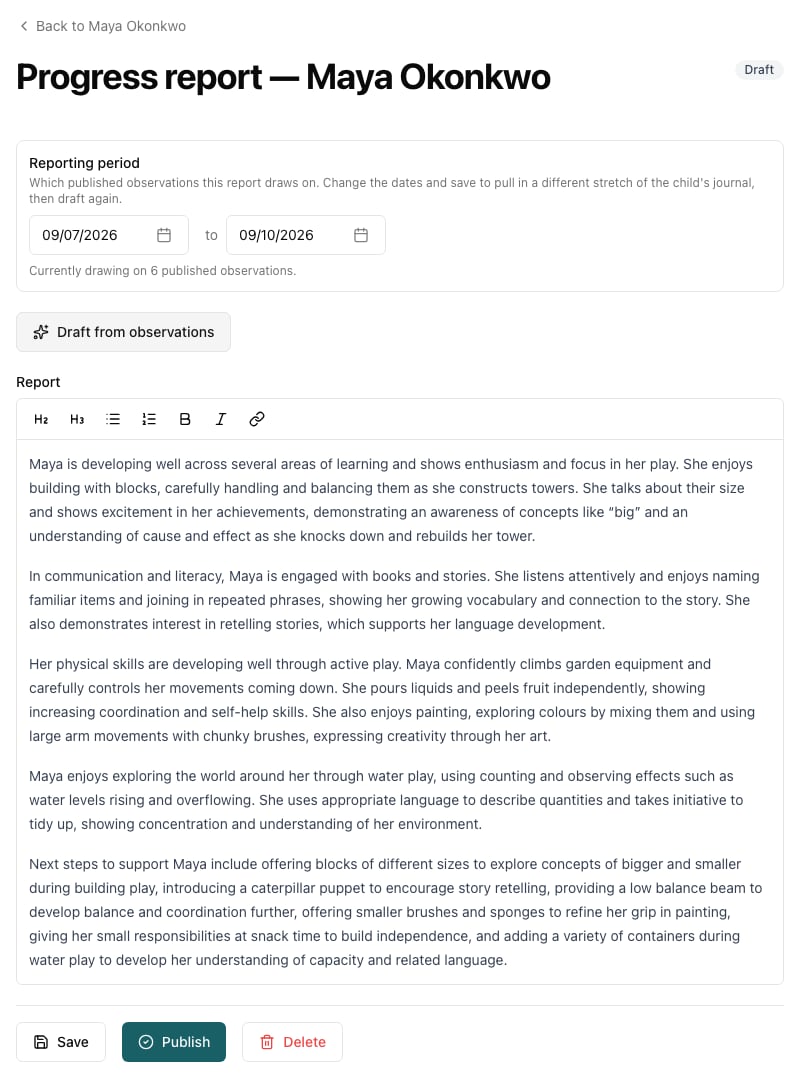
- If your setting uses learning frameworks, the draft is organised around your areas of learning. That works even for observations that weren’t tagged.
- The draft only uses what’s in the observations. Where there’s little evidence for an area, it leaves that area out or says so plainly. That’s a prompt to look at what’s been recorded, not something to fill in.
- The draft replaces the report text, so draft first and add your own touches afterwards.
- Nothing is saved until you click Save.
Step 4: Submit for approval
When you’re happy with it, click Save, then Submit for approval. Approvers are emailed and will either publish it or return it to you with a comment. If you have the Publisher role or you’re a manager, you’ll see Publish instead, and you’re asked to confirm before it goes to the family. Before it’s submitted, the report is checked against your setting’s report writing rules. These are separate from the observation rules. If something is flagged, click Replace with ”…” for a single suggestion, Fix all for all of them, or Proceed anyway to keep your wording.Withdrawing or changing a report
- While a report is Pending approval, click Withdraw to take it back to your drafts.
- If it comes back as Changes requested, the approver’s comment is shown at the top. Make the changes and click Resubmit for approval.
- Once it’s published, the family can see it on the Reports page of their parent portal. Only managers and staff with the Publisher role can change it after that.