
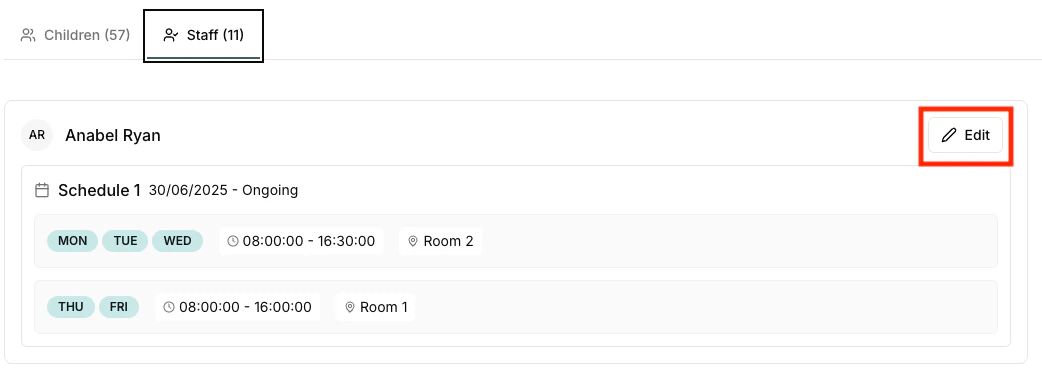
Staff Schedule Overview
The staff list displays:- Staff Name: Full name and role
- Weekly Pattern: Visual representation of their work schedule
- Daily Hours: Scheduled hours for each day
- Room Assignment: Which room(s) they are assigned to
- Schedule Status: Current, upcoming, or historical schedules
Updating Staff Work Schedules
To modify a staff member’s work schedule:- Find Staff Member: Use search or browse the staff list
- Click Edit: Click the edit button next to their name
- Modify Schedule: The staff schedule edit dialog opens
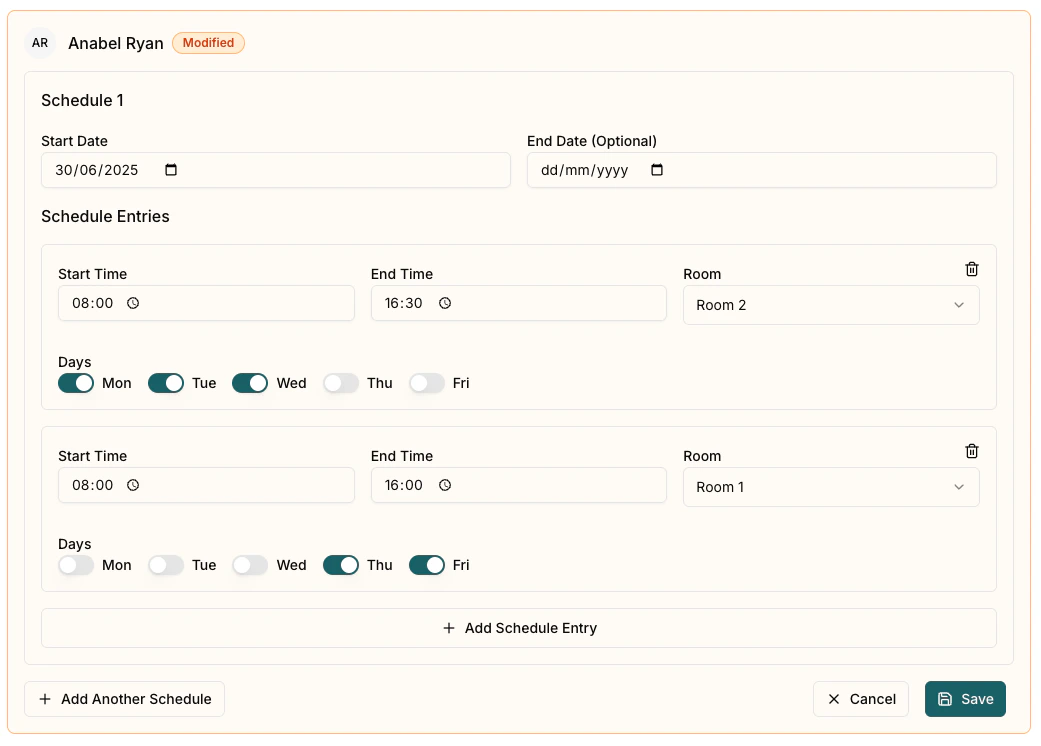
Staff Schedule Edit Options
The staff schedule editor provides:- Session Periods: Configure different work periods
- Start/End Dates: Set when the schedule is active
- Start/End Times: Specify the start and end time for each work entry
- Room Assignment: Select which room the staff member covers
- Days of Week: Choose which days they work
Making Schedule Changes
When editing staff schedules:- Adjust Work Hours: Set appropriate start and end times
- Select Work Days: Choose which days of the week apply
- Room Assignment: Ensure staff are assigned to appropriate rooms
- Date Ranges: Set the period when the schedule is active
Copying a Schedule From Another Staff Member
If a new staff member works the same pattern as someone you’ve already set up, you can copy an existing schedule instead of building it from scratch. This is done from the staff member’s own Schedule tab (open their profile from the Staff list and click the Schedule tab). When a staff member has no sessions yet, the empty Schedule tab offers a copy option:- On the empty Schedule tab, use the Select staff member to copy picker to choose the staff member whose schedule you want to reuse.
- Click Copy Staff Schedule. All of that staff member’s sessions are copied across.
- Adjust any times, rooms, or days that differ, then save.
Open in app: Staff, then open a staff member and select the Schedule tab.
Saving Staff Changes
Pigeonhole allows you to make multiple staff schedule changes before saving each one. This allows you to easily find the optimum occupancy for your setting:- Edit Multiple Staff: Make changes to several staff members
- Track Changes: The system tracks all modified schedules
- Save: Click Save to save each staff member’s changes
- Cancel: Click Cancel to revert all updates on a staff member
Changes to staff schedules are immediately reflected in the occupancy heatmap, allowing you to see the impact of your adjustments in real-time.