
Open in app: Occupancy Planner, or the occupancy page and then Plan at the top right. Available to Admins only: it shows staff pay rates and the whole setting’s income.
The planner is in beta. It is finished enough to plan with, and we would like to know how it holds up against your own figures. Tell us what you make of it at support@pigeonholeapp.co.uk.
Start here
Five things nursery managers use it for, each worked through end to end:Cost a pay rise
What a rise costs for the rest of the year, and how far your prices have to move to cover it.
See next September before it arrives
Who leaves for school, who moves up, and the hole that leaves behind.
Fill the gaps from your waiting list
Try the children who are waiting, and see which ones actually fit.
Staff the year you have planned
Find where the rota runs out before the room does, and what fixing it costs.
Cost one family leaving
What the year loses if a family you are unsure about gives notice.
Before you start
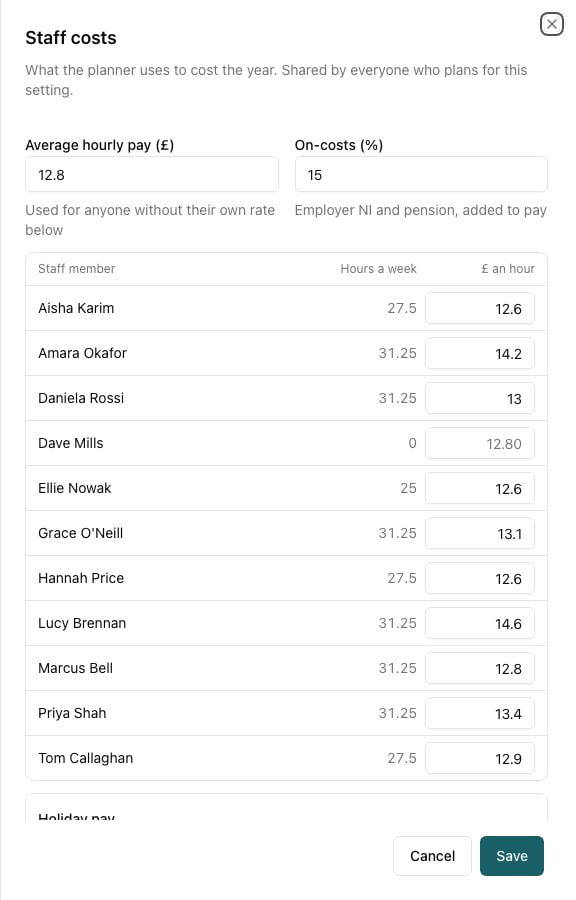
The planner works from your real records. For a true profit figure it needs two things nothing else in Pigeonhole records, and it tells you which are missing:- What staff cost. Press Adjust on the Staff card and enter your average hourly pay and on-costs, and say how you pay for holiday. You can also give individual staff their own rate.
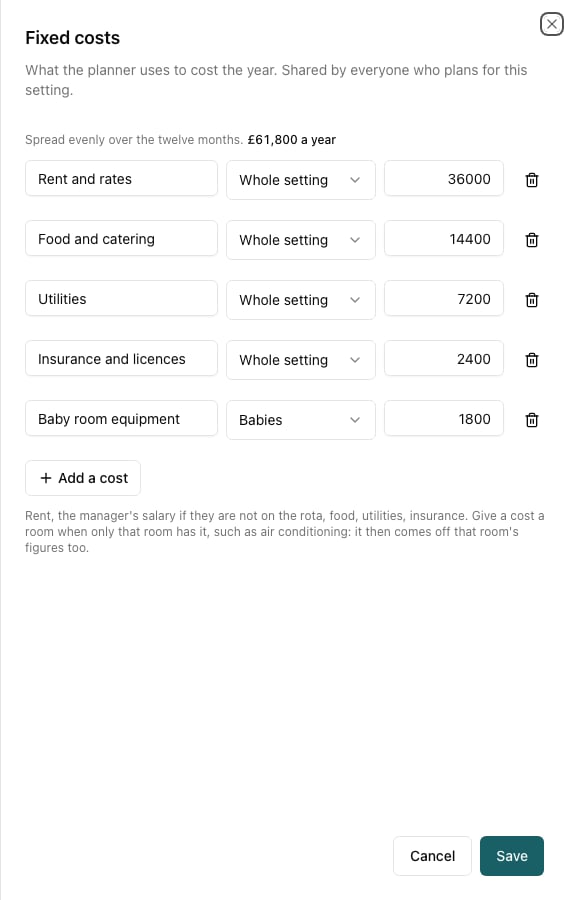
- Your fixed costs. Press Adjust on the Fixed costs card: rent, the manager’s salary if they are not on the rota, food, utilities and insurance, as yearly amounts.
How you pay for holiday
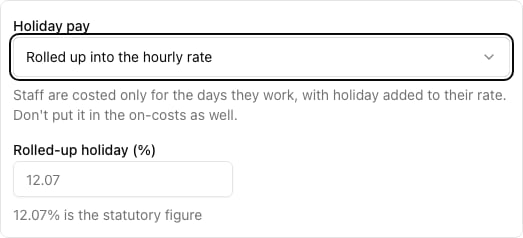
Under the rates, Holiday pay decides how the weeks you are shut are costed. There are two ways to run it, and the planner has to know which is yours, because counting both would charge holiday twice:- Paid through the closures — how salaried staff are paid. They are paid the weeks the setting is shut, so those weeks are a cost with no income against them. Their holiday is already in that figure, so leave holiday out of the on-costs: put in employer NI and pension only.
- Rolled up into the hourly rate — how most term-time-only settings run it. Staff are paid only for the days they work, and the holiday is a percentage on top of their rate. 12.07% is the statutory figure (5.6 weeks’ leave over the 46.4 weeks it accrues across). On-costs apply on top of it, because employer NI and pension are due on holiday pay as well.
Ratios and places
Each room’s staff ratio is shown beside its name. Click it to change it: one ratio for the whole day, or different ratios for different times. It is the same ratio the occupancy tracker uses, so changing it in one place changes it in both. A ratio marked not set means nothing has been saved for the room or the site, so 1:8 is being used. Places are optional. If a room has a limit on how many children it can take, set it on Settings → Rooms. If you don’t divide children into rooms, the planner shows a single Whole setting row with everyone in it. Everything else works the same, and the change forms don’t ask which room — there is only one.How children move rooms
On Settings → Rooms, choose when children move up. The rule applies to the whole setting:- Each September — everyone who has reached a room’s move-on age by 31 August moves on 1 September.
- On their birthday — each child moves on the first of the month after they reach the age.
- Only when I schedule it — the planner only uses the moves you schedule in Track.
Moves you have already scheduled in Track always come first. A child who is past a room’s age but hasn’t moved yet moves at the next opportunity, never backwards in time.
Reading the year
The five figures
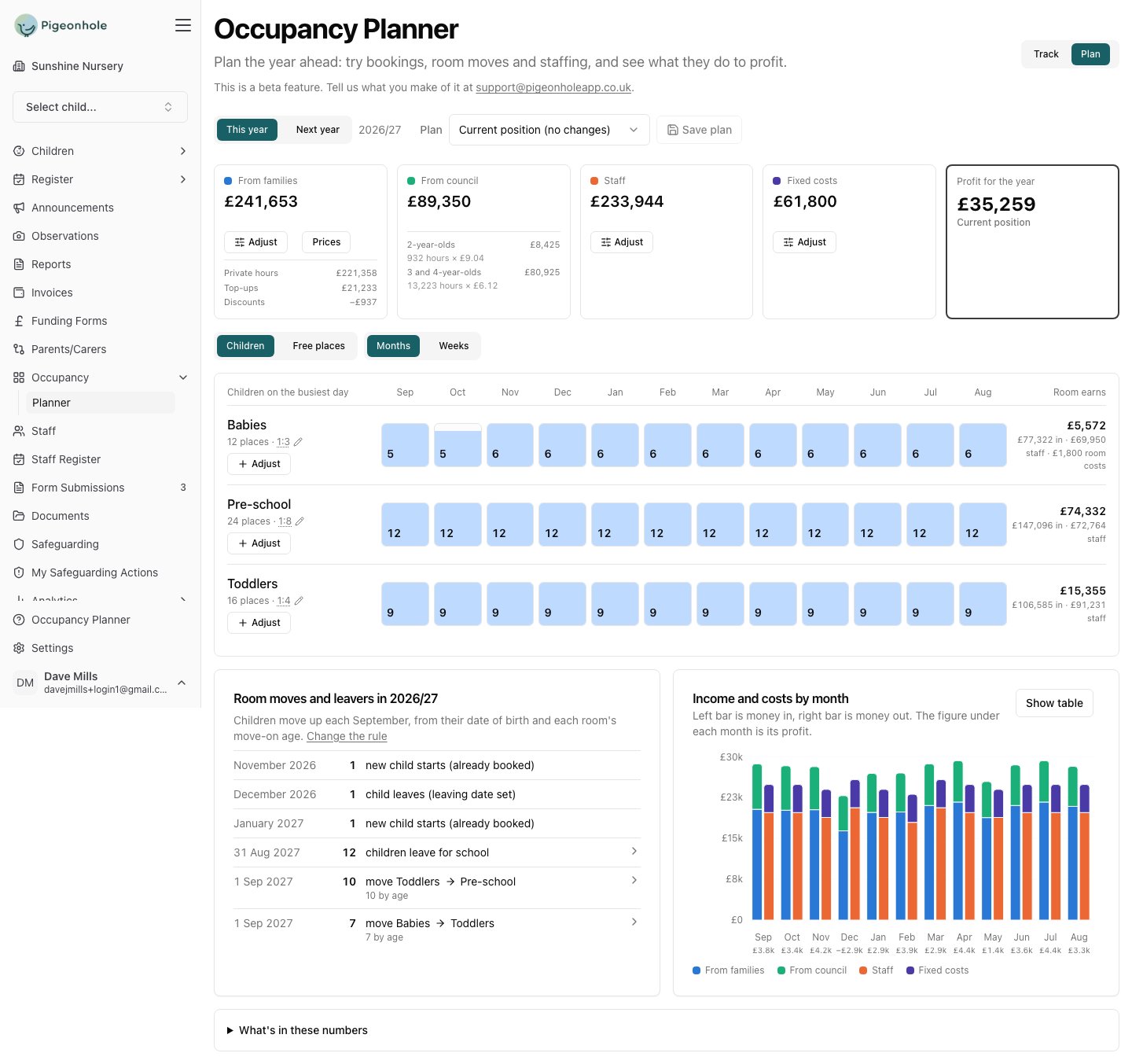
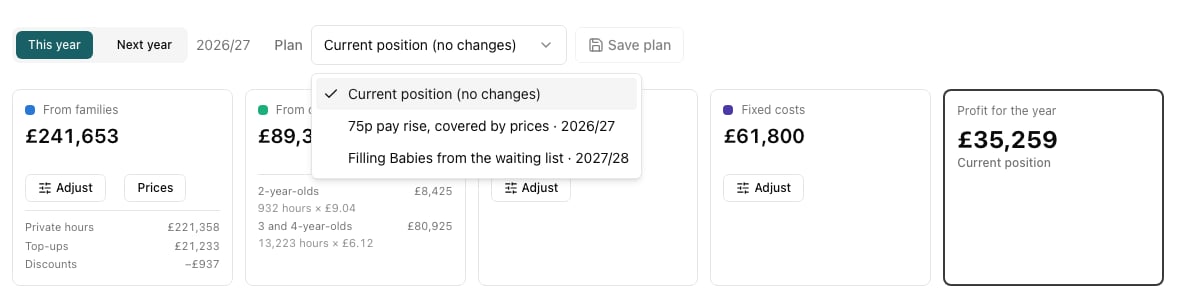
The top of the page shows the year in five figures: From families, From council, Staff, Fixed costs and Profit for the year. When you have planned changes, each also shows how far it has moved from the current position.
The year strip
Below that, each room has a row across the twelve months.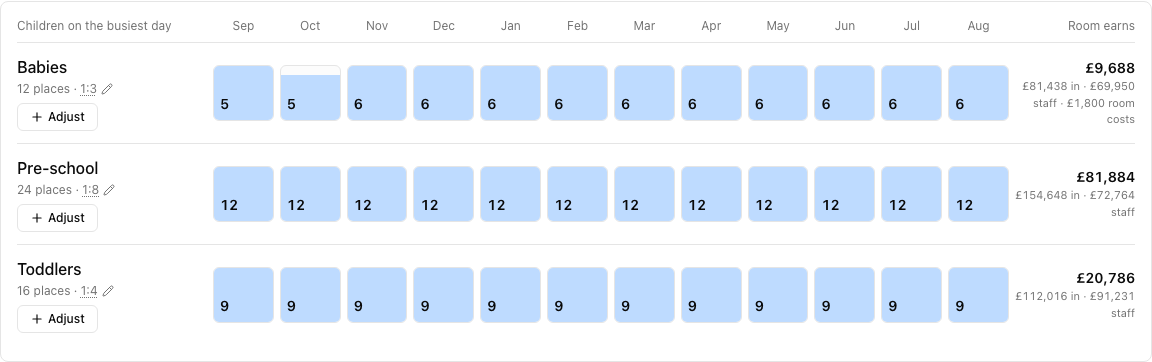
- Months shows the busiest day in each month: the most children in the room at once.
- Free places shows how many more children the room could take. The limit is the lower of the room’s places and what the staff on the rota allow at its ratio.
- Weeks shows every week of the year, Monday to Friday, shaded from emptier to fuller, with closures hatched. Click any month to jump to its weeks.
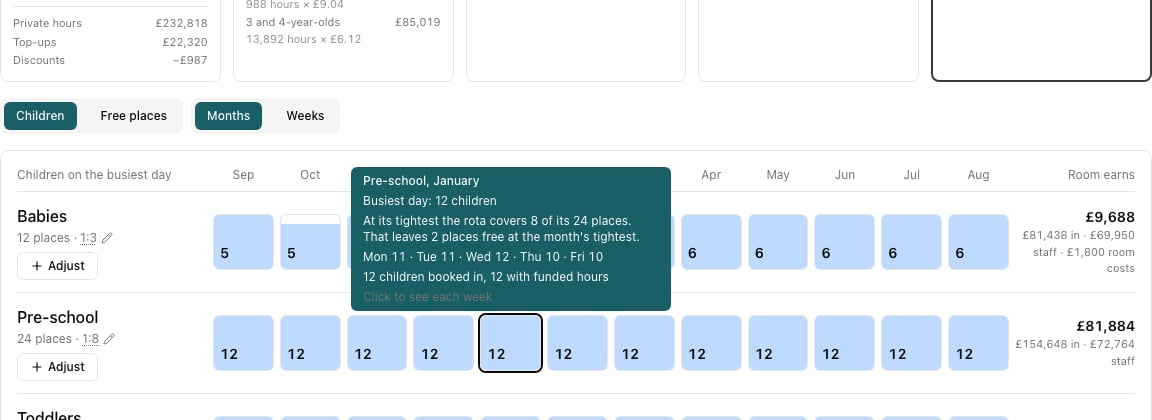
“At its tightest the rota covers 8 of its 24 places.” The figure is taken at the tightest moment of the day, because a child booked all day has to fit at every moment of it. A thin late afternoon is what decides the number, not a well-staffed morning.
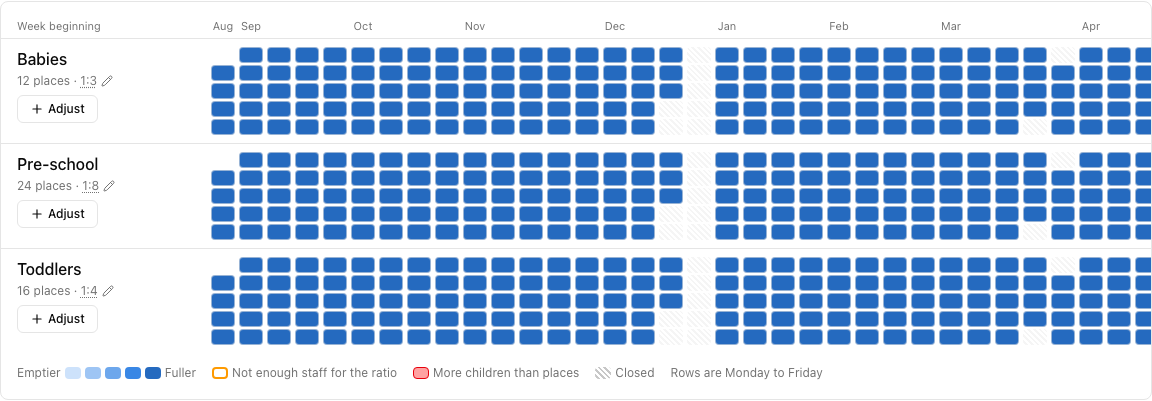
Moves, leavers and the month-by-month picture
Under the rooms, Room moves and leavers lists who moves room and when, who is already booked to start, and who leaves for school. Click a row to see the children’s names.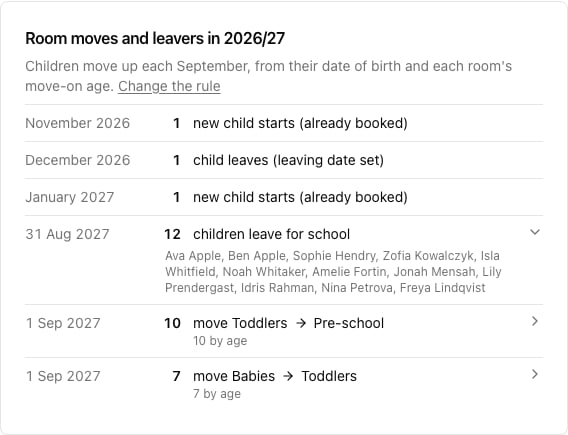
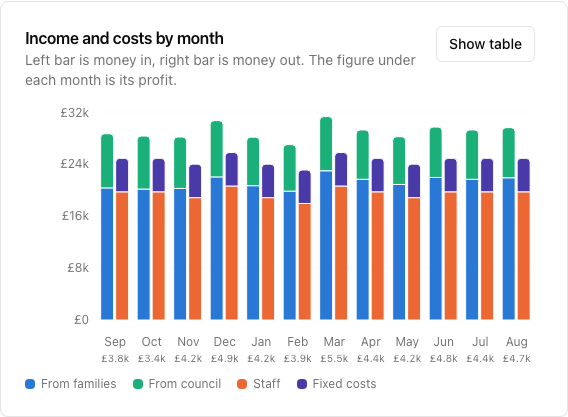
Planning changes
Every figure at the top has an Adjust button that changes what it is made of. From families also has Prices. Staff opens what staff cost and lets you try a pay rise; Fixed costs opens your yearly costs. Each is its own dialog, so you only see the figures you came to change. Click Adjust on a room, or on the From families card and then pick the room, to plan one of four changes:- Add children — one child at a time, with a name, their date of birth, start date, their week of sessions, discounts and extra charges. It starts from the week most children in that room already have.
- Add staff — one adult at a time, with a name, which days and hours they work, when they start and leave, and their hourly pay if it differs from your average.
- Move children — move the eldest children to another room earlier or later than the rule would.
- Schedule Leaver — pick a child you already have and see what the year loses without them.
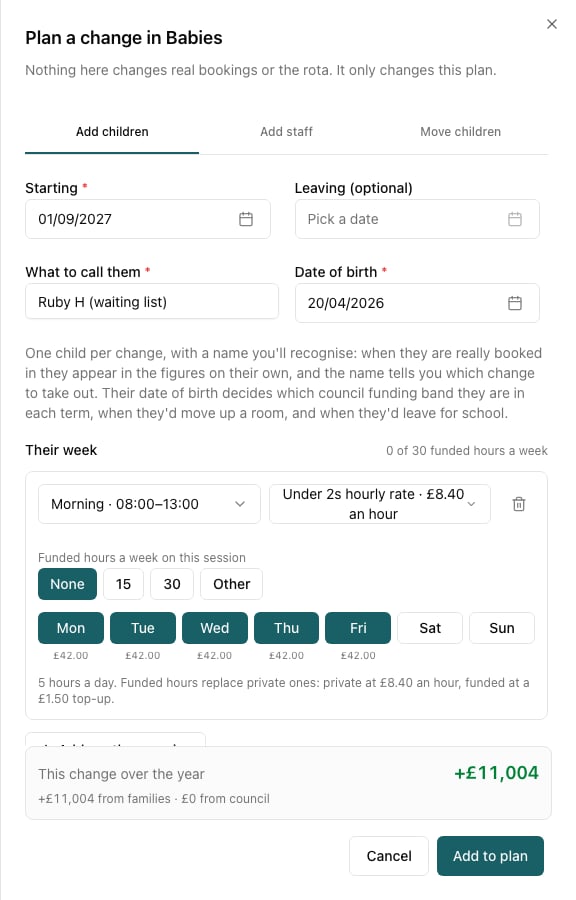
A child’s week
Every field marked * has to be answered before Add to plan will do anything. Give them a name you’ll recognise, like “Sibling for Ava”, and their date of birth. The date of birth is what decides their council funding band in each term, when they’d move up a room, and when they’d leave for school — all of which move as the year goes on, which is why the planner asks for the date rather than an age. Build the week the way you would book it. Each session has its own row: choose the session and its price, then the days. For a child who comes on a Monday morning and a Thursday full day, add two rows. It is still one child.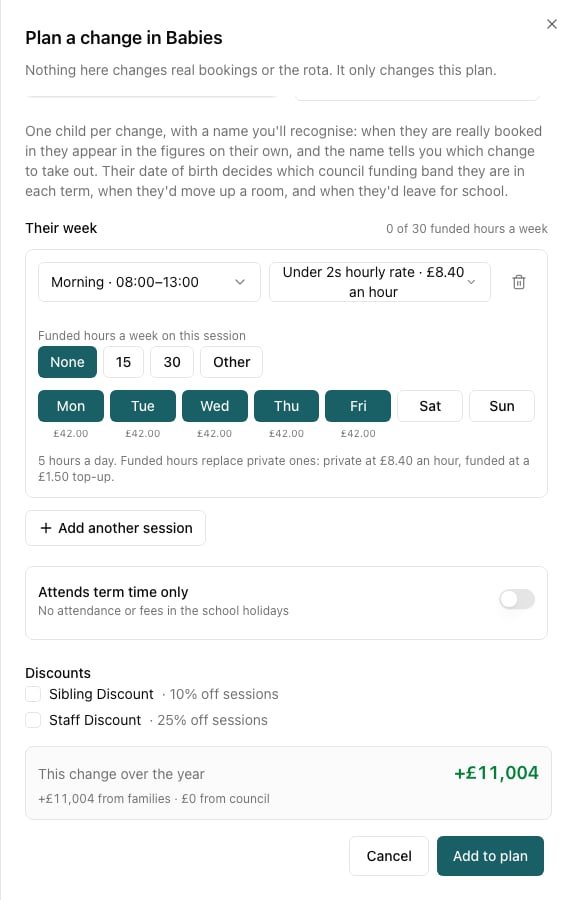
- Per hour — funded hours replace private ones. An 8-hour day with 5 funded hours at £8 an hour and a £2 top-up is 3 × £8 + 5 × £2 = £34.
- Flat rate — the session price, whatever the funded hours. A top-up is added only if that price list has one and the day has funded hours.
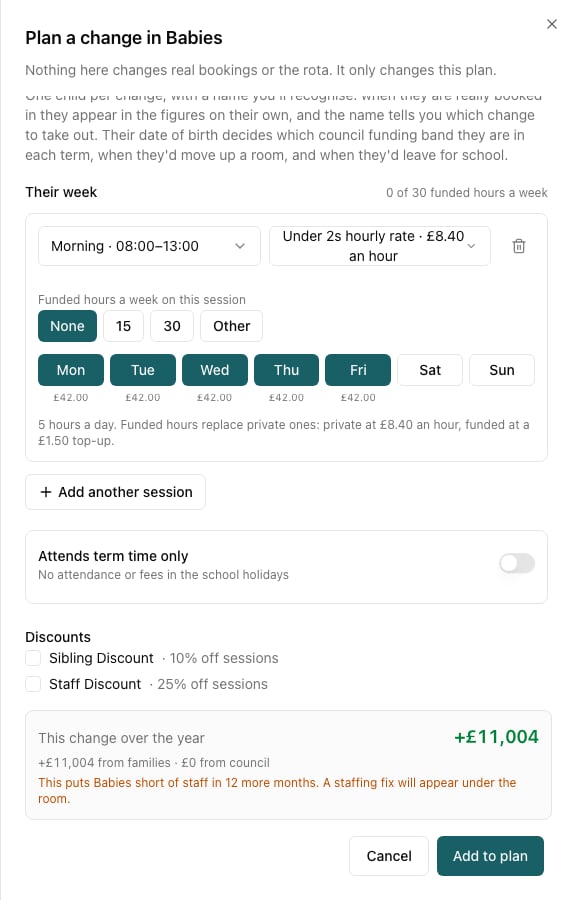
Your changes
Each change appears under its room as a sentence with its value. Above the year strip, a bar says what your changes are worth between them and carries a button with the number of them on it: click it to read the lot.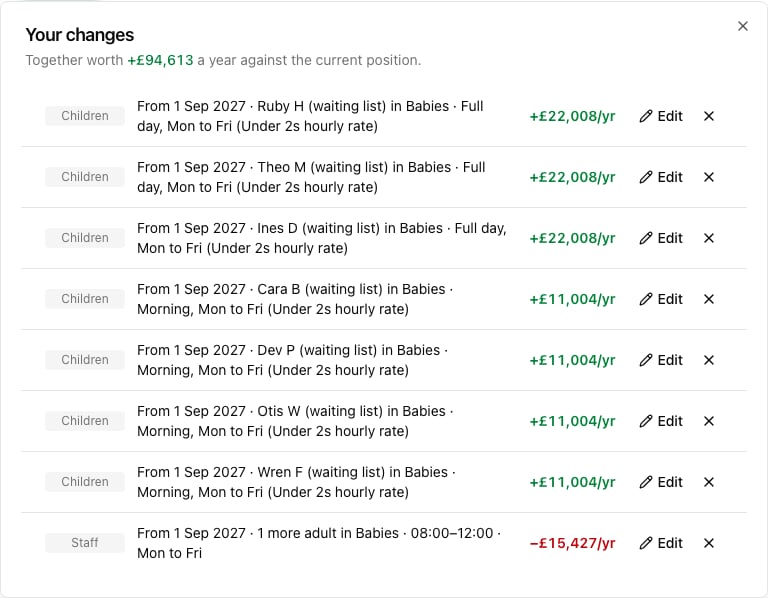
Trying a pay rise
On the Staff card’s Adjust, under Plan a pay rise, choose how much more an hour, from when, and whether it is everyone or particular staff. The planner costs it for the rest of the year, on-costs included. Add as many as you like and they stack, so “everyone from March, and these two from November” works the way you would say it. Nobody’s pay changes: this is a plan, not a payroll.Trying a price change
Prices on the From families card puts a price list up or down from a date, and shows what the year does. Move the private rate, the top-up, or both. It applies to everyone on that price list — the children already here as much as any you have planned — because that is what putting your prices up does. Price changes you have already entered in Settings need no planning: the forecast prices every day at the price in force that day, so a rise you set up for January is in the figures from January. A cut can take a price down to nothing but not below it — the planner says so rather than forecasting a price you could never charge.Fixing a staffing shortfall
When a room is short of staff, the planner works out the smallest extra rota that would fix it — the days, the hours, the number of adults — and what it would cost. Add staff puts exactly that in your plan.
Saving plans
Click Save plan and give it a name, for example “Open Fridays in Caterpillars”. Everyone who manages the setting can open saved plans from the Plan list.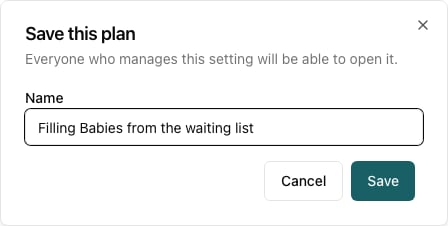
What’s in the numbers
- Family income is priced by the same code that builds your invoices: session prices, top-ups, extra charges and discounts. It takes closures and term-time-only children into account.
- Council income is funded hours at your funding rates, for each child’s age band at the start of each term. If next year’s rates aren’t set yet, the planner uses the most recent year’s and tells you.
- Staff are costed from the rota at their hourly pay plus on-costs. Whether the weeks you are shut are paid for depends on the Holiday pay setting above.
- Fixed costs are spread evenly over the twelve months. A room’s own costs also come off that room’s earnings.
- Not included: registration fees and deposits, one-off invoice adjustments, and staff sickness and cover.
FAQ
Why does next year look so empty?
Why does next year look so empty?
The planner only counts children who are booked. After the September moves and the school leavers, next year shows the places you still have to fill. Children on the waiting list aren’t counted — add the ones you expect with Adjust, or work through filling the gaps from your waiting list.
Why is the family income different from my invoices?
Why is the family income different from my invoices?
The planner counts everything earned in the year, including dates already invoiced. Invoices can also include registration fees and manual adjustments, which the planner leaves out. Discounts are worked out month by month, so a termly invoice can round differently by a few pence.
Does moving a child change what they pay?
Does moving a child change what they pay?
No. Prices belong to the booking, not the room, so a move changes where a child is and the staffing it needs, not their fees.
A room says 0 free places but it has 12 places. Why?
A room says 0 free places but it has 12 places. Why?
Because the rota, not the room, is the limit. If two adults cover a 1:3 room, six children is as many as the ratio allows however many places the room has. Add an adult and three more places open up — see staffing the year you have planned.
Can I turn a plan into real bookings?
Can I turn a plan into real bookings?
Not yet. A plan is a forecast; when you have decided, make the real changes in Track, on the child’s profile, or on the staff member’s schedule.