
Child Invoicing
The Invoicing tab on a child’s profile allows you to view all invoices generated for the child and configure child-specific invoicing settings. This tab is only visible to users with invoicing permissions. The tab contains two sub-tabs: Invoices and Settings.Invoices
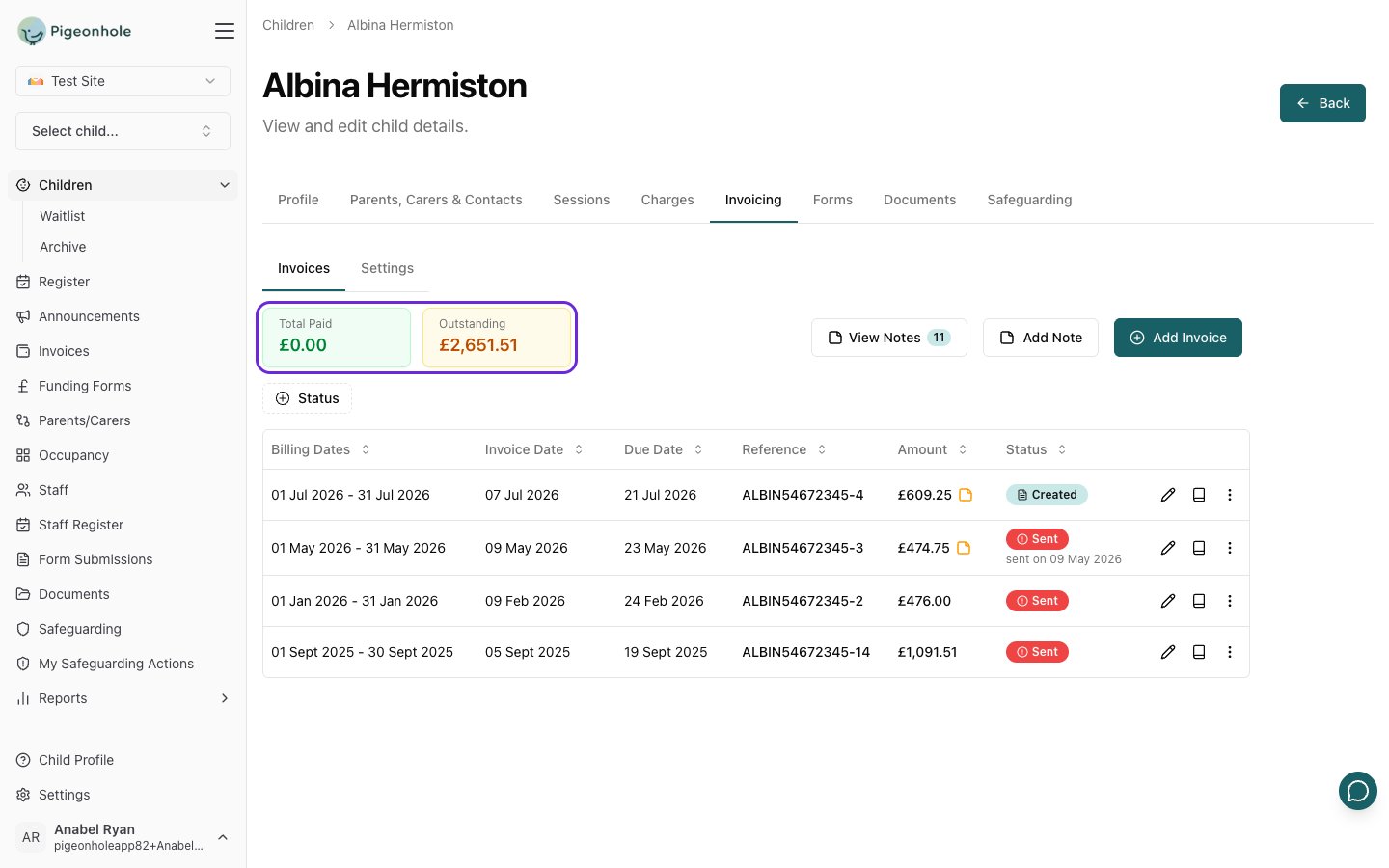
The Invoices sub-tab displays all invoices generated for this child. At the top of the sub-tab you will see:- Total Paid and Outstanding summary cards, giving a quick view of what has been paid and what is still owed for this child.
- A Status filter so you can narrow the list down to Created, Sent or Paid invoices. When your setting has an accounting integration enabled, a Sync Issues option is also available.
- An Add Invoice button to create a new invoice for the child.
- Finance Notes — click Add Note to record a finance note against the child, or View Notes (shown with a count badge) to read existing notes. Finance notes are only available to Admin and Finance users.
Settings
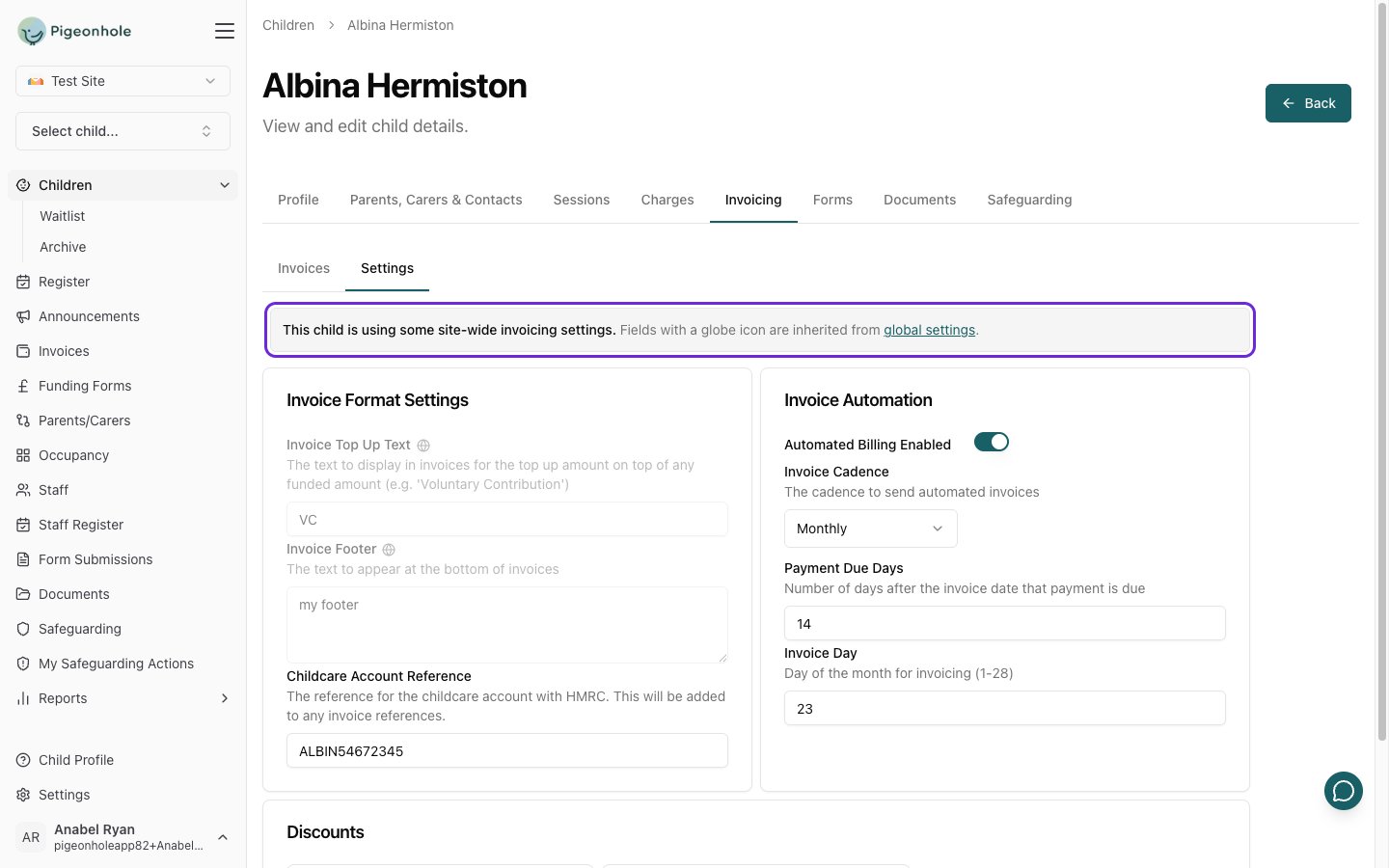
The Settings sub-tab allows you to configure invoice settings and automation for this child. Any setting you leave untouched is inherited from your site-wide invoicing settings. A banner at the top of the tab tells you the child’s current state:- This child is currently using site-wide invoicing settings — no overrides are set; every field follows the global settings.
- This child is using some site-wide invoicing settings — some fields have been overridden and the rest are inherited.
- This child has invoice setting overrides — all overridable fields have been given a child-specific value.
Invoice Format Settings
- Invoice Top Up Text — Custom text to display on invoices for any top-up amount above funded amounts (e.g., “Voluntary Contribution”).
- Invoice Footer — Text that appears at the bottom of this child’s invoices, for notes, disclaimers, or additional information.
- Childcare Account Reference — The reference for the childcare account with HMRC. This is added to the child’s invoice references. This field only appears at the child level.
The Invoice Reply Email address is set once for the whole setting in your site-wide invoicing settings, so it does not appear here. See Invoicing Settings.
Invoice Automation
- Automated Billing Enabled — Turn automated invoice generation on or off for this child.
- Invoice Cadence — How often automated invoices are sent: Monthly, Half Termly, or Termly.
- Payment Due Days — The number of days after the invoice date that payment is due.
- Invoice Day — For monthly billing, the day of the month (1—28) invoices are generated.
- Invoice Days Before Term Starts — For termly or half-termly billing, how many days before term starts to send the invoice.
Discount Assignment
One or more discounts can be assigned to a child from this Settings sub-tab. In the Discounts section, toggle on the discounts you want to apply. When multiple discounts are assigned, each is calculated independently and appears as a separate line item on generated invoices. See Discounts for details on creating and managing discounts.Reverting Invoice Settings
If the child has any overrides, a Reset to Site Defaults button appears. Click it to clear all of this child’s overrides and return them to your site-wide settings.Changes to invoicing settings only affect future invoices. Existing invoices are not retroactively updated.