
Sessions & Charges
Once a child has been added, you can configure their attendance sessions and apply extra charges from the child’s profile.Sessions
The Sessions tab allows you to manage the child’s attendance schedule and is essential for configuring the child’s regular attendance pattern and understanding the associated costs. The tab shows the configured sessions, the total hours and funding hours allocated, and the pricing applied.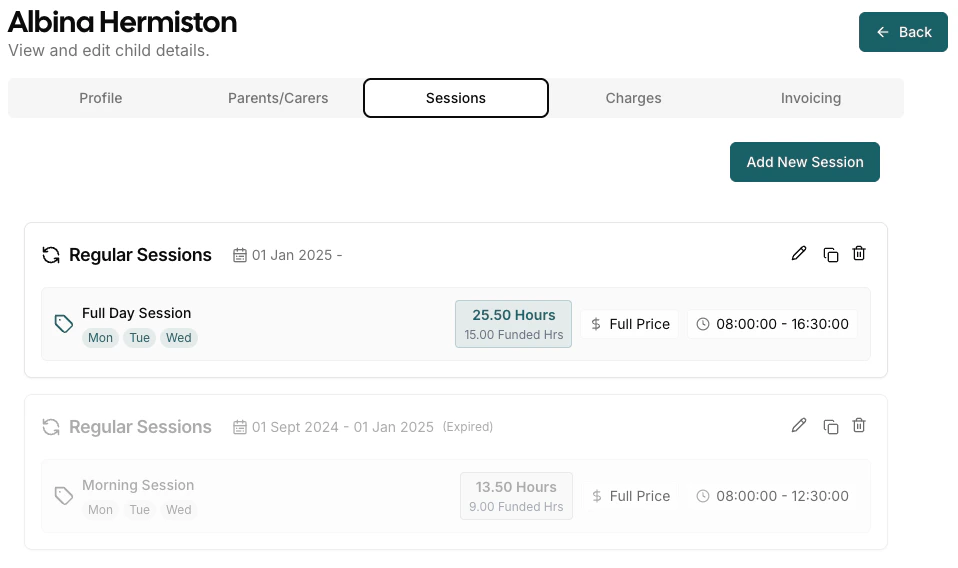
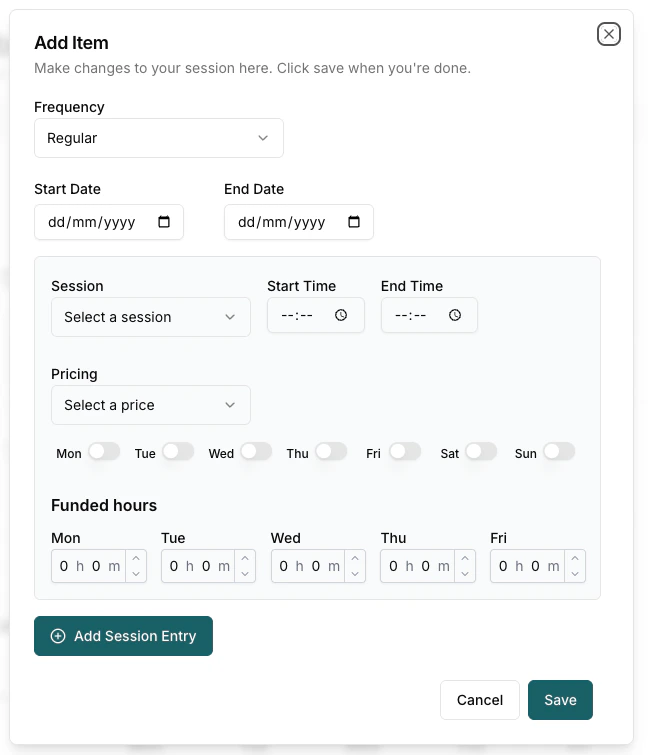
- Frequency — Choose how often the session occurs (Regular or One Off).
- Start Date / End Date — Set the date range for when the session is active. Use the calendar picker to select dates.
- Session — Select the type of session from a dropdown list (e.g., Morning, Afternoon, Full Day). This determines the session’s structure and timing.
- Start Time / End Time — Specify the session’s start and end times if they differ from the session defaults.
- Pricing — Choose the applicable price for the session from the available options. This will affect the cost calculation.
- Days of the Week — Toggle the days (Mon—Sun) on which the session should occur. Only the selected days will be included in the schedule.
- Funded Hours — For each weekday, enter the number of funded hours (if any) that apply. Use the up/down controls to adjust hours and minutes for each day.
- Add Session Entry — Click this button to add another configured session entry to the list.
Copying Sessions
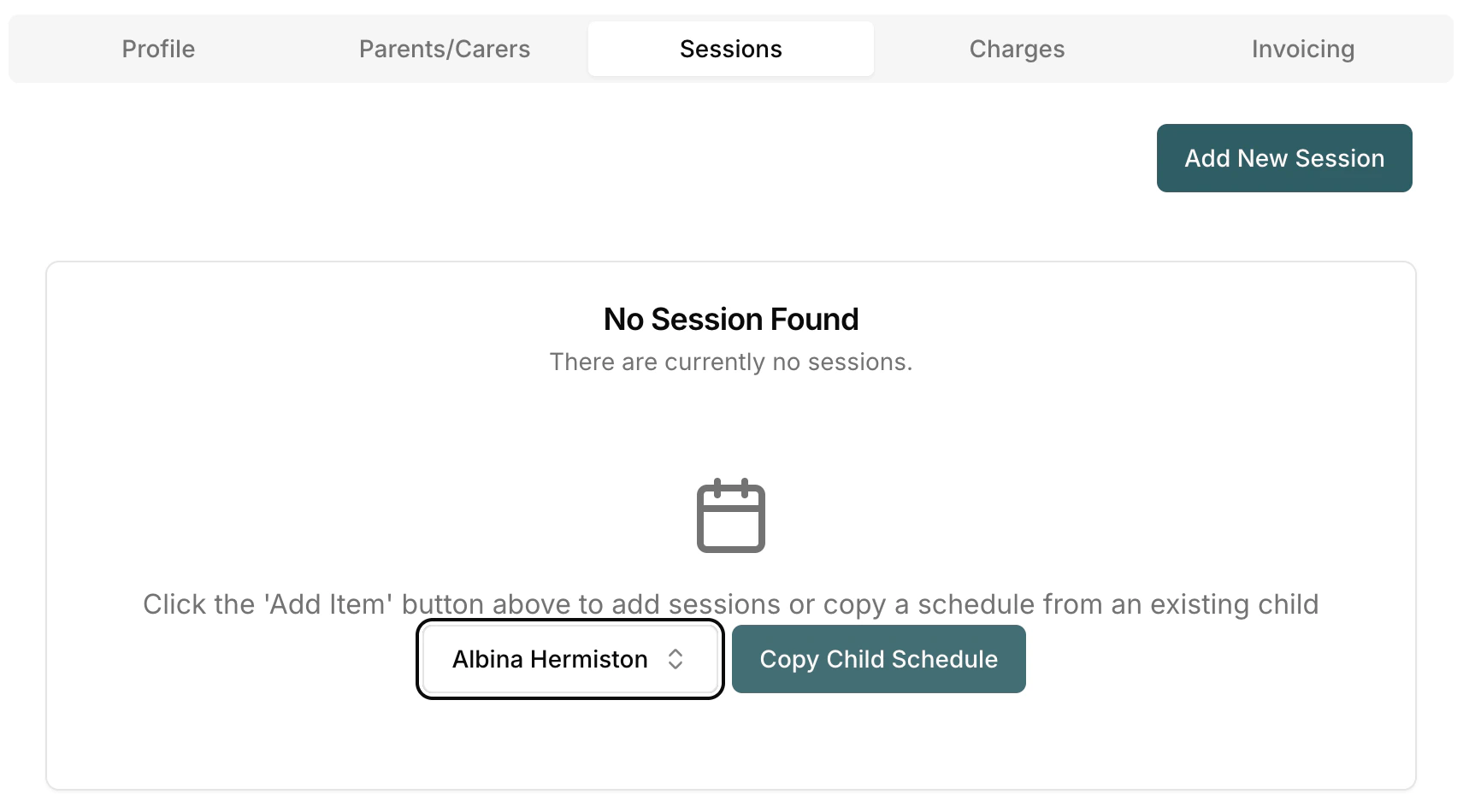
Pigeonhole allows you to easily create new sessions for children. To create a new session for a child, you can click the copy button on an existing session. This will create a new session based on the old one which you can make amendments to.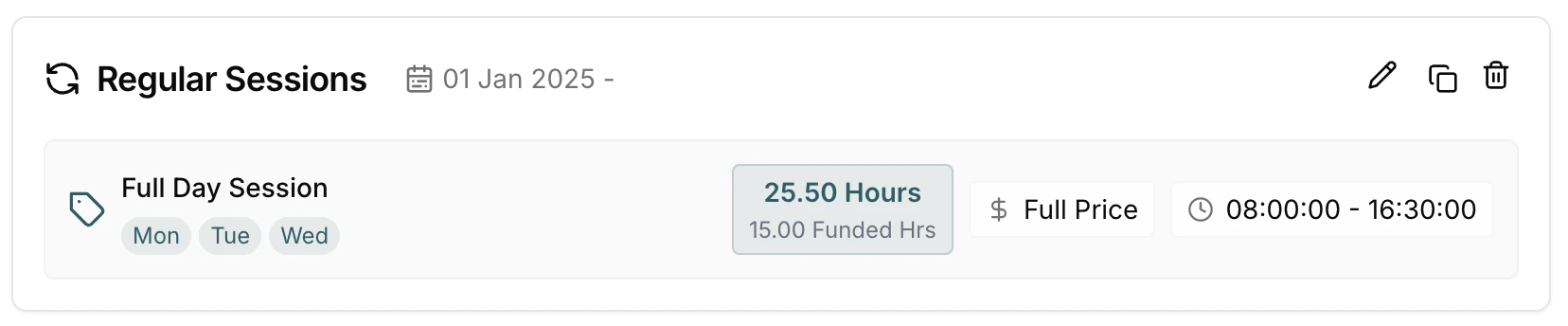
Charges
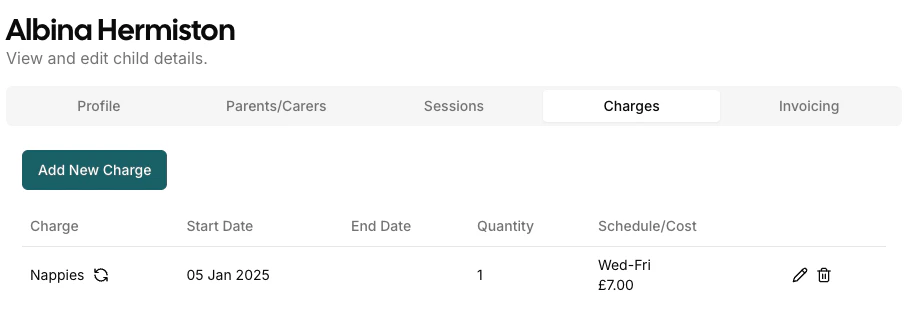
The Charges tab allows you to manage additional charges that apply to a child, such as nappies, meals, or other extra services. This section is essential for tracking and billing any recurring or ad hoc charges beyond standard session fees. The tab displays a list of all configured charges for the child, including:- Charge — The name of the extra charge (e.g., Nappies).
- Start Date / End Date — The date range during which the charge is active.
- Quantity — The number of units for the charge (e.g., 1 per day).
- Schedule/Cost — The days the charge applies (e.g., Wed—Fri) and the calculated cost for the period.
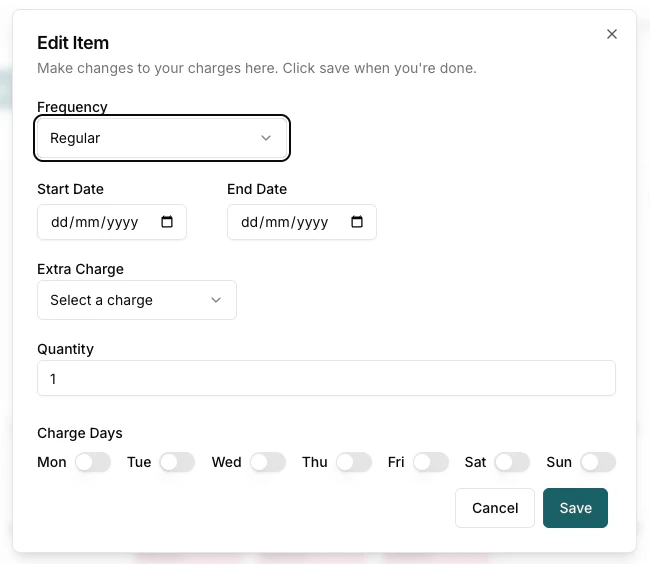
- Frequency — Select how often the charge is applied (Regular or One Off).
- Start Date / End Date — Set the date range for when the charge is active.
- Extra Charge — Choose the type of extra charge from a dropdown list (e.g., Nappies, Meals). This determines the charge and pricing applied.
- Quantity — Enter the number of units for the charge. For example, if the charge is per item, specify how many items per day.
- Charge Days — Toggle the days of the week (Mon—Sun) on which the charge should be applied. Only the selected days will be included in the schedule.
Discounts can also be assigned to a child’s charges. See the Discounts page for more information on creating and managing discounts.