
Parents, Carers & Contacts
The Parents, Carers & Contacts tab on a child’s profile allows you to manage all the people connected to a child, including parents, carers, emergency contacts, and pickup-only contacts.Accessing the Tab
- Navigate to Children in the main menu.
- Click on a child’s name to open their profile.
- Select the Parents, Carers & Contacts tab.
- Parents & Carers — Relatives with parental responsibility or bill payer status.
- Emergency Contacts & Pickup — Additional contacts for emergencies or collection.
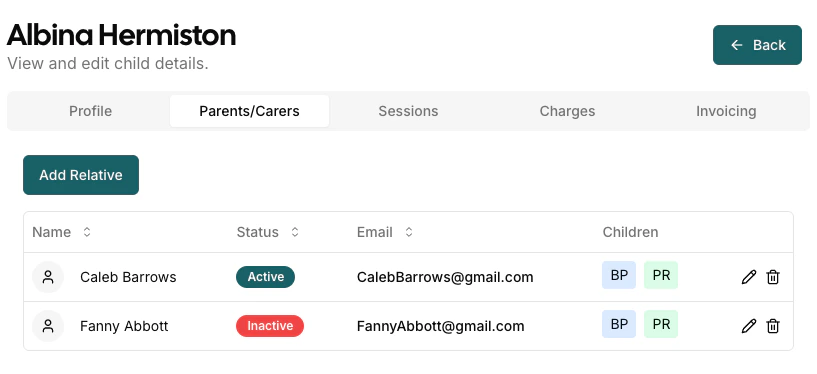
Parents & Carers
Parents and carers are the primary adults linked to a child. When adding a new parent or carer, you can configure their responsibilities:- Bill Payer — They will receive any invoices for the child.
- Parental Responsibility — They will receive all communication about the child and be required to fill in funding forms if applicable.
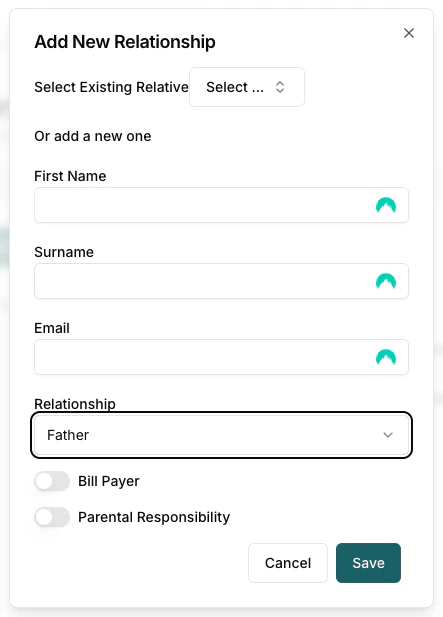
- Click the Add Relative button on the Parents & Carers section. The Add New Relationship dialog opens.
- Search for an existing parent or create a new one.
- Select the appropriate responsibilities (Bill Payer, Parental Responsibility).
- Click Save.
A child can have multiple bill payers and multiple people with parental responsibility. See Adding a Relative for details on creating parent accounts.
Emergency Contacts & Pickup
Emergency contacts are additional people who can be called if parents or carers cannot be reached. Pickup-only contacts may collect the child but are not used for emergencies.Adding a Contact
- Click the Add Contact button at the top right of the Emergency Contacts section.
- Fill in the contact details:
- Name (required)
- Telephone Number (required)
- Relationship (e.g., Grandparent, Aunt, Family Friend)
- Emergency Contact toggle — Enable if this person should be called in emergencies.
- Click Save.
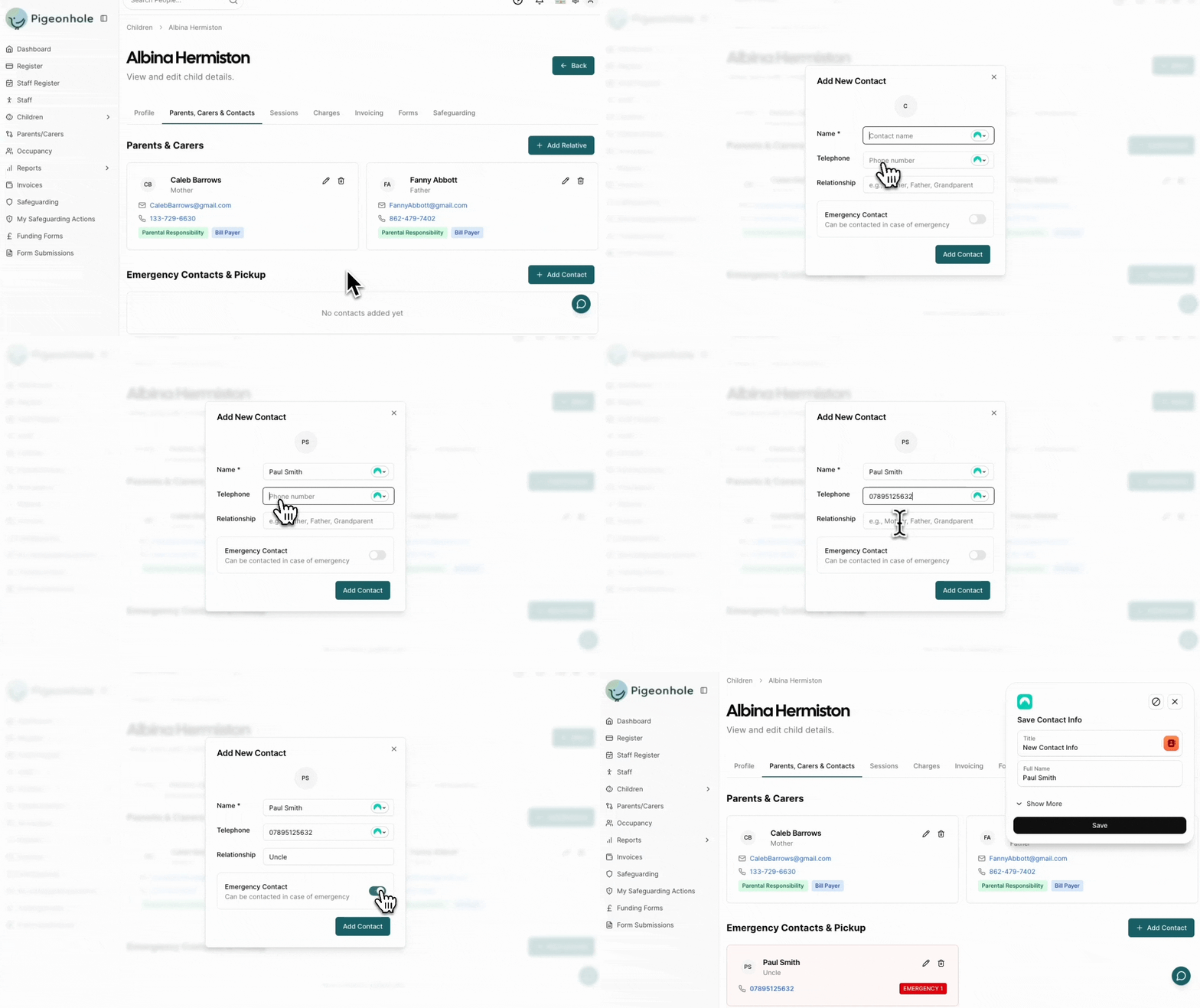
Emergency contacts are shown with a red badge and numbered by priority (e.g., EMERGENCY 1, EMERGENCY 2).
Reordering Emergency Contacts
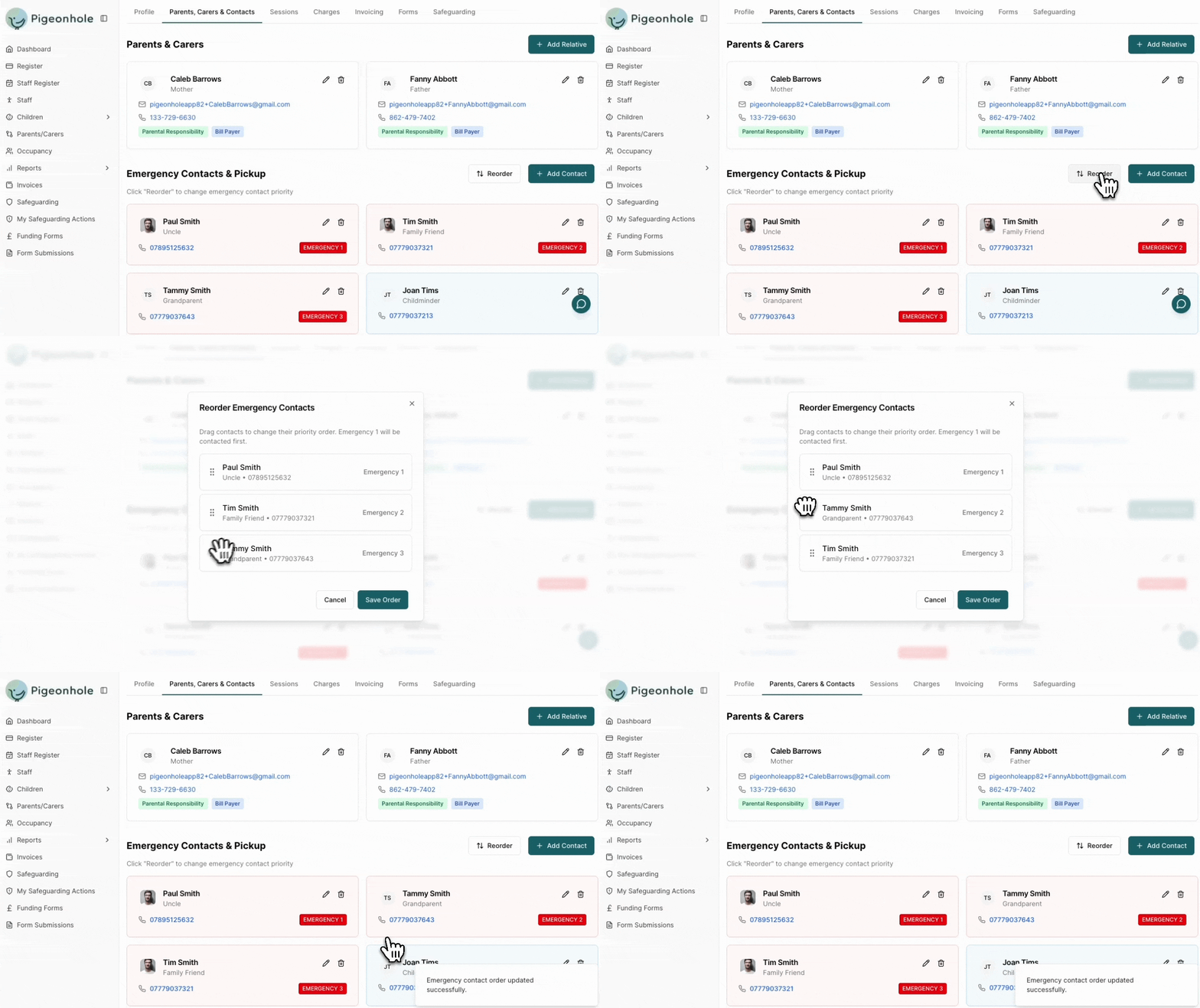
Emergency contacts are called in order of priority. To change the order:- Ensure you have at least two emergency contacts.
- Click the Reorder button (appears when multiple emergency contacts exist).
- Drag and drop contacts to set the priority order.
- Click Save.
Updating Contact Images
Each contact can have a profile image to help staff identify them at pickup.- Click the contact’s avatar or photo placeholder on either the list view or contact edit view.
- Upload an image from your device, or paste in a URL to the image.
- The image saves automatically.
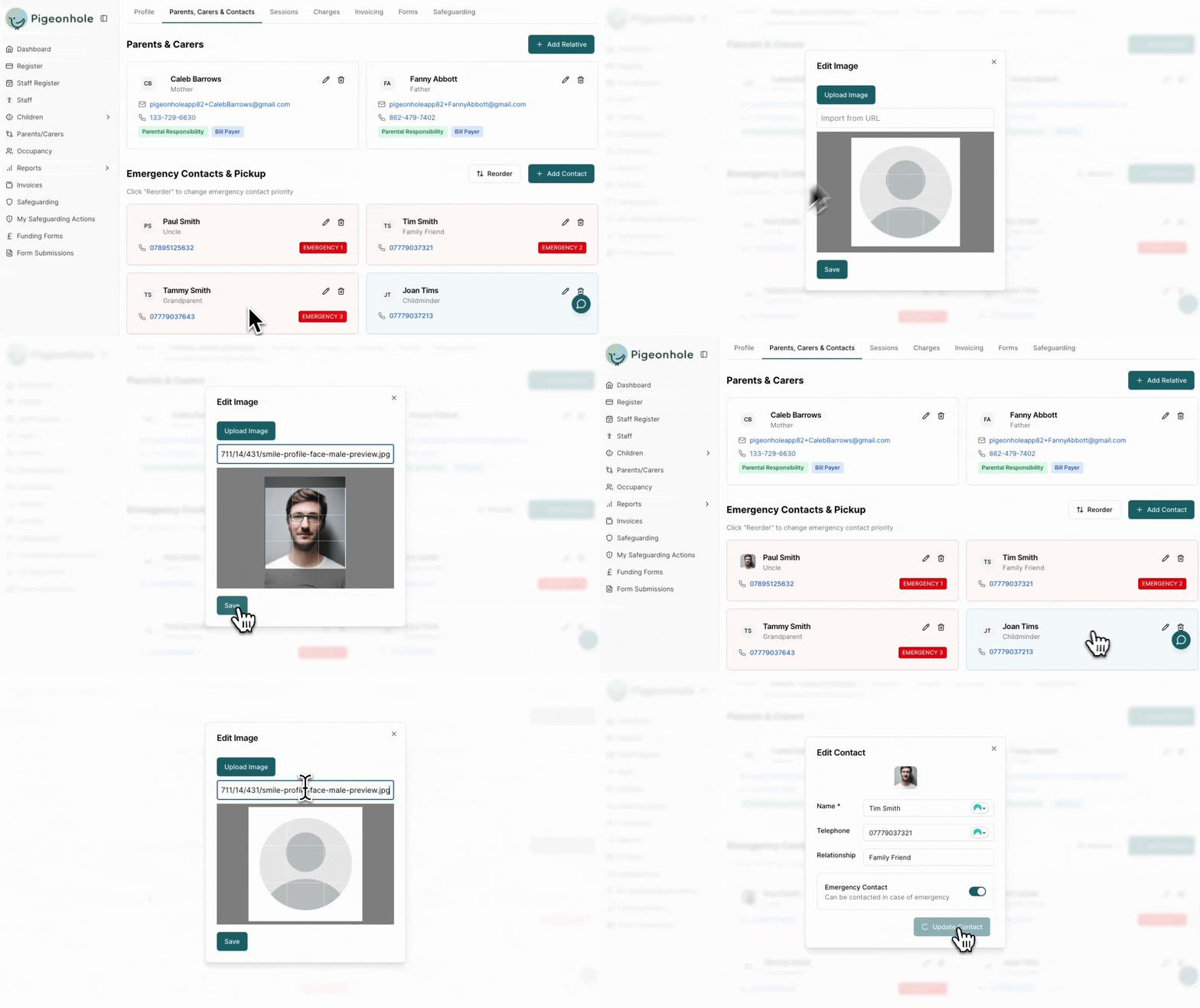
Editing a Contact
- Click the pencil icon on the contact card.
- Update the details.
- Click Save.
Deleting a Contact
- Click the trash icon on the contact card.
- Confirm the deletion when prompted.
Emergency contacts and pickup contacts are shown on the register under the child profile, making them easy to access at all times.