
Open in app: Settings → Invoicing to switch the trigger, then Invoices to run billing.
When to Use Manual Billing
Manual billing suits you if:- You reconcile payments or check session changes before invoicing, and can’t guarantee that’s finished by a particular date.
- Your invoicing day moves around month to month.
Step 1: Switch the Trigger to Manual
- Go to Settings → Invoicing.
- In the Invoice Automation card, make sure Automated Billing Enabled is switched on.
- Choose your Invoice Cadence as normal — Monthly, Half Termly, or Termly.
- Set Invoice Trigger to Manual.
- Click Save.
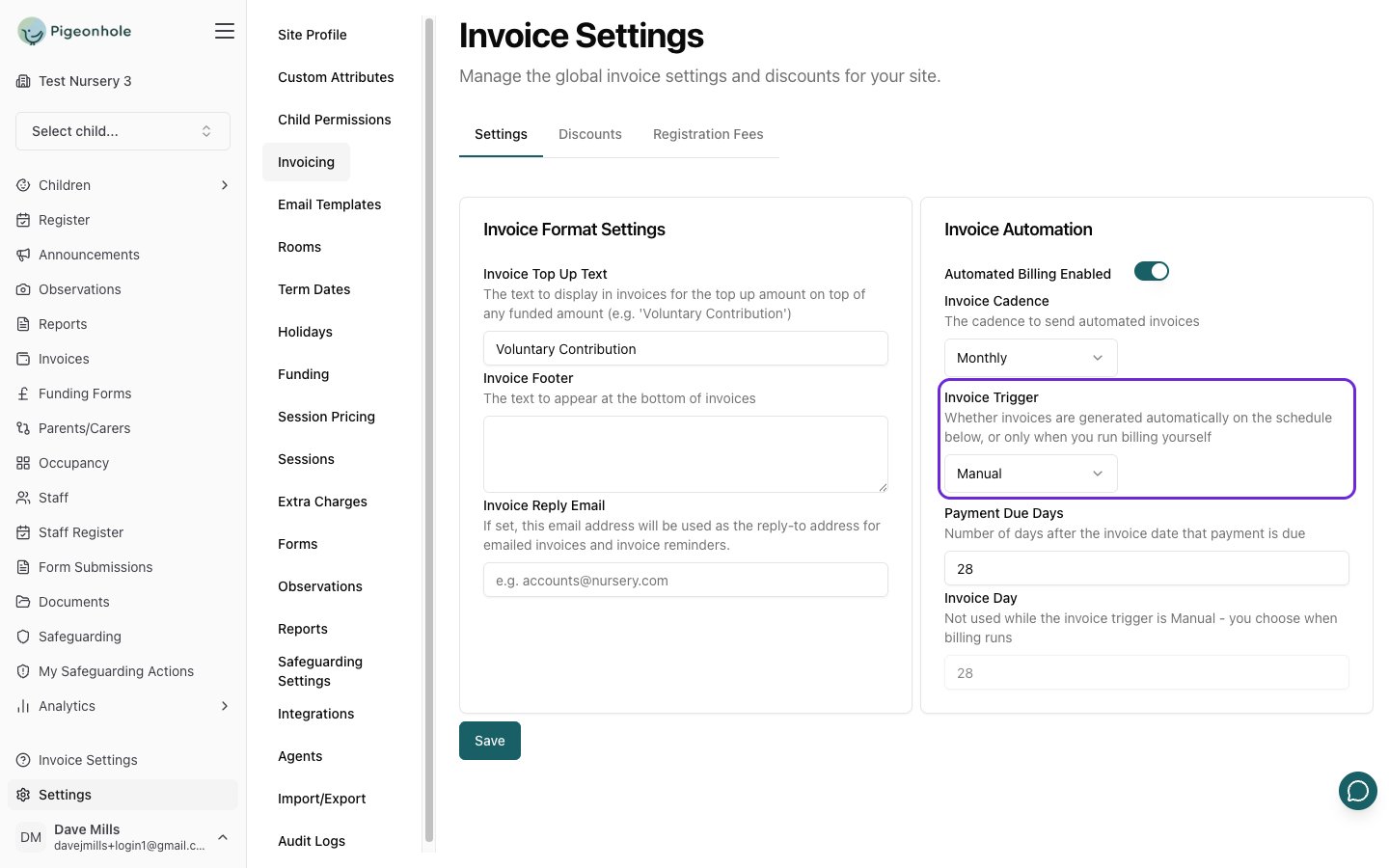
Invoice Trigger is a site-wide setting. It doesn’t appear on an individual child’s invoicing settings, and children with their own billing overrides follow the site’s trigger.
Step 2: Run Billing
- Go to Invoices.
- Click Run Billing.

Step 3: Check the Period and Confirm
The Run Billing window asks for a single date, then tells you exactly what it will produce.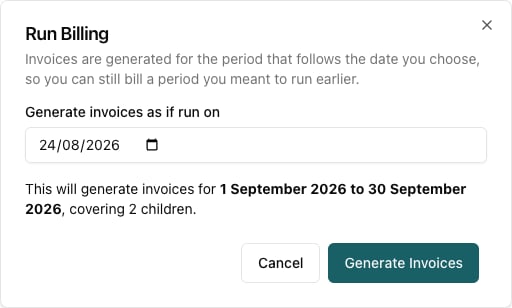
- Check the date in Generate invoices as if run on. It defaults to today.
- Read the sentence underneath. It names the period that will be invoiced and how many children are included.
- Click Generate Invoices.
Choosing the Run Date
The date you enter isn’t the period being billed — it’s the date the run is treated as happening on. Pigeonhole then works out the period exactly as the automatic schedule would have. For a monthly cadence, that means the following calendar month:
This is what makes catching up straightforward. If it’s 3 September and you meant to run August’s billing in July, set the run date back to 31 July and you’ll get August’s invoices rather than October’s.
For Termly and Half Termly cadences, the run date must fall inside the invoicing window for that term — that is, within Invoice Days Before Term Starts of the term’s start date. Running outside that window won’t raise term invoices, which prevents you accidentally billing the next term weeks early.
What Gets Invoiced
A manual run does exactly what the automatic schedule would have done on that date:- Every child at your site who is due to be billed for the period.
- Children with their own billing settings are included, using their own cadence.
- Children with nothing to bill for the period are skipped, and no empty invoice is created for them.
Running Billing More Than Once
Running billing twice for the same period is safe. Pigeonhole tracks which days have already been invoiced for each child, so a second run skips anything already covered and only picks up what’s genuinely outstanding. That means if you run billing and then a session is added part-way through the period, you can run it again to pick up just the new days.Frequently Asked Questions
Nothing was created when I ran billing. Why?
The most common cause is that there’s nothing chargeable in the period:- Your term dates don’t cover the period. If your site is set to term-time only and your term dates stop before the period you’re billing, every day is skipped and no invoices are raised. Check Term Dates and add the coming year if needed.
- The period is already invoiced. If those days are already on an invoice, there’s nothing left to bill.
- Children have no sessions in the period. Children without sessions have nothing to charge for.