
Download the app
App Store (iPhone and iPad)
Search for Pigeonhole Nursery Management, or tap here on your iPhone.
Google Play (Android)
Search for Pigeonhole Nursery Management, or tap here on your Android phone.
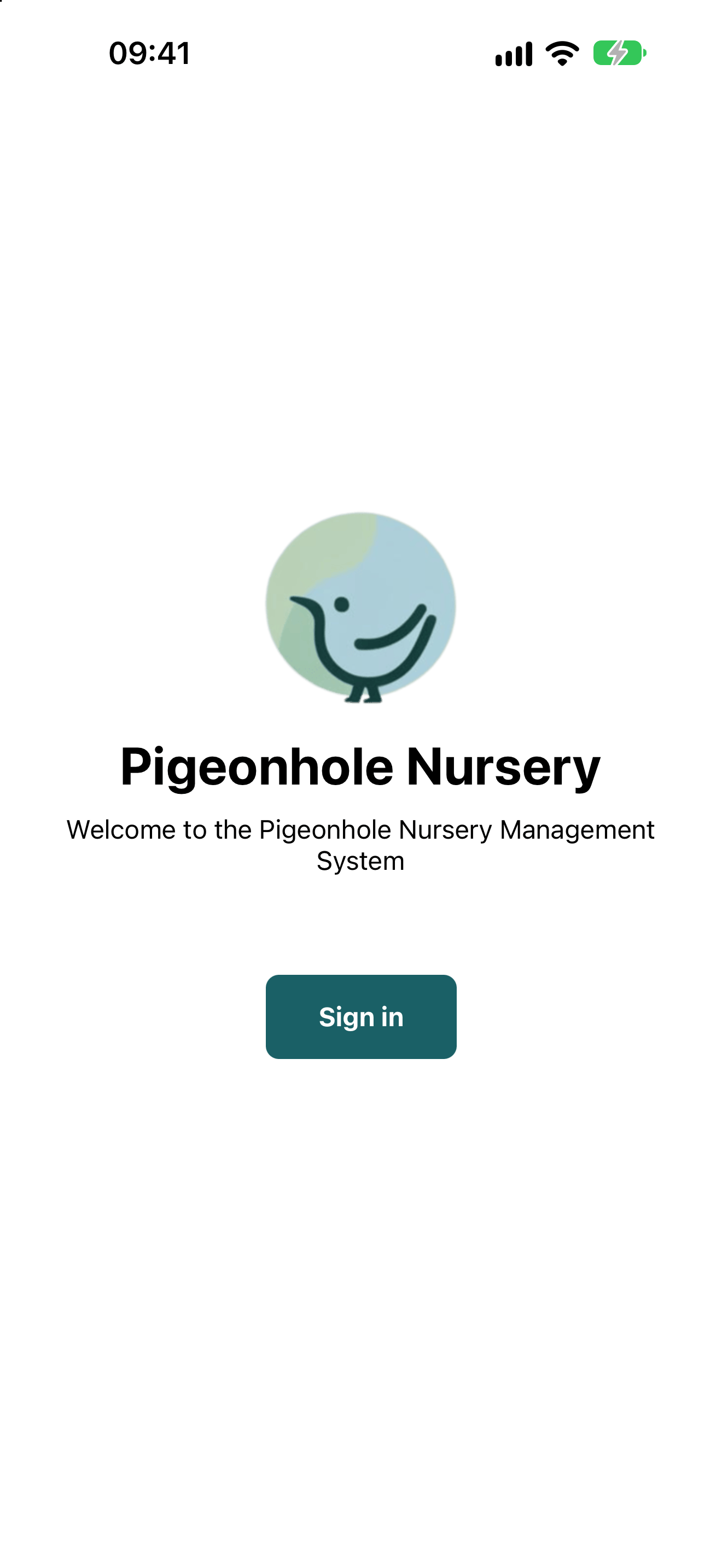
Sign in
- Open the app and tap Sign in.
- Enter the email address your nursery has for you.
- Sign in the same way as on the website: with a passkey, or with the code we email you. See Login & Authentication.
Setting up the app
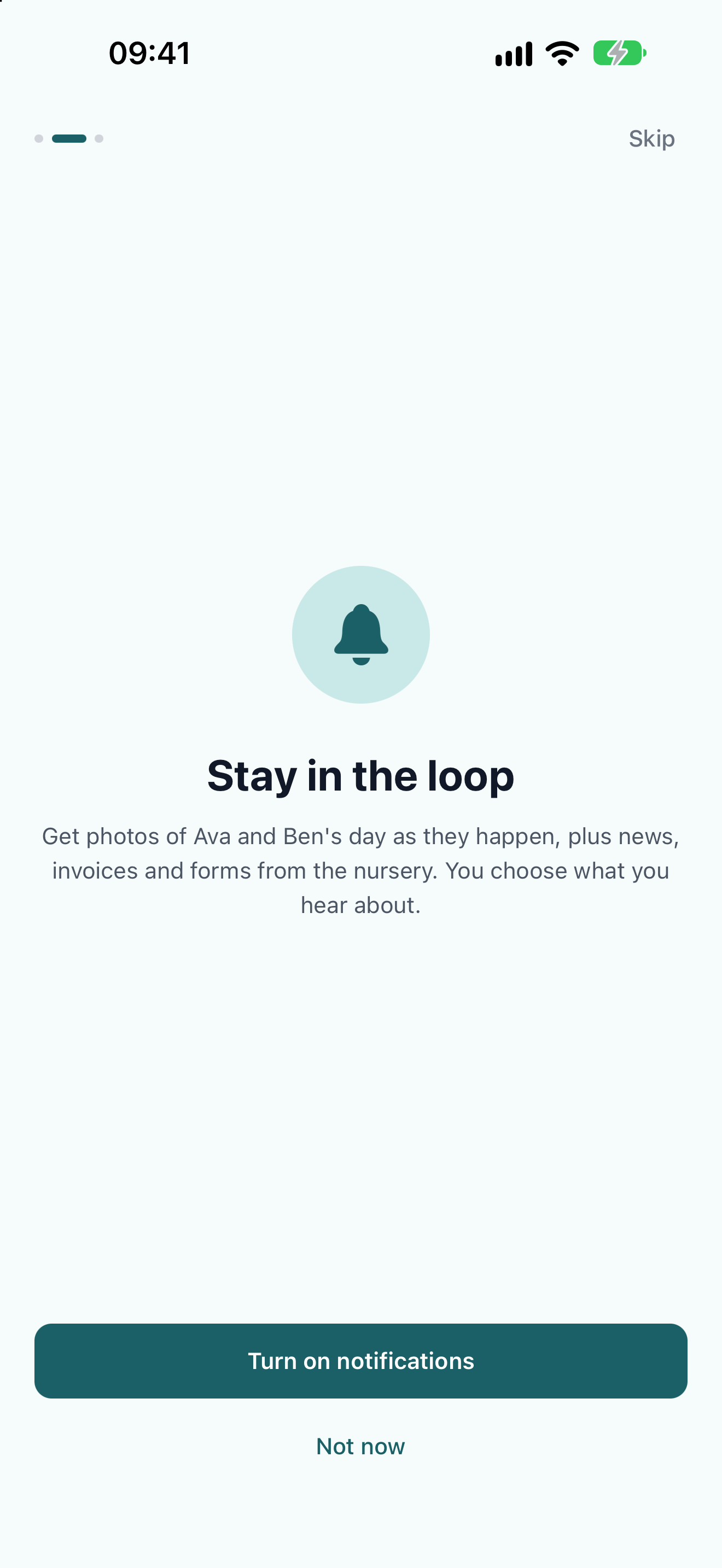
The first time you open the app on a phone, it walks you through a few quick steps. You can tap Skip at any point and change everything later in Me → Notifications & settings.- Welcome: a quick look at what’s in the app. Tap Get started.
- Stay in the loop: tap Turn on notifications to hear about photos, news, invoices and forms. Your phone then asks you to allow notifications. Tap Not now if you’d rather decide later.
- What would you like to hear about?: if you turned notifications on, choose which kinds you want. See Notifications.
- Keep it private: if your phone has Face ID or a fingerprint reader, you can lock the app with it. See Face ID and Privacy.
The setup only appears once on each phone. If someone else signs in on the same phone later, the app keeps the choices already made, and they can change them in Me → Notifications & settings.
Staying signed in
- With Face ID or a fingerprint turned on, you stay signed in. Each time you unlock the app, your sign-in is renewed. You only need to sign in again if you don’t open the app for 10 days.
- Without it, you’ll be asked to sign in again every 10 days.