
Approving & Managing Funding Forms
Approving and rejecting forms
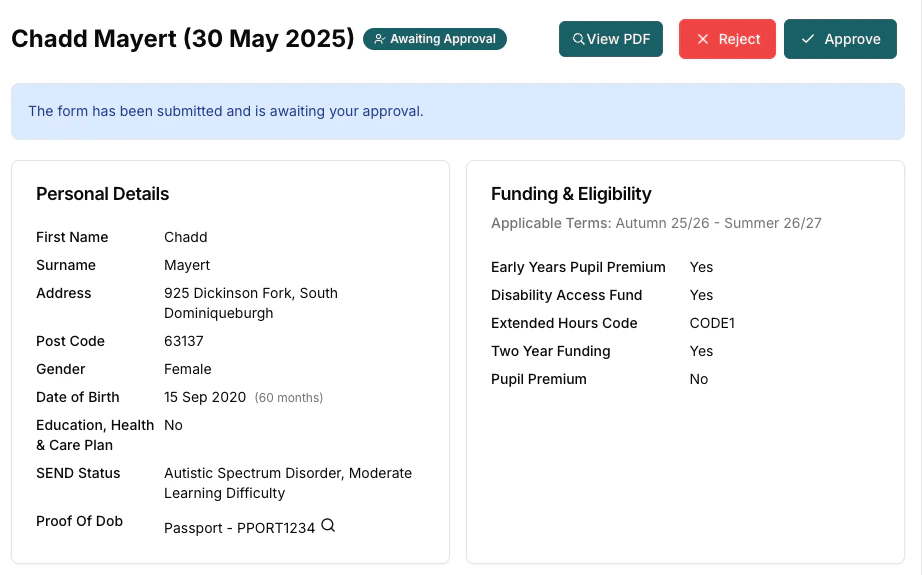
Once parents have submitted their form, you will be notified by email and the status in the funding form list will change to ‘Awaiting Approval’. From here you can click the ‘view’ (magnifying glass) icon on the form to view the form.
- Approve: Finalize the funding form and sign for its completion. The Approve button only appears while the form is in the Submitted (Awaiting Approval) stage.
- Reject: Return to parents with comments for corrections.
Rejecting an already-approved form
The Reject button also stays available on forms you have already Approved. If you reject an approved form, Pigeonhole shows a warning: Only reject an approved form if the funding data has changed and you genuinely need the parent to complete and re-sign it, because it returns the form to the parent and clears your approval.Before submitting claims, you can cross-check your approved funding data against your council’s live register export using the Live Register Check. It flags funding code errors, data mismatches, and missing children.
Manually updating forms
For various reasons, some parents might not be able to complete and sign a form online. A manual form covers both of these situations:- Print and upload — you generate a pre-filled form, the parent signs it on paper, and you scan and upload it. Covered in this section.
- Sign in the office — the parent signs on your screen while they are with you, with nothing to print or upload. Covered in Signing in person on your device below.
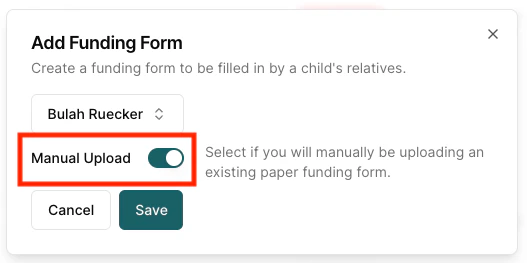
- From the Funding Forms page: Go to the Funding Forms page and click “Add Funding Form”.
-
Select the child and make sure ‘Manual Upload’ is selected.
-
The form will now show in the list with the manual icon.

- Click the Edit (pencil) icon to edit the form
- Verify the funding hours and chargeable hours sections that have been pre-filled and click ‘Save’.
- You can also at this stage fill in any other information (Parents’ NI Numbers, DOBs, extended codes), and any proof of date of birth if required. This will then be pre-filled on any further form renewals.
For new forms, you only need to input the DOB type and number. You don’t need to upload the DOB if you have already seen it.
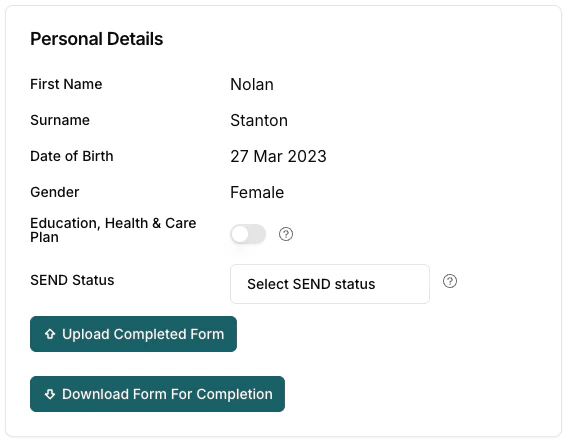
- You will now see a ‘Download Form for Completion’ button. This generates a personalised form for that child pre-filled with all the information.
If the parent is with you rather than taking the form away, you don’t need to print or upload anything — they can sign straight on your screen. See Signing in person on your device.
- When you have received the signed form back, click ‘Upload Completed Form’ to upload the form that has been signed.
- Finally, submit the form for approval. You can then approve and sign for the form as you would on a normal funding application.
Signing in person on your device
If a parent can’t access the online form but is physically with you — at drop-off, pick-up, or in the office — they can sign the form on your screen. The parent does not need a Pigeonhole account, an email address, or an invite.- Go to the Funding Forms list and find the child’s form. If it is an online form, click More Actions (…) and select Convert To Manual.
- Click the Edit (pencil) icon to open the form.
- Check the funded hours, chargeable hours and terms are correct.
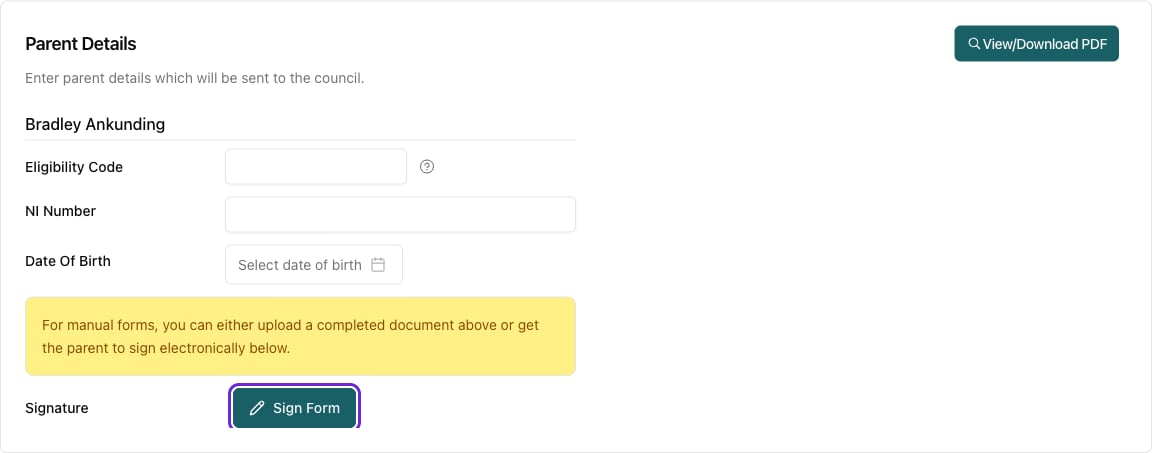
- Enter each parent’s Eligibility Code, NI Number and Date of Birth.
- Click Save. The Sign Form buttons only appear once you have saved — see the note below if you can’t find them.
- Click View/Download PDF and let the parent read the form and the parental declaration.
- Hand them the device and click Sign Form next to their name. They sign with a finger, stylus or mouse, and confirm the declaration.
- Repeat for every parent marked Has Parental Responsibility — both can sign in the same sitting.
- Click Submit For Approval, then approve and sign the form off as you would any other.
There is nothing to print, scan or upload on this route. The signature captured on screen replaces the uploaded document.
Converting forms to a manual form
You can easily switch a funding form between “manual” and “online” modes, depending on how the form will be submitted.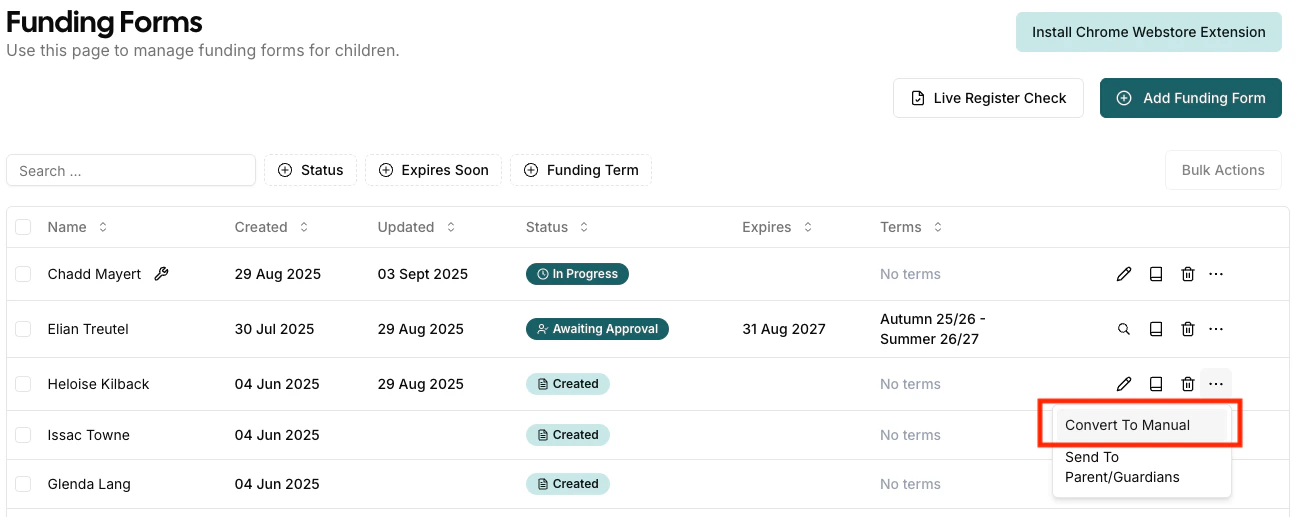
- Go to the Funding Forms list and find the form you want to change.
- Click the More Actions (…) icon next to the form.
- Select ‘Convert To Manual’ To convert a manual form back to online:
- Go to the Funding Forms list and find the form you want to change.
- Click the More Actions (…) icon next to the form.
- Select ‘Convert To Online’
Renewing forms
When a funding form is due to expire, you can easily create a new form based on the previous data. Next to the approved form, select ‘Renew Funding Form’ under more actions (…). This will create a new form pre-filled with all the child’s details, with everything copied from the previous form.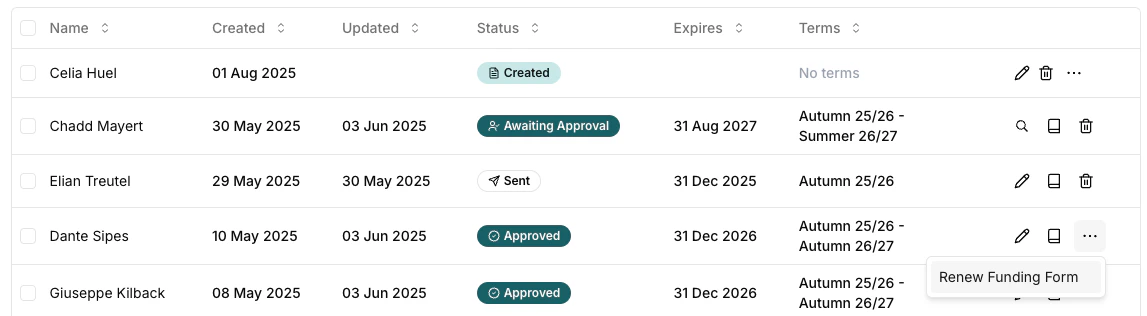
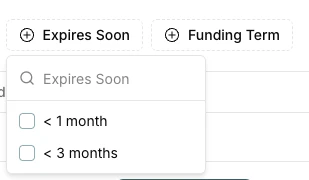
Copying forms to other children
The Copy To feature allows you to duplicate an existing funding form to another child. This is particularly useful for siblings or children with similar funding arrangements, saving significant time on data entry. How to use Copy To:- Navigate to the Funding Forms list page
- Locate the form you want to copy
- Click the More Actions (…) button next to the form
- Select Copy To from the dropdown menu
- Select the target child from the list
- A new funding form will be created for the selected child with all funding and charge data copied from the original
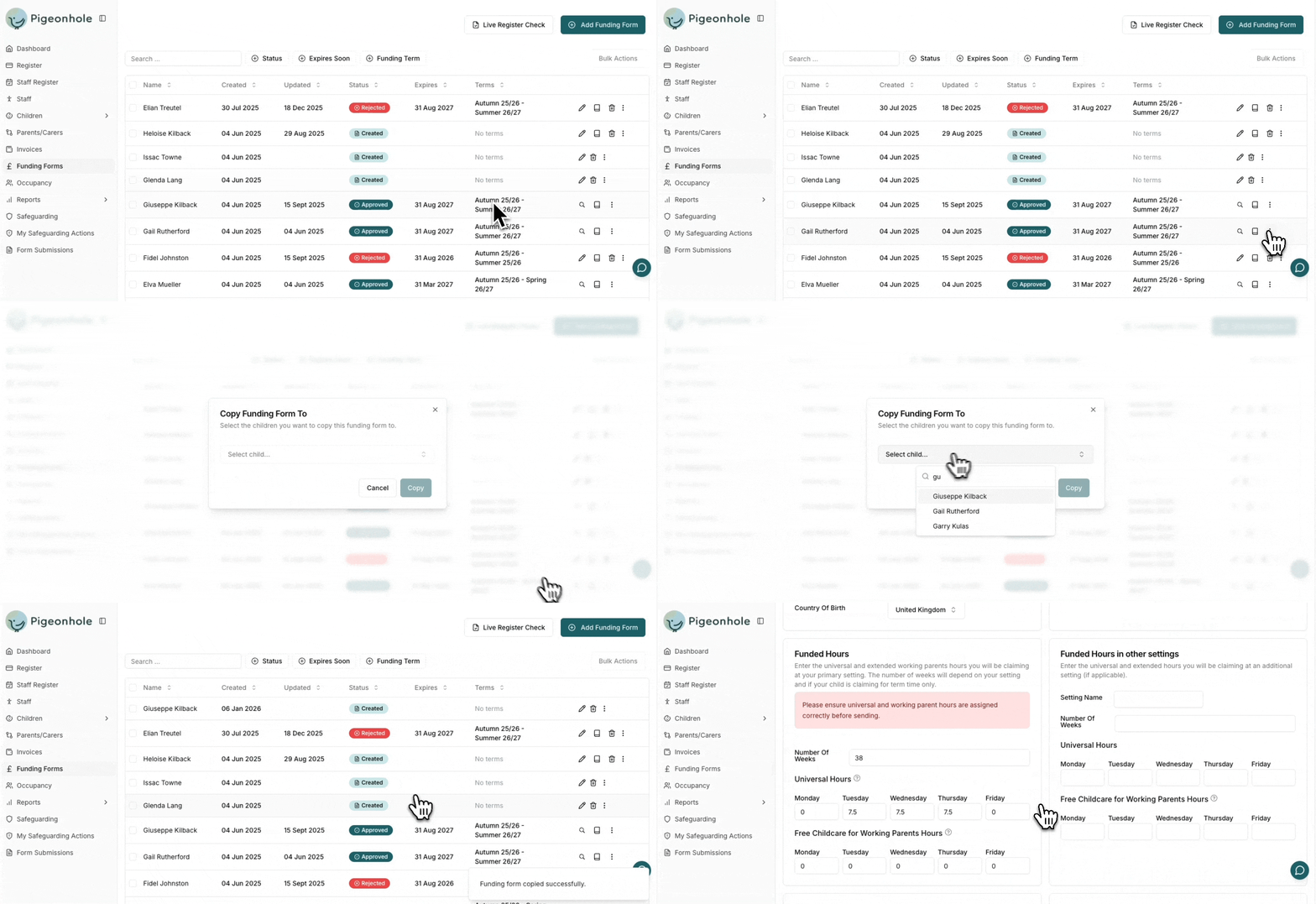
The Copy To feature copies all funding and charge to the new childs funding form. This is useful if you are not using the Pigeonhole invoicing system and are managing funding forms manually.