
Open in app: Funding Forms.
The Live Register Check button only appears for settings whose council uses a compatible portal. If you don’t see it on your Funding Forms page, your council isn’t set up for this check.
Running a Check
- Go to the Funding Forms page.
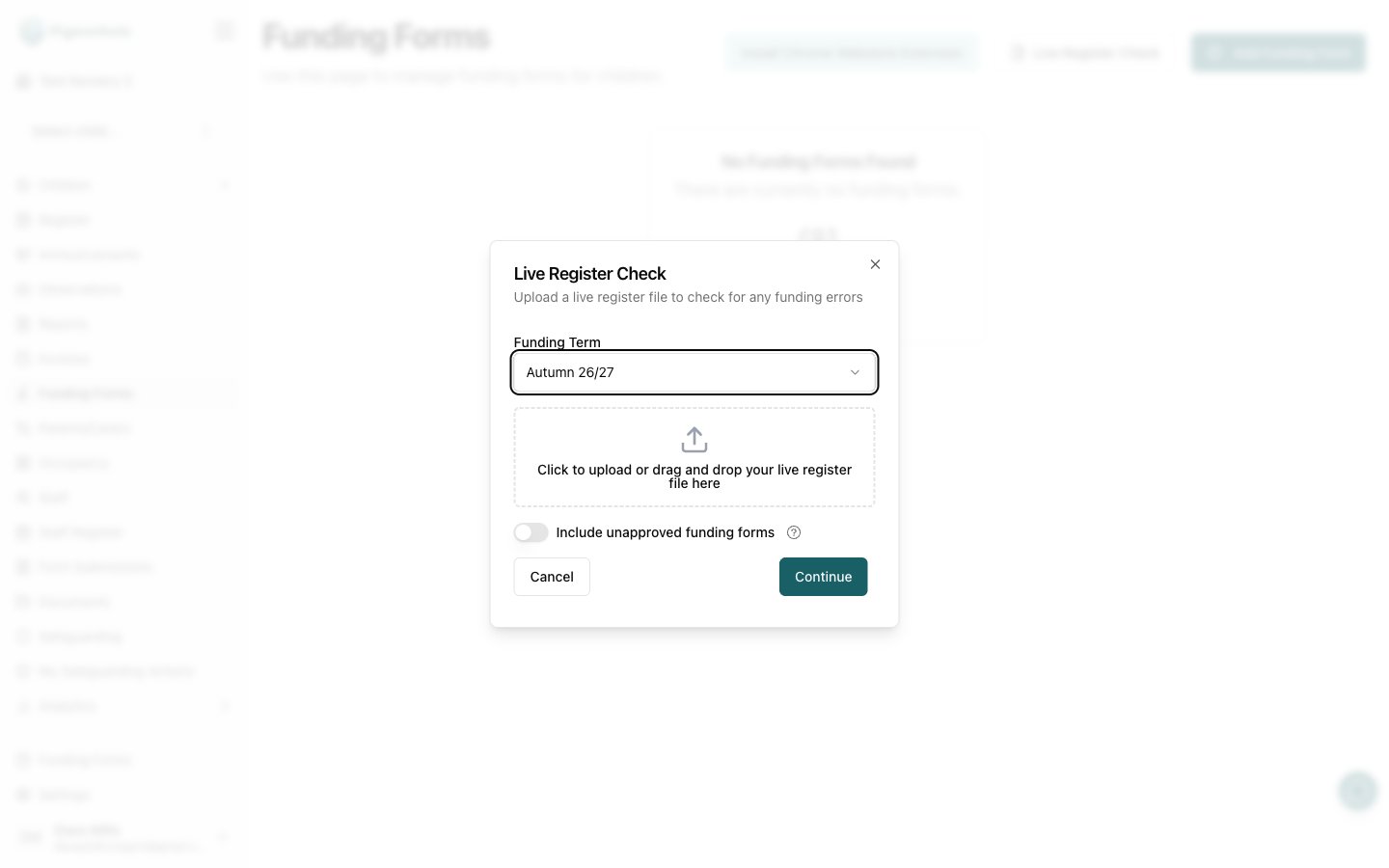
- Click Live Register Check in the page header.
- Choose the Funding Term you want to check. Pigeonhole pre-selects the next upcoming term, but you can change it.
- Upload your live register file:
- Drag and drop the file onto the upload area, or click it to browse.
- The file must be a .csv export from your council portal, up to 5MB.
- Optionally turn on Include unapproved funding forms to also compare forms that have been submitted but not yet approved.
- Click Continue to run the check.
Reading the Results
The results open in a dialog with three tabs. Each tab shows a green tick if there are no problems, or a red alert icon if issues were found.Funding Code Errors
Lists children whose funding code has a problem (for example, an invalid or expired code). For each child you’ll see their name and a short description of the issue. This is the one tab with an action you can take directly: click Send Reminder next to a child to notify their parents about the funding code issue. Once sent, the row shows Notified so you can see who has already been contacted.Data Mismatch Errors
Lists differences between the data held in Pigeonhole and the data in the council’s live register — for example, hours or dates that don’t match. Each row shows the child’s name and what differs. Review these and correct whichever record is wrong (either the child’s details in Pigeonhole or the council portal).Missing Children
Lists children who appear in one system but not the other — a child in your live register with no matching record in Pigeonhole, or vice versa. Use this to spot children who still need a funding form, or entries that shouldn’t be on the council register.Resolving Discrepancies
- Funding code errors — use Send Reminder to prompt parents to correct their code, then re-run the check once they’ve updated it.
- Data mismatches — compare the two systems and update whichever record is out of date, then re-run the check to confirm it’s resolved.
- Missing children — create the missing funding form in Pigeonhole, or resolve the discrepancy in the council portal.