Managing Absences
Recording an Absence
When a child will not be attending:- Locate the child in the register
- Tap the red absence button
- Complete the absence form:
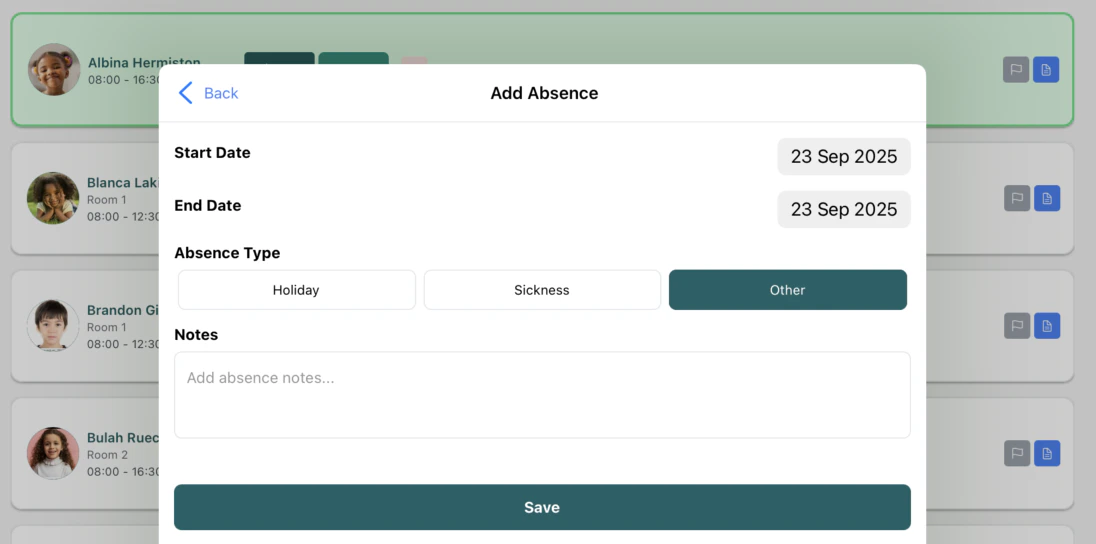
- Start Date: First day of absence
- End Date: Last day of absence (can be same day)
- Type: Choose from Holiday, Sickness, or Other
- Notes: Optional details about the absence
- Tap “Save” to record the absence
Viewing and Editing Absences
Children with recorded absences display differently grayed out appearance with reduced opacity to indicate they are not expected in.
- Tap the absence indicator showing the absence type
- Modify the details in the form
- Save changes or tap “Delete” to remove the absence
Adding Notes
Notes allow you to record important observations, incidents, or communications about children.Creating Notes
- Find the child in the register
- Tap the flag icon (notes button)
- In the notes modal:
- Enter your observations or messages
- Notes are automatically associated with today’s date
- Multiple staff members can add to the same child’s daily notes
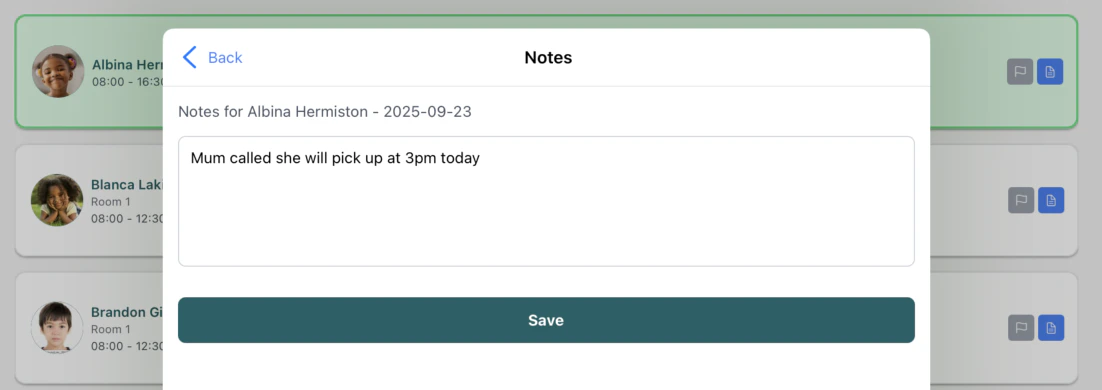
- Tap “Save” to store the notes
Notes are visible to all staff members and can help with communication between shifts and teams.
Room Management
Switching Room Views
The register can filter children by room assignment:- Tap the room filter button at the top right
- Select from available rooms:
- All Rooms (default view)
- Individual room names
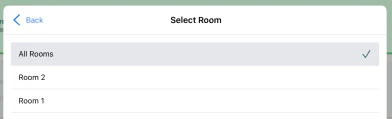
- The list updates to show only children assigned to the selected room
- Attendance statistics update to reflect the filtered view
Room filtering is particularly useful in large nurseries or when staff are responsible for specific areas.
Viewing Child Profiles
Opening Profile Details
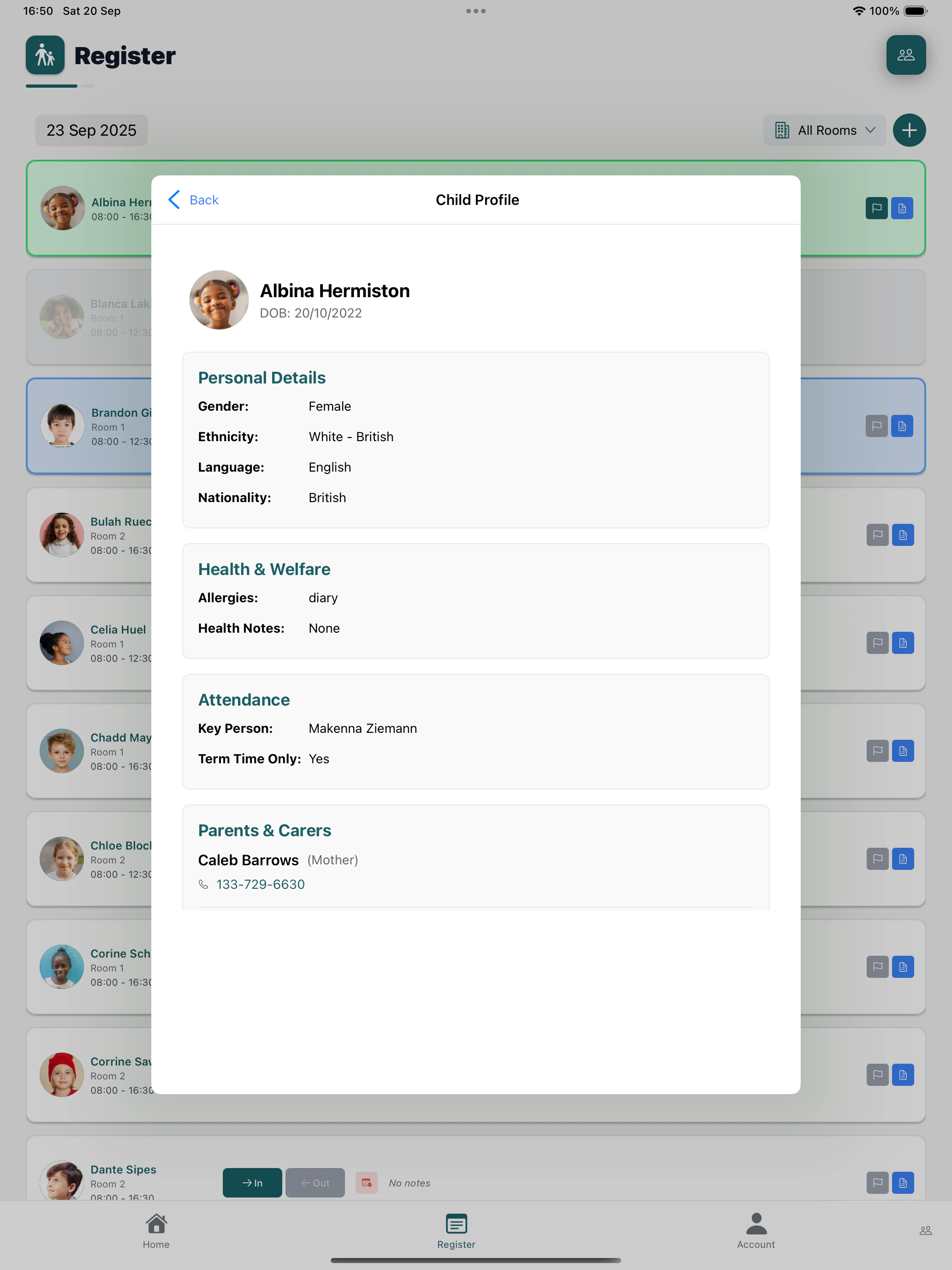
To view comprehensive information about a child:- Tap on the child’s name or profile picture
- The child profile modal opens showing:
- Full contact information
- Parent/guardian details
- Medical information and allergies
- Dietary requirements
- Collection Passcodes