
Editing Times
Time corrections can be made when necessary: For Device Owner/Admin (Direct Edit):- Tap the displayed time after sign-in/out
- Time picker modal opens immediately
- Adjust time using the controls
- Tap “Save” or “Remove” to cancel the entry
- If you are signed in under your account, or in the Manager role, the time will be saved. If the app is signed in under someone else, please enter your 6-digit PIN for authentication
Managing Absences (Manager Only)
Recording Staff Absences
Absence management is restricted to managers:- Locate the staff member in the register
- Tap the red absence button (calendar with minus icon)
- Complete the absence form with required details
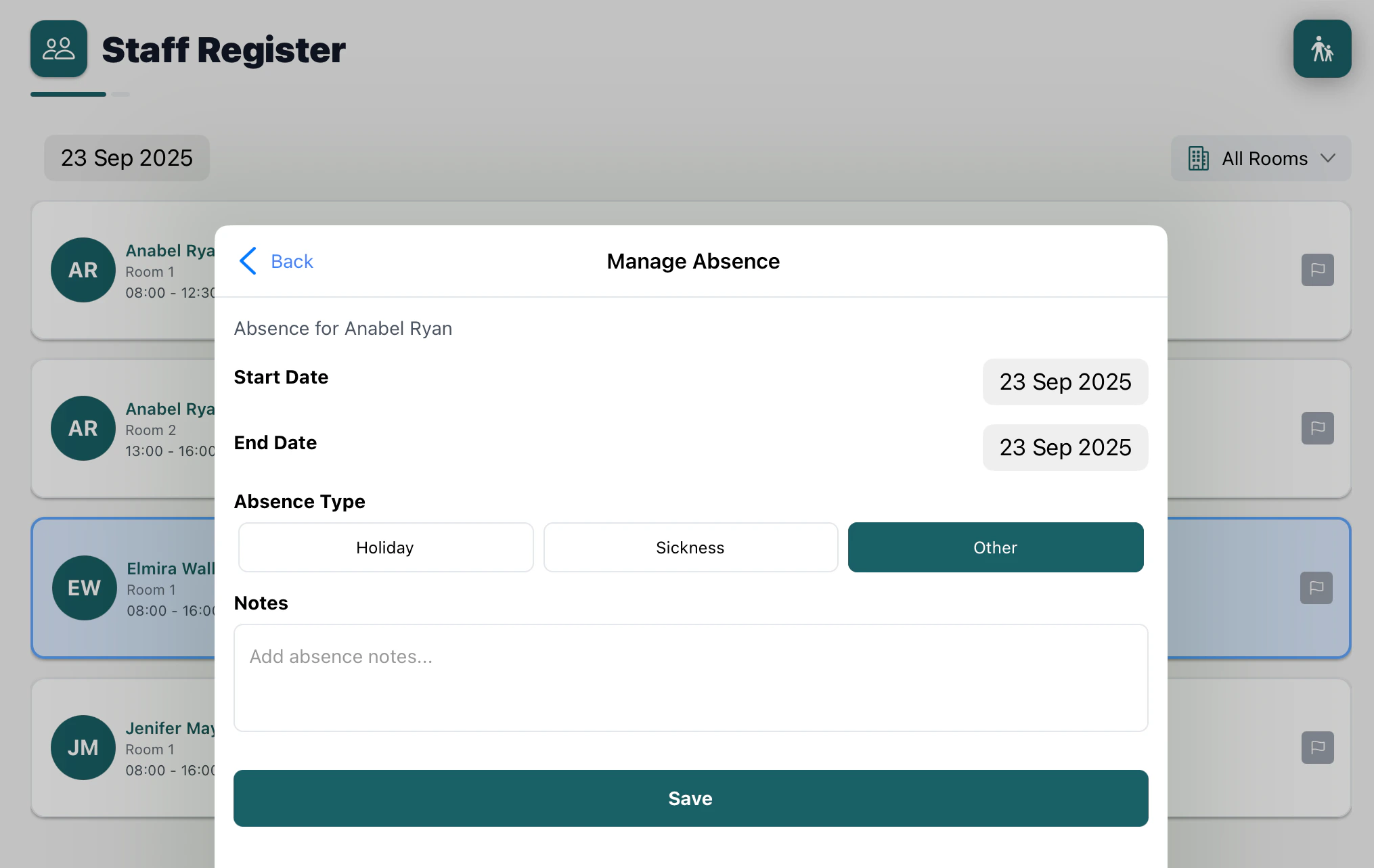
- Start Date: First day of absence
- End Date: Last day of absence
- Type: Holiday, Sickness, or Other
- Notes: Reason or additional details
- Tap “Save” to record the absence
Viewing and Editing Absences
Staff members with absences display:- Grayed out appearance with reduced opacity
- Absence type shown in colored badge
- Absence cannot be signed in/out while active
- Tap the absence indicator (Admin only)
- Update form details as needed
- Save changes or delete the absence

Only managers can create, edit, or delete staff absences. This ensures proper oversight of staffing schedules and coverage planning.
Adding Notes (Manager Only)
Creating Staff Notes
Notes provide a way for managers to record important information:- Find the staff member in the register
- Tap the flag icon (notes button) - Manager only
- Enter notes in the modal.
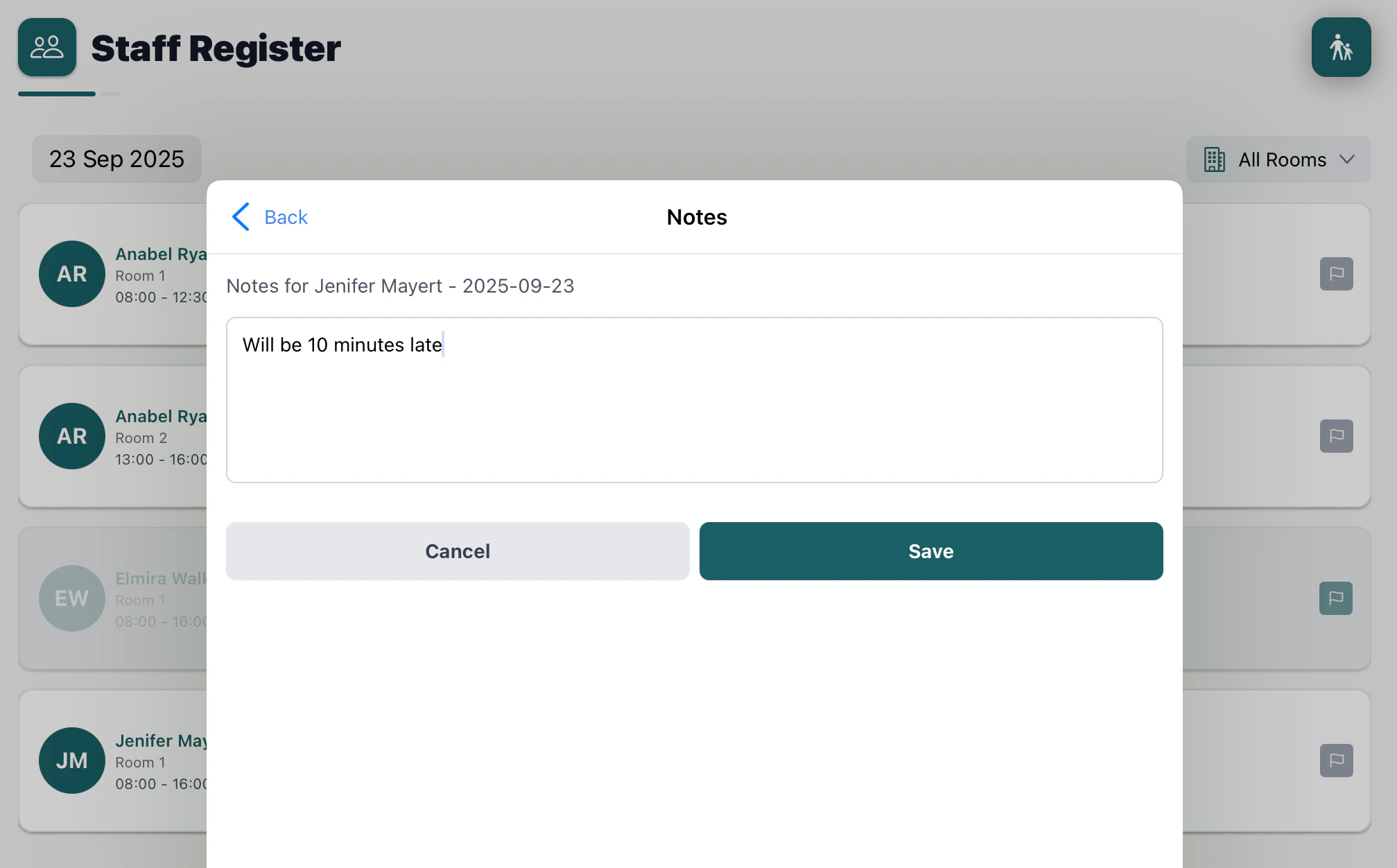
- Tap “Save” to store the notes
Staff notes are visible to all staff members.
Room Management
Filtering by Room Assignment
Staff can be filtered by their assigned rooms:- Tap the room filter button at the top
- Select from available options:
- All Rooms (shows all staff)
- Specific room names
- List updates to show only staff assigned to selected room
- Attendance statistics adjust to reflect filtered view