
Prefer a bigger screen? The termly reviews guide for the web covers the same steps. Reviews in the app need the latest version of the staff app.
Opening your reviews
Termly reviews live on the Development tab, next to observations. The tab opens on observations. The buttons at the top right open Home Moments, Termly reviews and a new observation.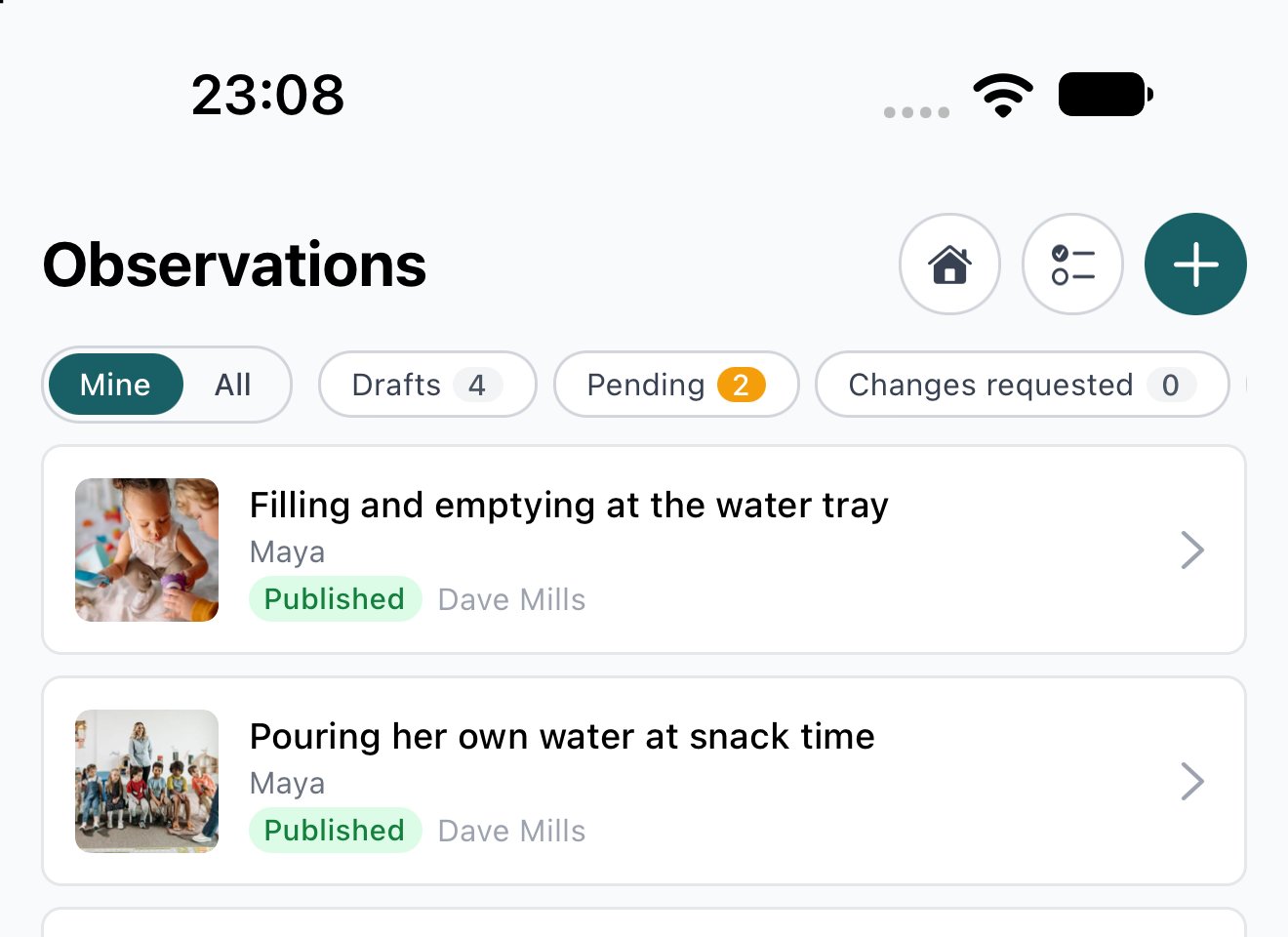
- Tap the Termly reviews button (the checklist icon).
- Pick your name and enter your PIN. Reviews hold notes about children’s development, so the app checks who you are before opening them.
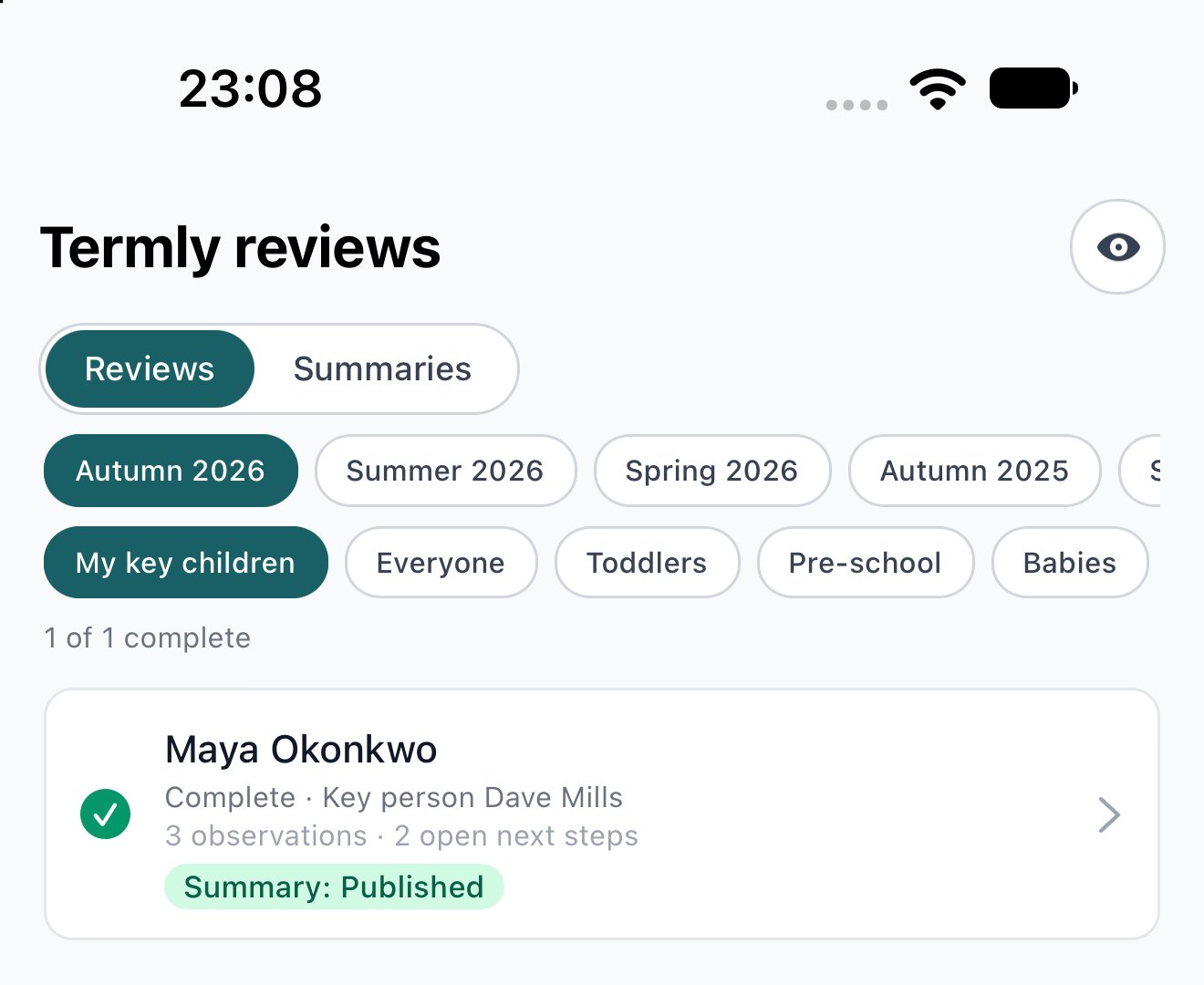
- Your key children for the current term appear. Tap the eye button at the top right to go back to observations.
Who can do a review
Only a child’s key person or a manager can start or change their review. Everyone else can open a review and read it, including the notes for the team, but can’t change it.- Tap Start on one of your key children to begin their review.
- A child with no key person can only be reviewed by a manager. Ask your manager to assign a key person if one of your children is missing from My key children.
Doing the review
The review screen shows where the review stands and what’s left to do. Come back to it whenever you’re interrupted.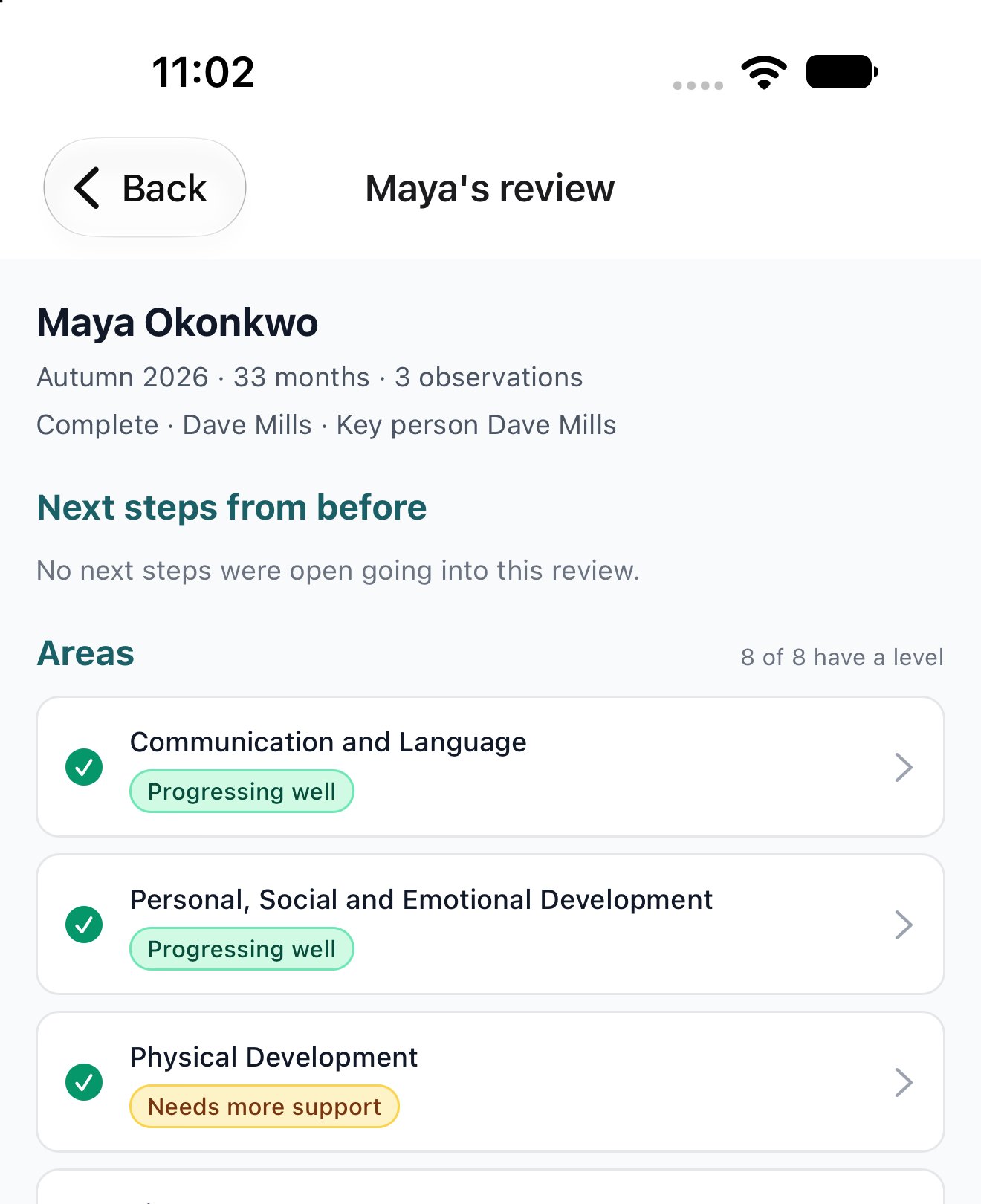
- Tap Prepare with AI to have the term’s observations read for you. It suggests a level for each area, what happened to each open next step, and some new next steps. You decide everything. If there isn’t enough in this term’s observations to go on, the review tells you, and you can add more observations or complete the review yourself.
- Under Next steps from before, tap Achieved or Drop for each next step. Anything you leave carries on into next term.
- Tap an area to open it.
One area at a time
Each area opens on its own screen with the AI’s summary and the observations it’s based on. Tap an observation to read it.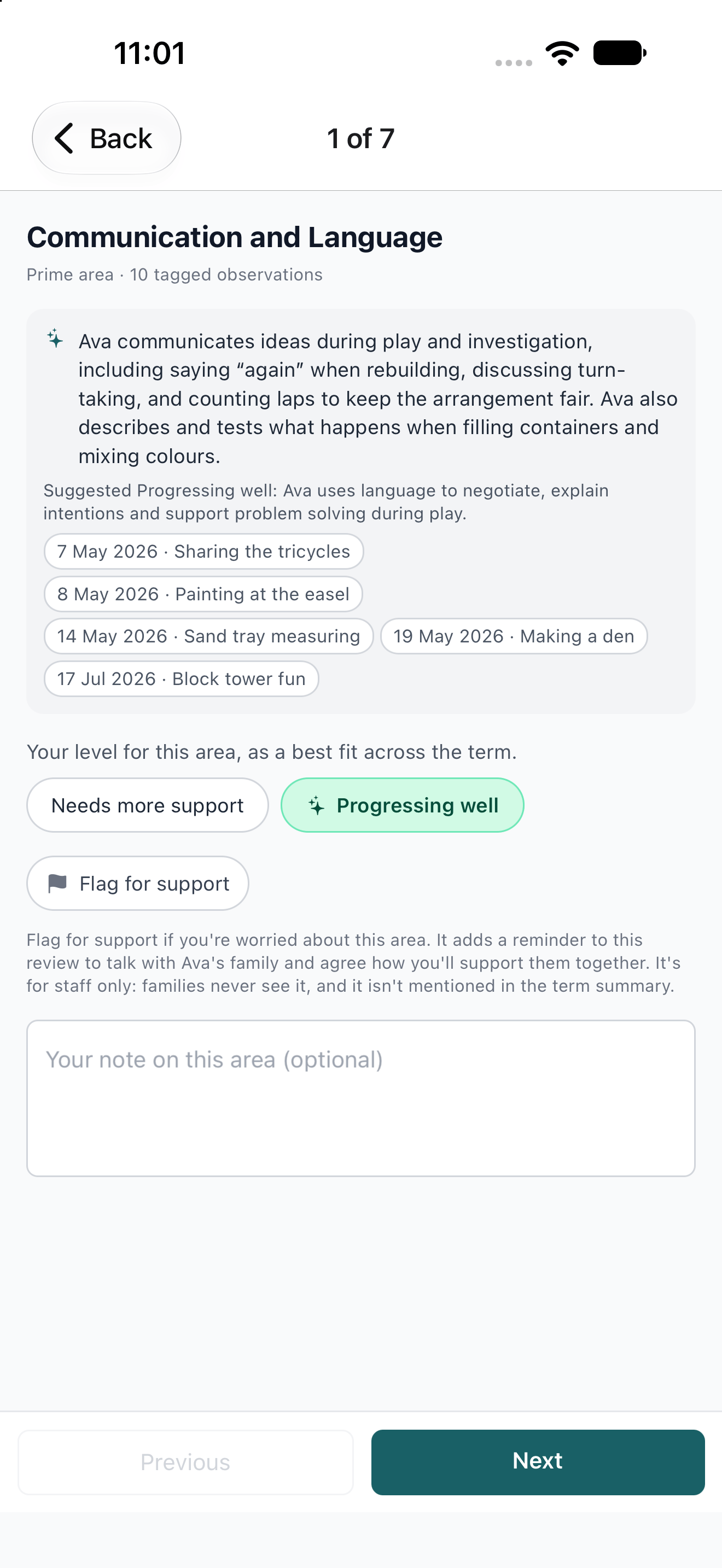
- The suggested level is already selected, marked with a sparkle. Tap a different level if it doesn’t fit.
- Tap Flag for support if something worries you, and add a note if it helps. A flag adds a reminder to the review to talk with the family and agree how you’ll support the child together. It’s for staff only: families never see it, and it isn’t mentioned in the term summary.
- Tap Next area to move on, or Previous to go back.
New next steps and notes
Back on the review screen, Accept, Edit or Remove each suggested next step, or tap Add a next step to write your own. Two to four in total is plenty. Switch off Share with the family to keep a next step for the team only. Add anything colleagues should know under Notes for the team. Families never see these.Completing the review
Tap Complete review. Suggested next steps you haven’t accepted are discarded. Depending on your setting, completing it also drafts the family’s term summary. Need to change something afterwards? A key person or a manager can tap Reopen.The term summary
From a completed review, open the term summary to check it before it reaches the family. You can edit each section, Draft again from the review (adding a note on what to change, such as “mention she’s started toilet training”), and fix anything flagged by your setting’s writing rules.- Tap Submit for approval to send it to a manager or publisher. Tap Withdraw to take it back.
- Managers and publishers can Publish it straight away, or Return with comment to send it back to the author.